





[Notebook] How to Enter Safe Mode
Please follow the steps below to enter Safe Mode:
- Enter Safe Mode from Windows when you can boot into the Windows operating system normally
- Enter Safe mode when you are unable to access the system
Enter Safe Mode from Windows when you can boot into the Windows operating system normally
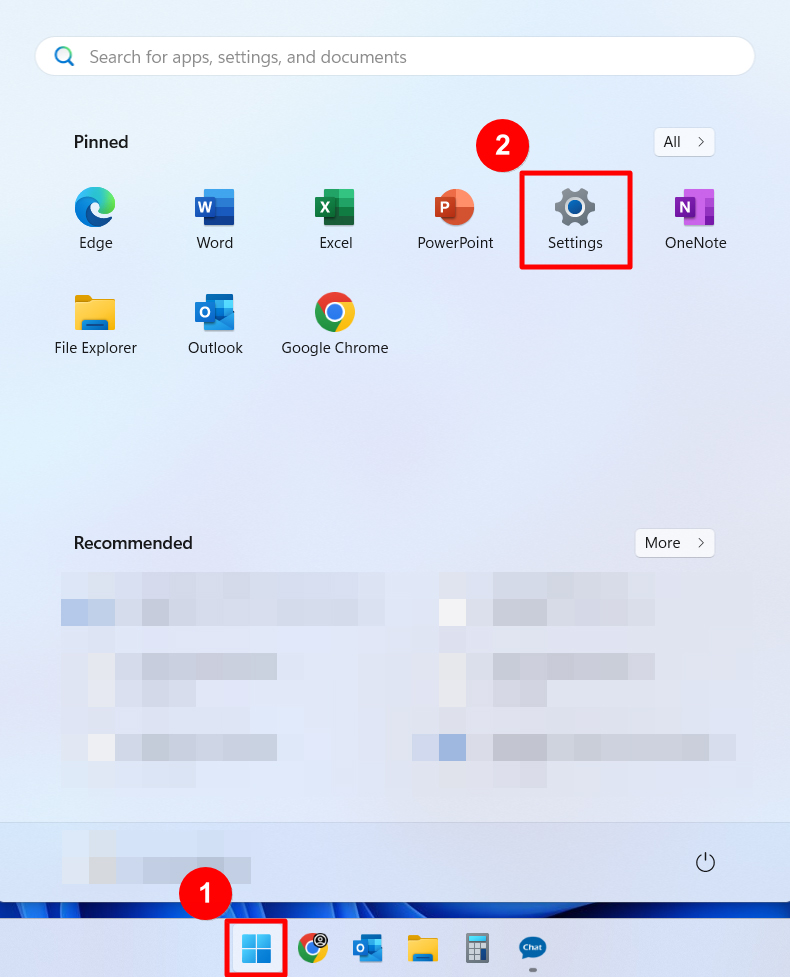
1. Click on the icon on the taskbar, then click "Start," and select "Settings."
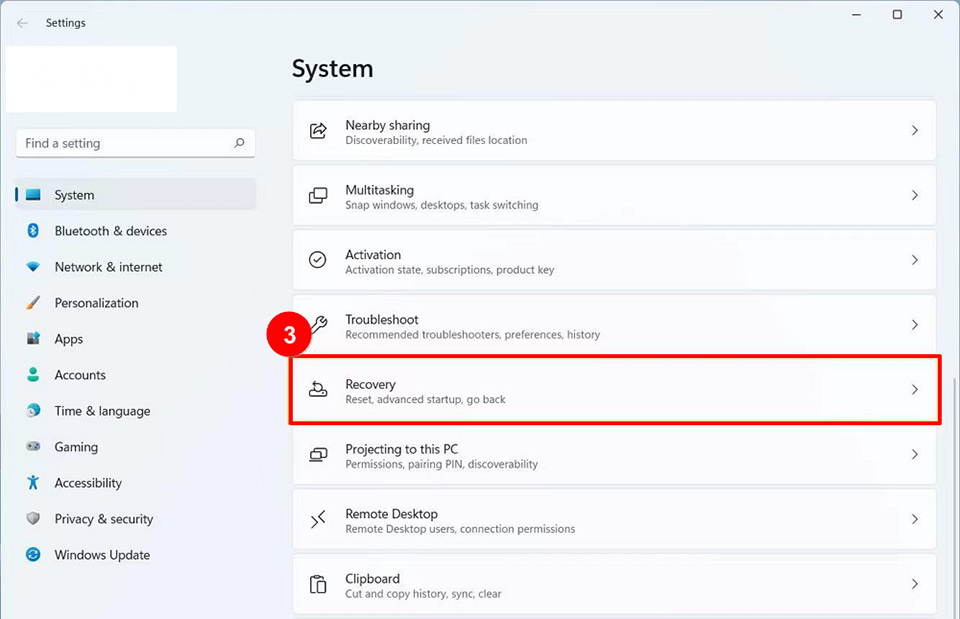
2. Click “Recovery”.
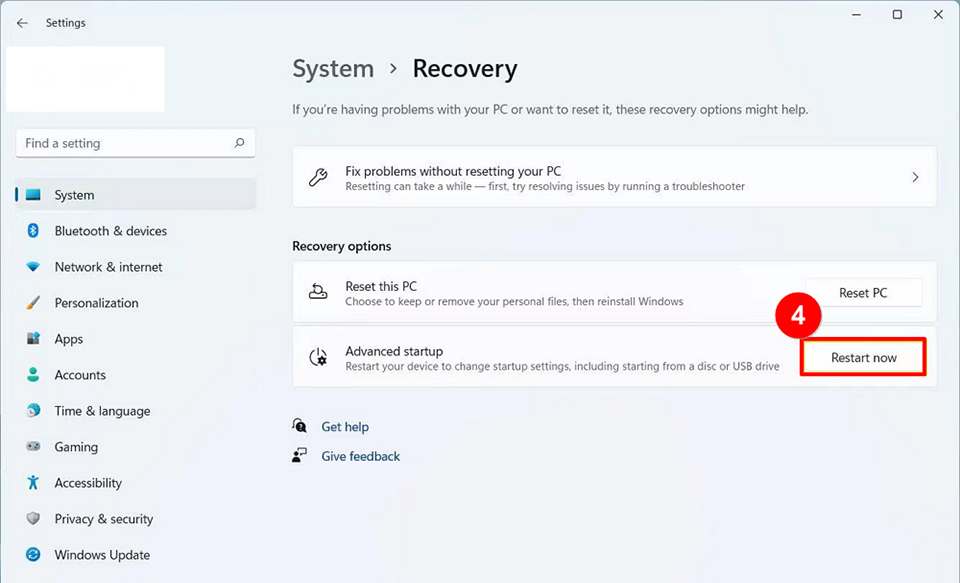
3. In the field, click on "Restart now" under "Advanced startup."
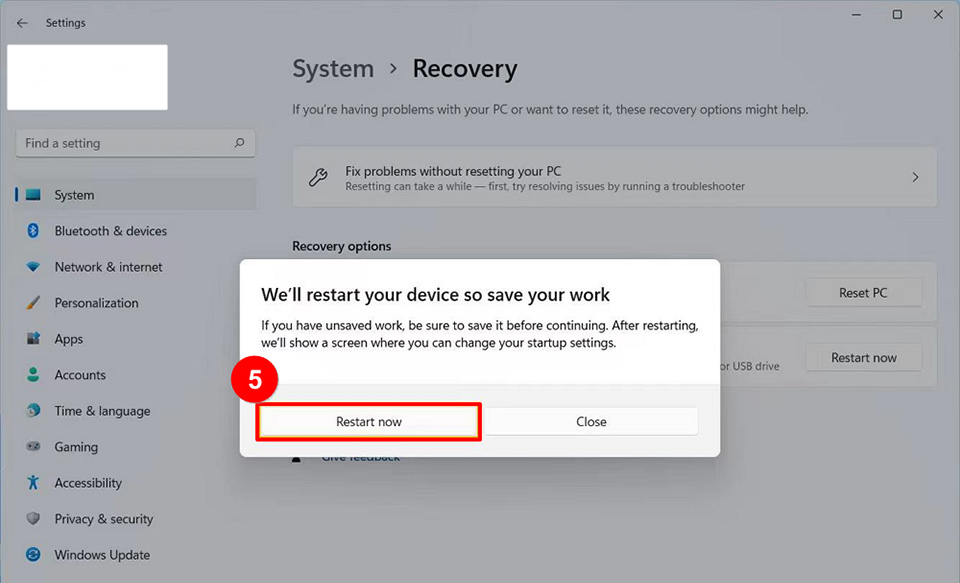
4. Click "Restart now," and the computer will reboot.
5. After rebooting, the computer will enter the Windows recovery environment. Click on "Troubleshoot."
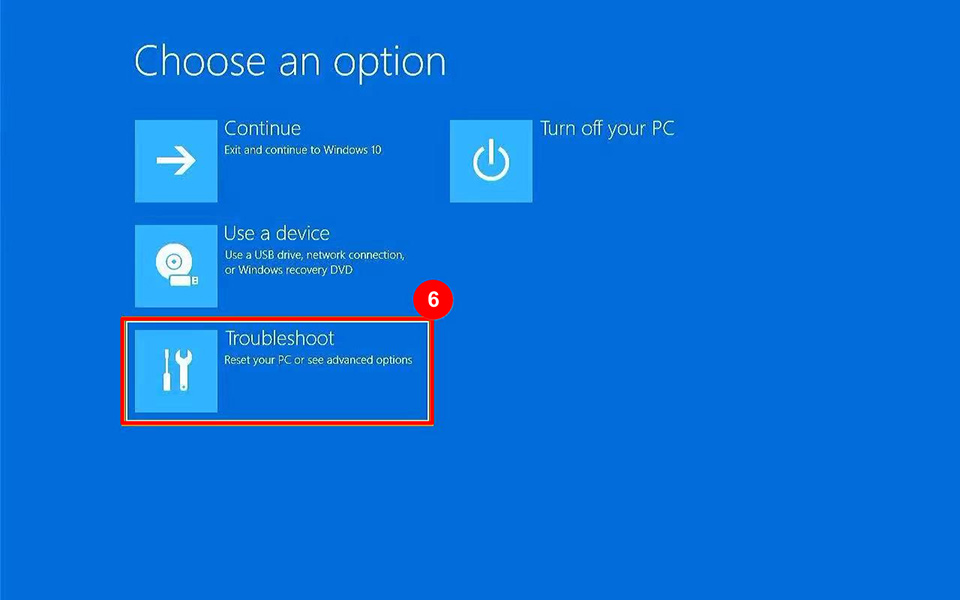
6. Click on "Advanced options."
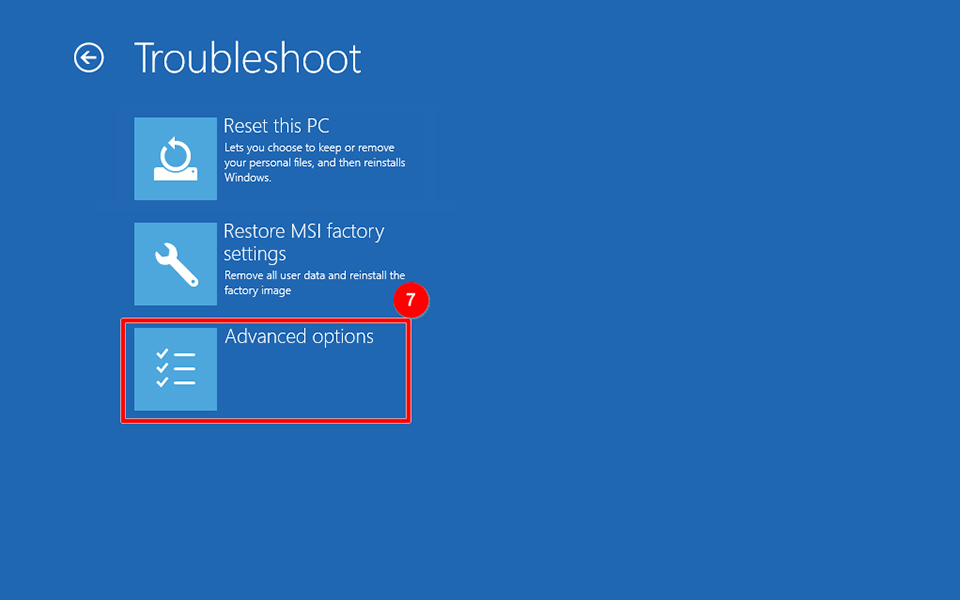
7. Click on "Startup Settings."
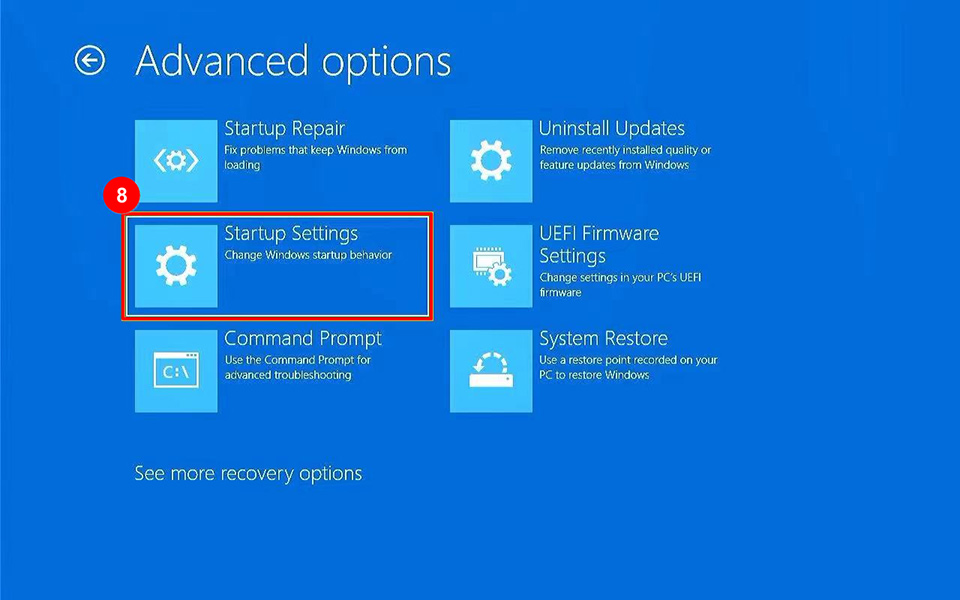
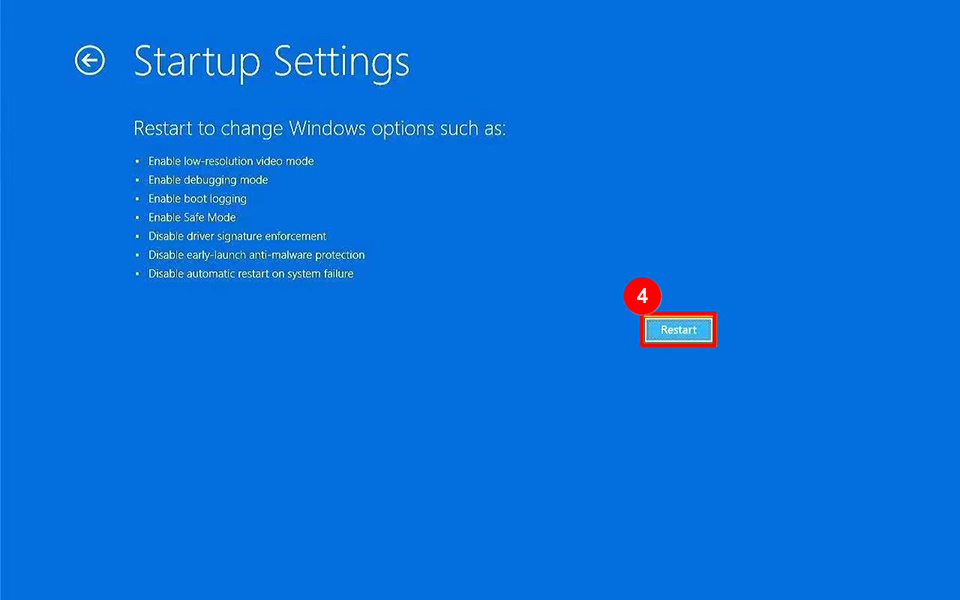
8. Click "Restart."
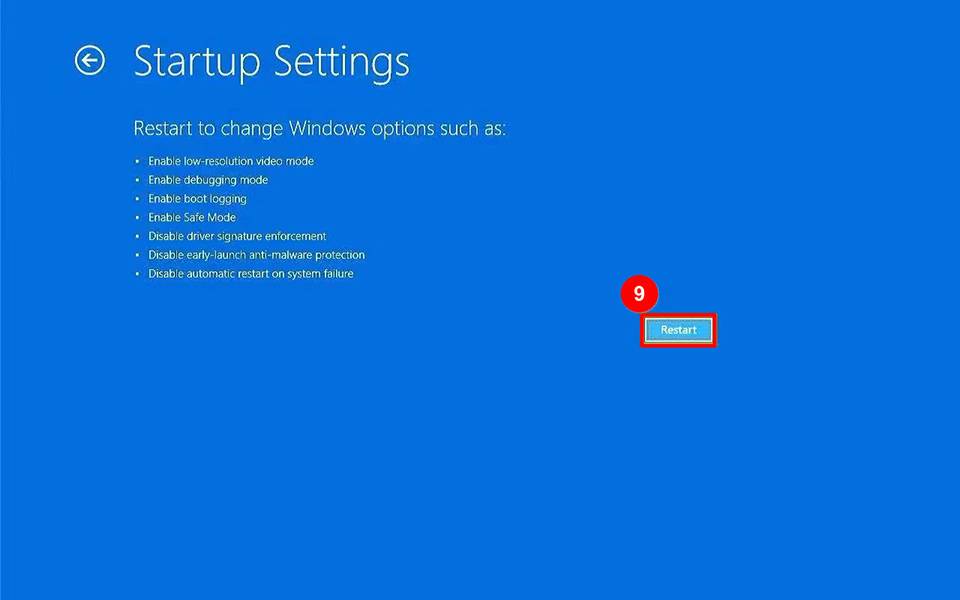
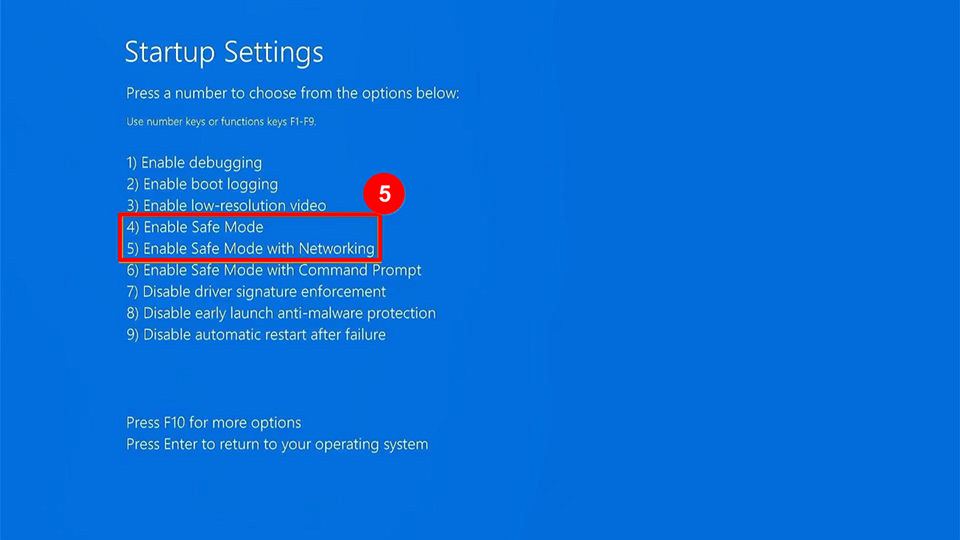
9. Select 4) Enable Safe Mode.
Press the number keys or function keys F1-F9 on the keyboard to choose the Safe Mode environment you want to enter; generally, it's recommended to choose 4. If you need to access network drivers and services required for accessing the internet and other computers on the network, please select 5) Enable Safe Mode with Networking.
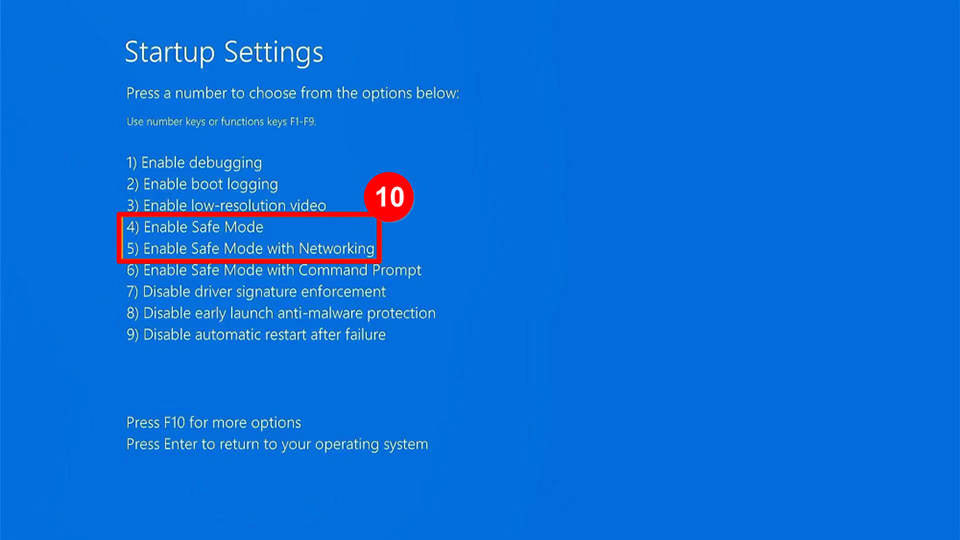
10. After selection, the computer will enter Safe Mode (the words "Safe Mode" will appear in the corner of the screen).

Enter Safe mode when you are unable to access the system
If your computer fails to boot into the system normally, you need to boot directly into the Windows recovery environment upon startup. After the computer boots, press and hold the power button for 15 seconds to force the computer to shut down.
1. Then, press the power button again to turn on the computer.
2. When the logo screen first appears, press and hold the F3 key or press the F3 key multiple times.
3. Your computer will completely restart and enter the Windows recovery environment.
4. After entering the Windows recovery environment, click on "Troubleshoot."
Note: If you do not see the troubleshooting options after entering the Windows recovery environment, it may be due to system damage. We recommend sending the device to your local MSI service center for further inspection.
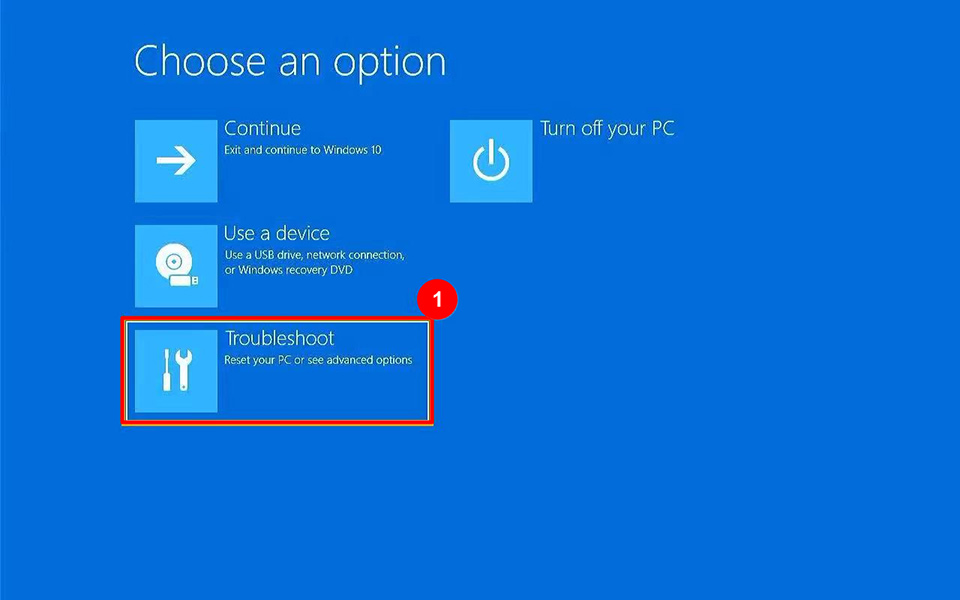
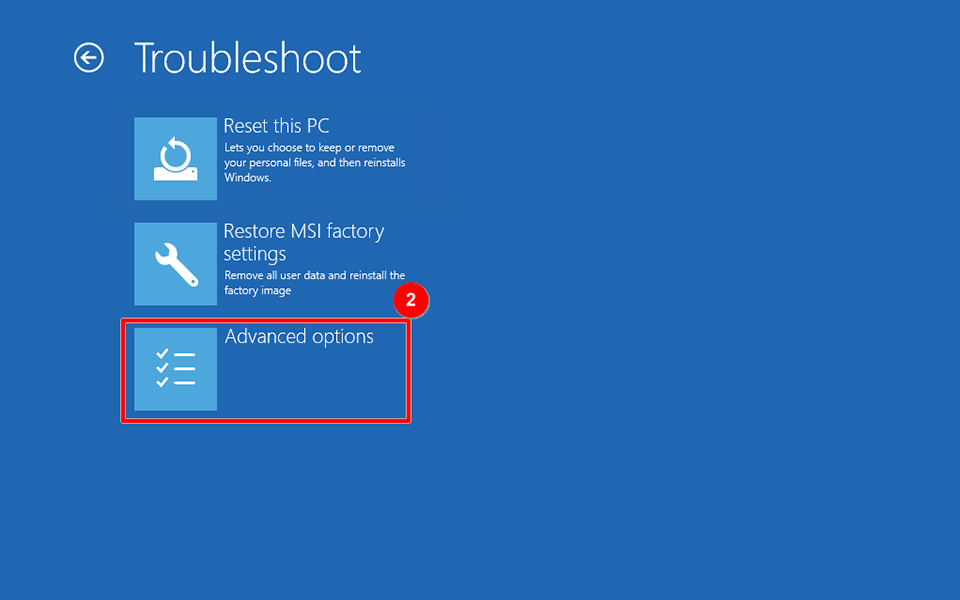
5. Click on "Advanced options."
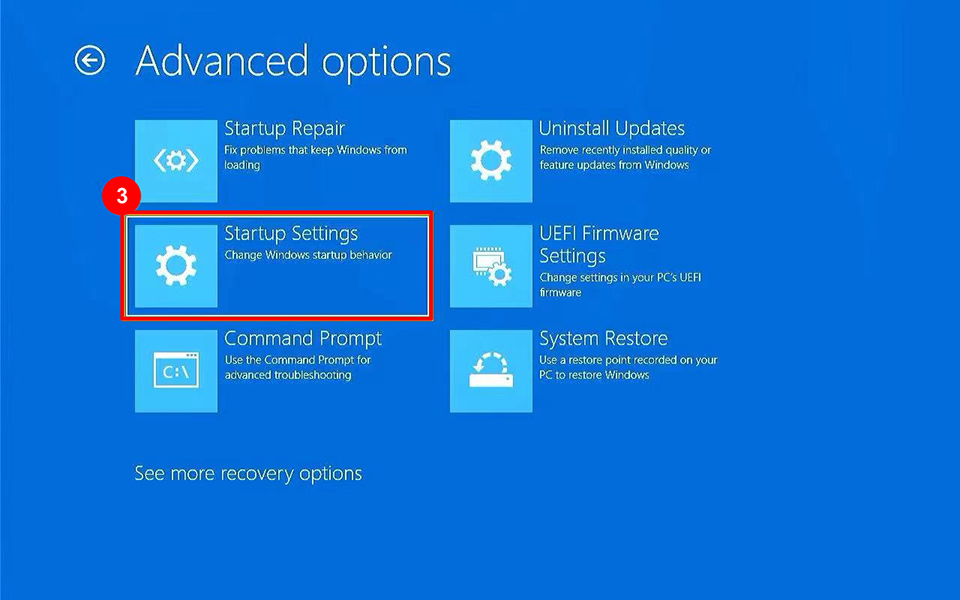
6. Click on "Startup Settings."
7. Click "Restart."
8. Select 4) Enable Safe Mode.
Press the number keys or function keys F1-F9 on the keyboard to choose the Safe Mode environment you want to enter. Generally, it is recommended to choose 4. If you need to access network drivers and services required for accessing the internet and other computers on the network, please select 5) Enable Safe Mode with Networking.
9. After selection, the computer will enter Safe Mode (the words "Safe Mode" will appear in the corner of the screen).

If you have followed the steps and the issue persists, please contact the MSI customer service center for further assistance.