

How to Quick Install Drivers with “ONE TOUCH” function
MSI Notebook drivers has been pre-packaged into “DriverCD” partition, and user can install system drivers with [ONE TOUCH INSTALL] function at one time. In order to prevent driver version conflicts, please do NOT use any third-party online update applications (Such as 3DP Chip/Net/Bench) to detect/install new drivers.
I. Install Windows on MSI Laptop
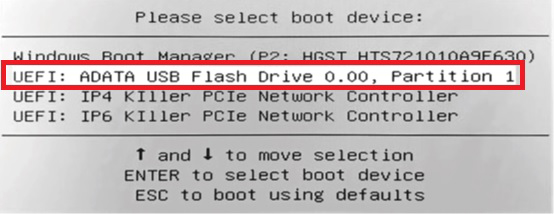
1. Boot system by Windows installation media (USB flash, optical disc, etc.). Please make sure your laptop is plugged in AC adapter and then press the [F11] key repeatedly to enter the boot menu while powering on laptop.Then select your Windows installation media in boot menu.
(The example here is booting by Windows installation
USB stick: Which is " ADATA USB Flash Drive 0.00 Partition 1 ")
2. Choose “Custom: Install Windows only (Advanced)” for windows installation type.
3. Strongly Recommended - you had better delete [EFI] system partition and the rest partitions:
[partition 2] except DriverCD partition. Then, select the unallocated space and create a new partition
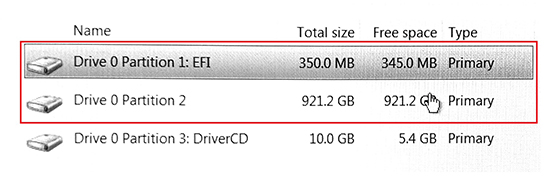
4. Choose the new drive partition to install Windows.
Note: Do Not format/delete/modify the [DriverCD] partition. Doing this will erase MSI driver package in it.
II. Install drivers with built-in tool for MSI Laptop
1. Go to “My Computer” and open “DriverCD” disk partition.

2. Launch the [CDSetup] to start installing new drivers.
3. Select [ONE TOUCH INSTALL] and system will automatically begin to install all drivers.
4. Press [OK] to continue the procedure.
5. Please make sure that you have turned on Bluetooth and WLAN before pressing [OK].
6. Please check if the checkbox of “Install Norton Protection Pack” has been checked (MSI recommends keeping a security software installed on your computer at all times.), and press [Next] to install all drivers and utilities.
Note: The security software installed here may vary by country and Notebook model.
7. System will reboot several times during the installation, please click “OK” button to continue and wait until the installation is complete.
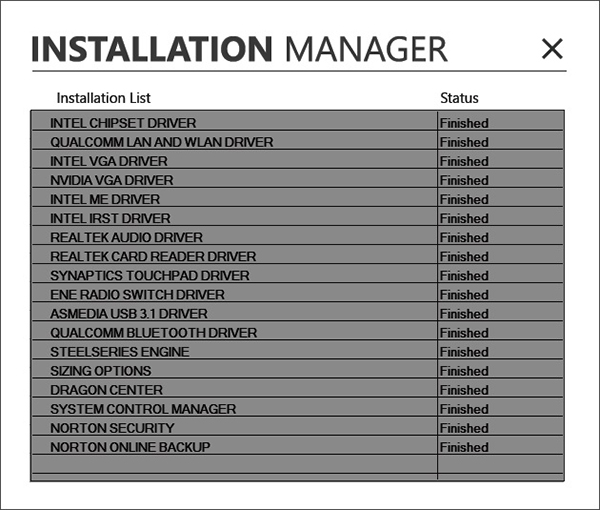
8. Installation completed. You can confirm the installation status and enjoy your new system.
MSI drivers with “ONE TOUCH” function are built with EFI Shell Project. Please refer to the copyright notice and license terms below.
EFI Shell Project Copyright (c) 2012, Intel Corporation. All rights reserved.
Redistribution and use in source and binary forms, with or without modification, are permitted provided that the following conditions are met:
* Redistributions of source code must retain the above copyright notice, this list of conditions and the following disclaimer.
* Redistributions in binary form must reproduce the above copyright notice, this list of conditions and the following disclaimer in the documentation and/or other materials provided with the distribution.
THIS SOFTWARE IS PROVIDED BY THE COPYRIGHT HOLDERS AND CONTRIBUTORS "AS IS" AND ANY EXPRESS OR IMPLIED WARRANTIES, INCLUDING, BUT NOT LIMITED TO, THE IMPLIED WARRANTIES OF MERCHANTABILITY AND FITNESS FOR A PARTICULAR PURPOSE ARE DISCLAIMED. IN NO EVENT SHALL THE COPYRIGHT HOLDER OR CONTRIBUTORS BE LIABLE FOR ANY DIRECT, INDIRECT, INCIDENTAL, SPECIAL, EXEMPLARY, OR CONSEQUENTIAL DAMAGES (INCLUDING, BUT NOT LIMITED TO, PROCUREMENT OF SUBSTITUTE GOODS OR SERVICES; LOSS OF USE, DATA, OR PROFITS; OR BUSINESS INTERRUPTION) HOWEVER CAUSED AND ON ANY THEORY OF LIABILITY, WHETHER IN CONTRACT, STRICT LIABILITY, OR TORT (INCLUDING NEGLIGENCE OR OTHERWISE) ARISING IN ANY WAY OUT OF THE USE OF THIS SOFTWARE, EVEN IF ADVISED OF THE POSSIBILITY OF SUCH DAMAGE.