
How to set up Voicemod Sync?
MSI is proudly collaborating with AI expert Voicemod.
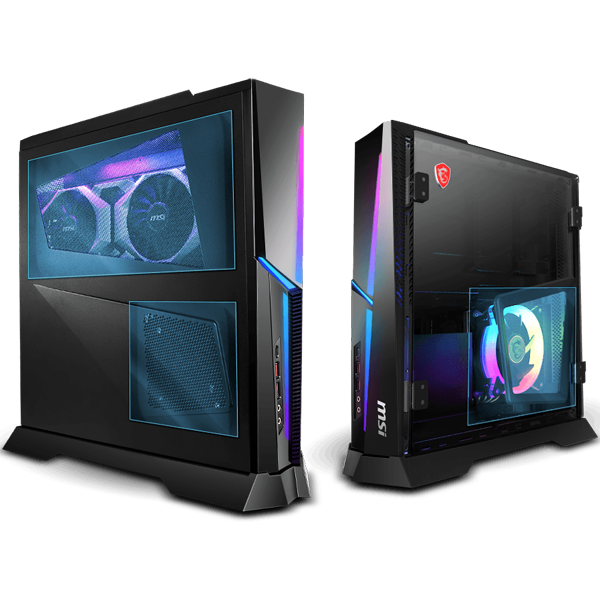
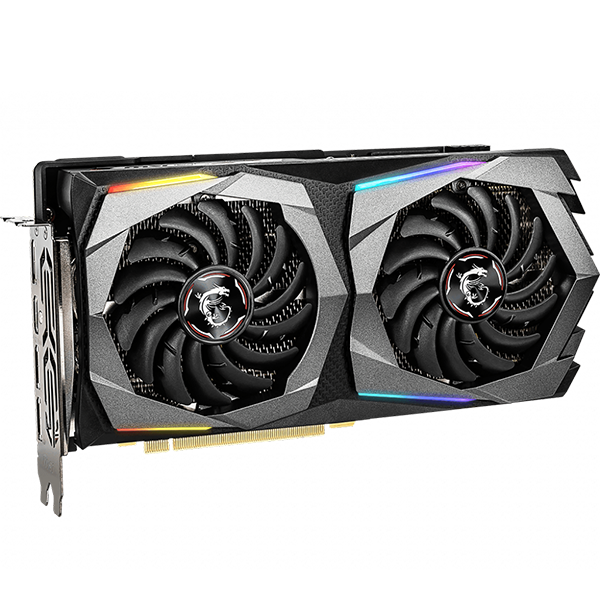
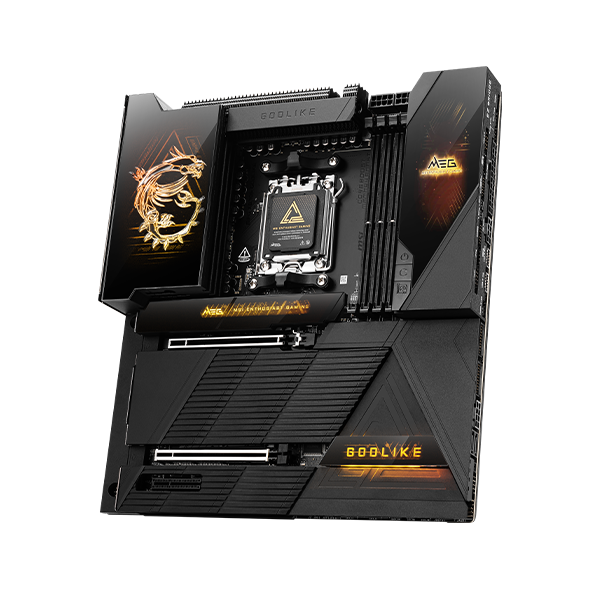
With the combined capabilities of Mystic Light App and Voicemod AI voice, streamers have a new way to engage audiences with fun audio and visual elements. Take control of MSI RGB lights with the Mystic Light App and enable reactive light effects on your Voicemod.
* Get Free Trial: https://www.msi.com/Landing/voicemod-pro-free-trial
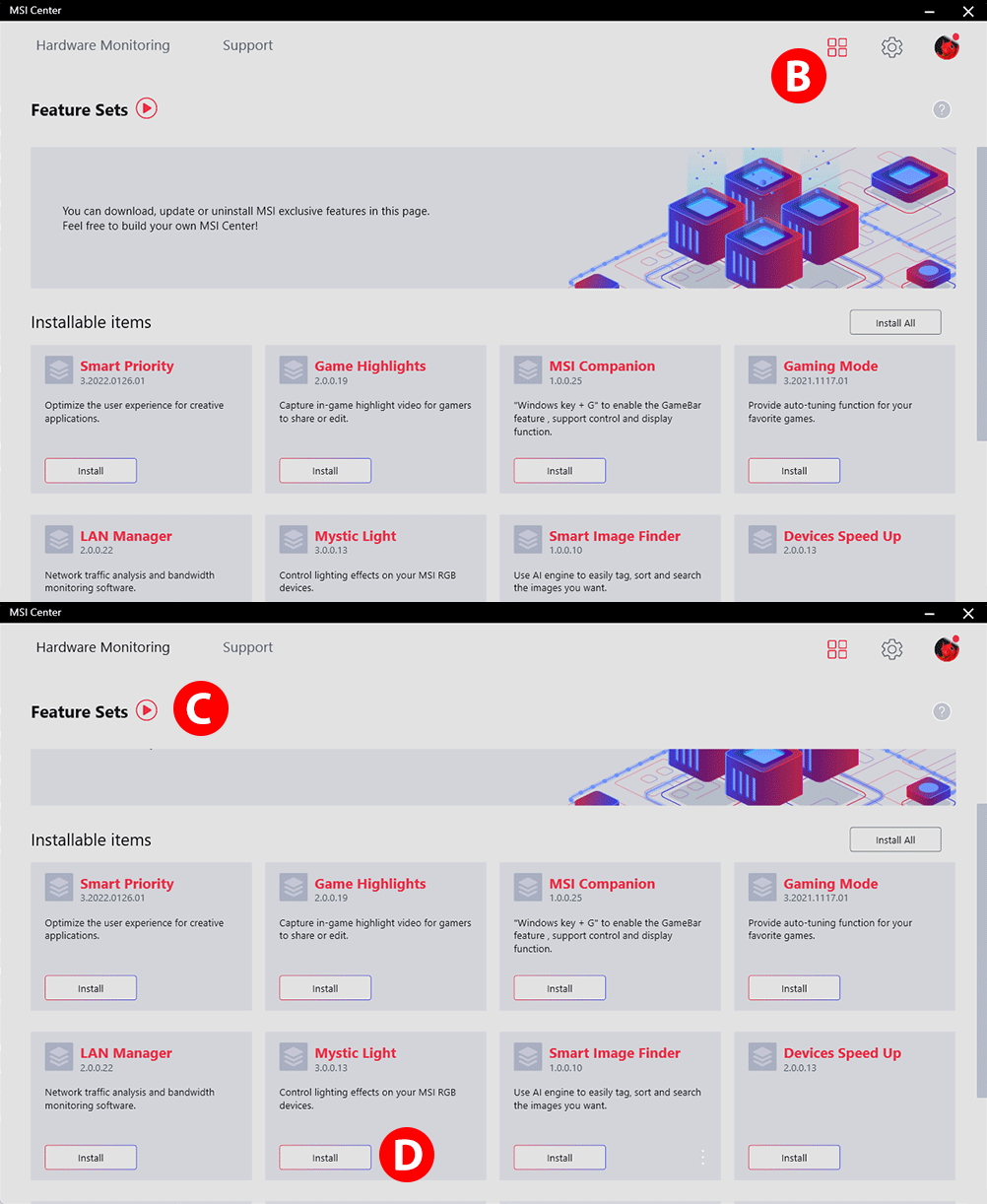
STEP 1: LAUNCH MSI CENTER & INSTALL THE MYSTIC LIGHT APP
A. Download MSI Center software. Install and reboot your system.
B. Launch MSI Center. Click square icon at the right top side to activate the Feature Set.
C. Click the Features Sets Tab and find the “Mystic Light” item.
D. Click Mystic Light "Install" icon to set the Mystic Light in place.
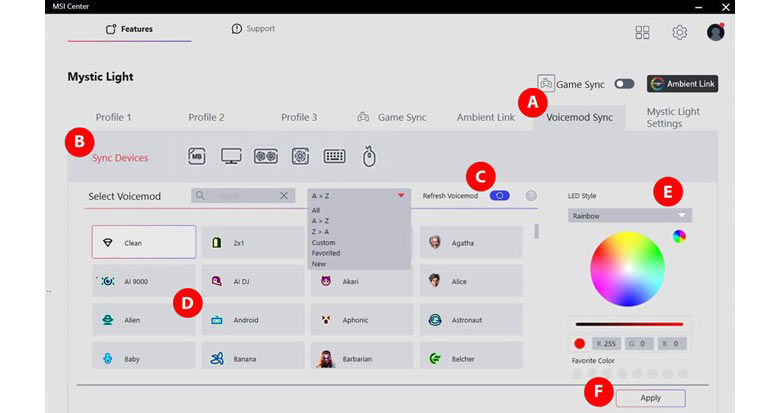
STEP 2: CUSTOMIZE YOUR VOICE LIGHTING EFFECT
A. With Voicemod started, open the tab of "Voicemod Sync" in the Features section of the MSI Center.
B. A list of auto-detected products will be displayed on the top of the control panel.
C. Refresh Voicebox to synchronize all effects from your Voicemod APP.
D. Select one of the voice effects.
E. Customize the LED Style for each voice effect with a total 9 LED styles.
F. Click the “Apply” button to save your preference.
*Voicemod Sync can sync all devices' RGB lightning at the same time.
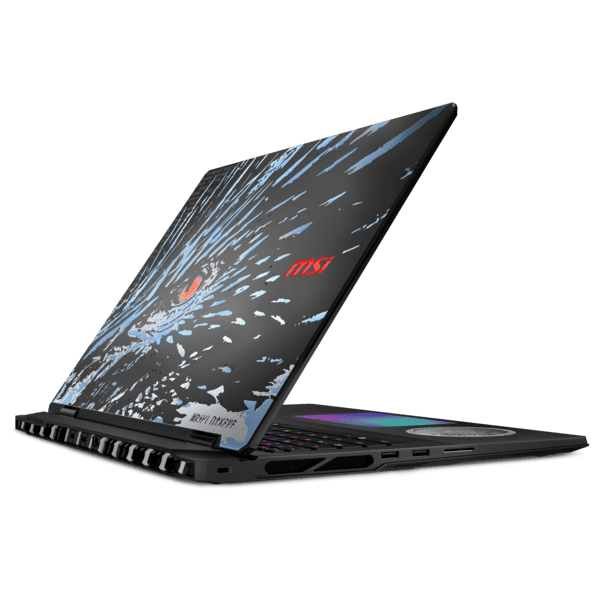
*Notebook does not support the Voicemod Sync feature.
*Voicemod applications and features, please visit: https://www.voicemod.net