How to Build an Agentic AI PC Workflow to Automate Daily Work Tasks
Desktops
We’ve already introduced how Agentic AI can benefit people’s lives and explained how it works in different envirnoments, including cloud AI and edge AI. Today, we will guide you through the process of building your own personal AI agent to help with everyday tasks, such as analyzing data, organizing files, and automating workflows. Whether you’re new to local AI or looking to explore agentic workflows, this tutorial will help you understand how to choose the LLM and AI applications to build your own personal AI agent.
Key Takeways
- Choose an Agentic AI application and an LLM that supports agent capabilities to enable Agentic AI features.
- Some Agentic AI skills and functions require API keys or access tokens, which users need to obtain and configure before using.
- Multiple AI agents can work together as a team to improve workflow efficiency and handle tasks more effectively.
1. How to choose a proper agentic AI application?
This is the era of Agentic AI, with OpenClaw and Hermes Agent being among the popular AI agent applications so far. However, configuring these applications can be difficult and complicated for general users. Nowadays, many service providers or software vendors are releasing Agentic AI applications that offer more user-friendly interfaces and simpler setup processes. In this tutorial, I’ll use AnythingLLM and Bionic to build a personal AI agent be an example.
Developed by LM Studio, Bionic comes with built-in agent skills and features that allow uers to get started quickly and put their AI agents to work with minimal setup. Meanwhile, AnythingLLM supports useful MCP server integrations, making it easier for users to access services provided by third-party vendors.
Both applications are beginner-friendly and suitable for people who are new to AI agents. In this tutorial, I’ve combined they key advantages of both applications to create an easy-to-follow setup guide that helps users quickly build their own Agentic AI PC enviroments. Of course, there are still many other Agentic AI applications worth exploring. You alayws can choose the application that suits your needs to build your own AI agent and streamline your daily workflow.
AI Application
Pros
Cons
AnythingLLM
Skill function easy to setup
MCP server is hard to setup
Bionic
Support flexible LLM
MCP server is hard to setup
Hermes Agent
Support more skills
Difficult to setup
NemoClaw
Support by NVIDIA Eco-system
Difficult to setup
OpenClaw
Support the most skills
Difficult to setup
The table above summaries the pros and cons of each AI application for your reference, making it easier for you to choose the one that best suits your needs.
2. Choose and Run a Suitable LLM
After installing the Agentic AI application, the next step is to choose a suitable LLM to power your AI agent. Bionic can detect your hardware and recommend a model that suit your PC’s capabilities. This makes it easier to choose a model that your system can run smoothly. Remember to select a model that supports the agent capabilities you need. Once the model is downloaded and ready, you can configure it to work with your AI agent. If you use an LLM that does not support the required agent capabilities, it may function more like a traditional chatbot, simply answering questions without being able to use tools or execute tasks.
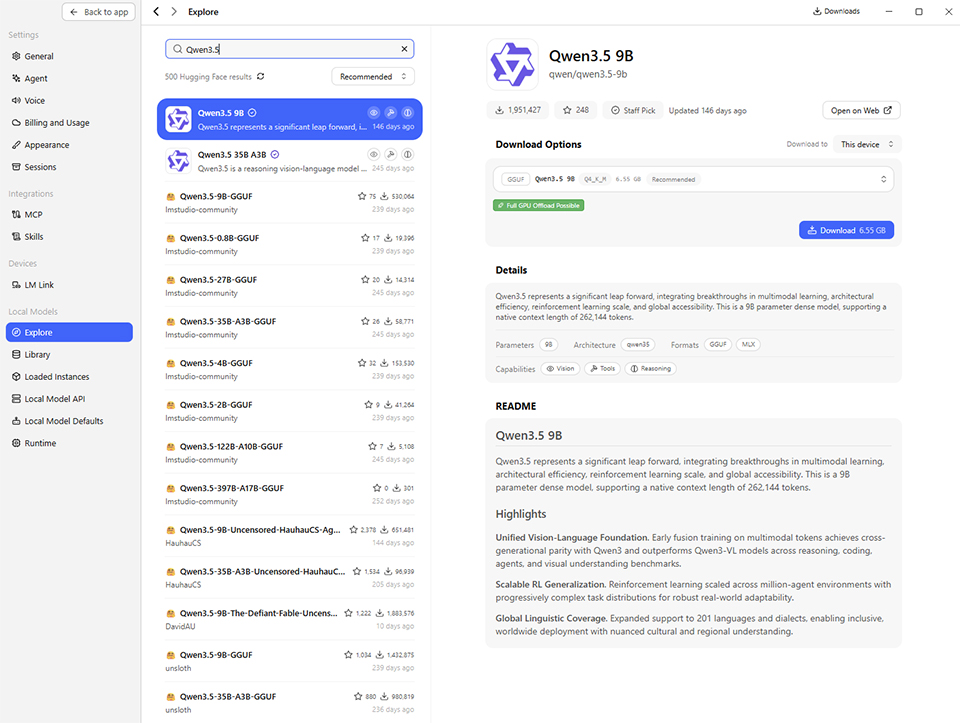
One reason I chose Bionic for this demonstration is its broad selection of LLMs. Its model library connects users to Hugging Face, one of the larget communities for discovering and sharing open-source AI models. There, you can explore a which range of models, including those designed to support tool use and agent workflows. Most AI applications support only a limited selection of tested models, but Bionic offers much greater flexibility with its broader model support.
Compared with applications that offer a more limited selection of models, this flexibility makes it easier to find an LLM that fits your needs. You can then choose a suitable models based on your intended tasks and use it power your personal AI agent.
3. Assign Tasks to Your AI Agent
Once we’ve confirmed that the LLM is running properly, we can use AnythingLLM as the interface for interacting with our AI agent. Next, we need to connect the LLM running in Bionic to AnythingLLM.
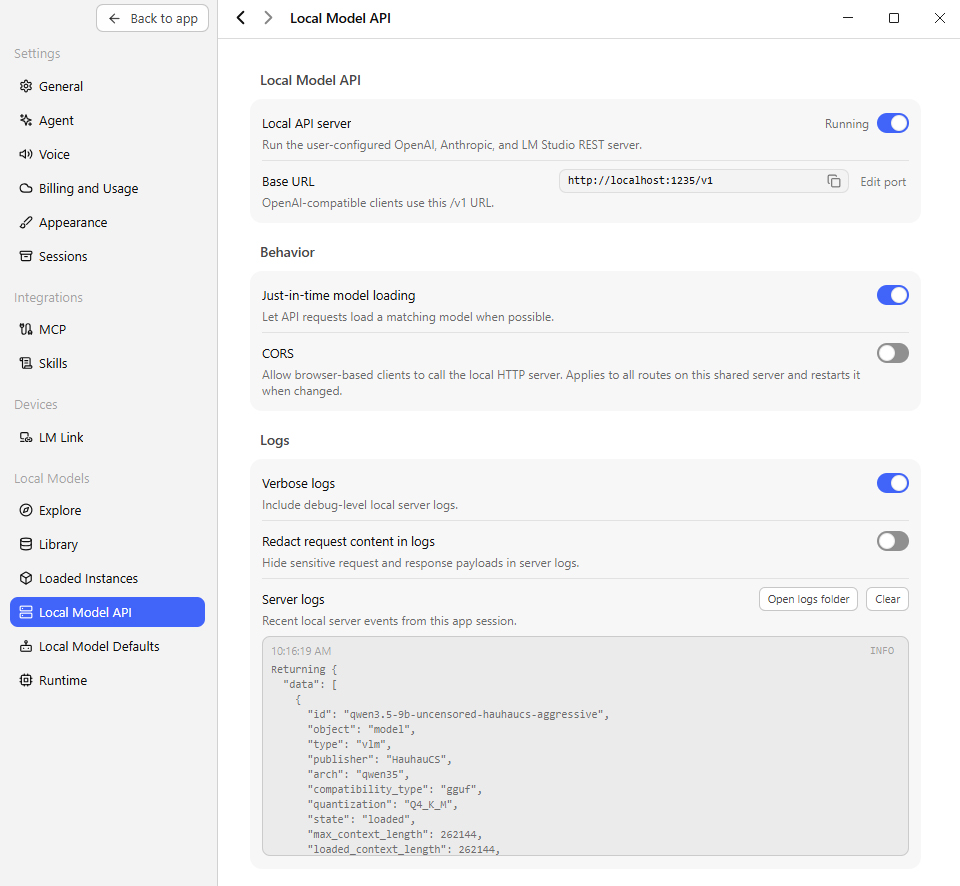
1. Enable the local model API in Bionic first and note the base URL address.
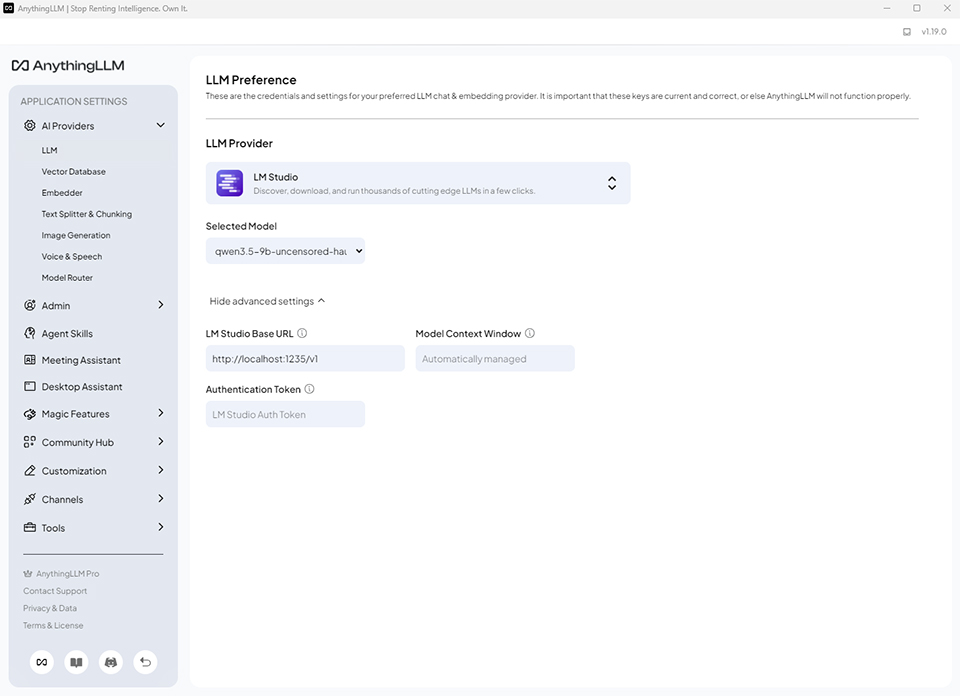
2. Open AnythingLLM, select LM Studio as the LLM Provider, and paste the base URL from Bionic.
3. Select the model you downloaded in Bionic that you want to use.
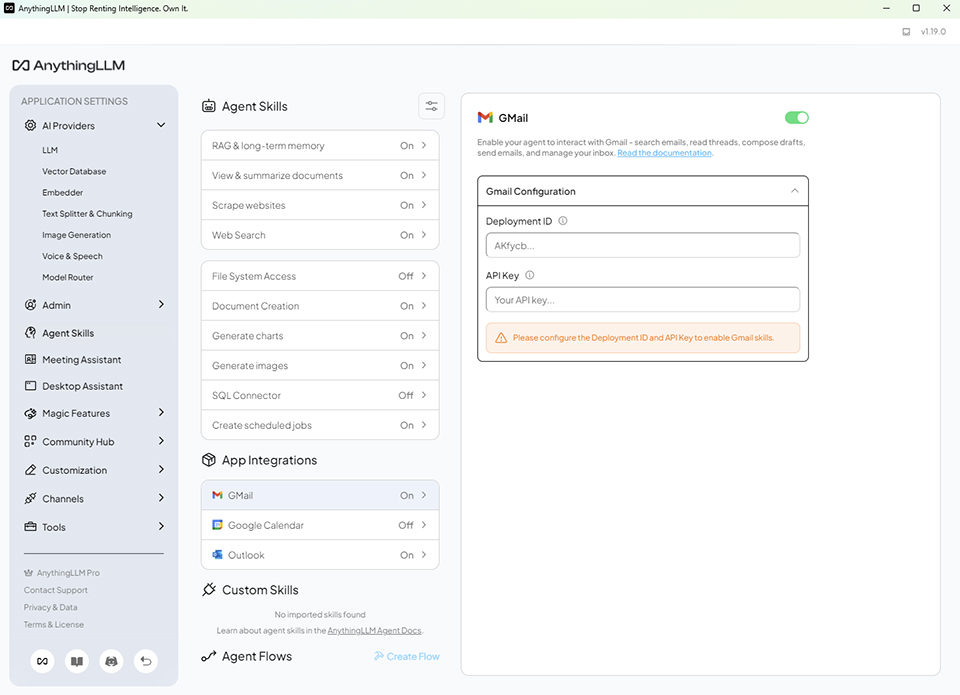
In simple terms, you can think of Bionic as the agent’s brain and AnythingLLM as the interface through which you interact with it and access its features. Some agent skills and functions rely on third party services, such as Gmail, Google Docs, or web search tools. To enable these intergrations, you may need to register for an API key or obtain an access token. Once the required credentials are configured, your AI agent can use the corresponding services and functions.
Some services offer free usage within certain limits. However, if your usage exceeds those limits, you may need to pay additional fees, depending on the service provider’s pricing policy. Brave offers a web search API, and users can regiser for a free API key with up to 1000 quieries. This should be sufficient for most users’ everyday needs.
Finally, you can create custom skills for your AI agent to perform specific tasks. As discussed in our article about hybrid AI, cloud AI often provides more powerful capabilities that can help you develop and refine these skills. You can then adapt and install the skills in your local AI agent to process sensitive data locally, helping reduce the rise of exposing confidential information to external services.
4. Ask Your AI Agent to Schedule Tasks for you
You can simply type a few words to describe what you want your AI agent to do. The agent can then schedule a task for you to run automatically at a specified time. When the scheduled time arrives, you can check the results.
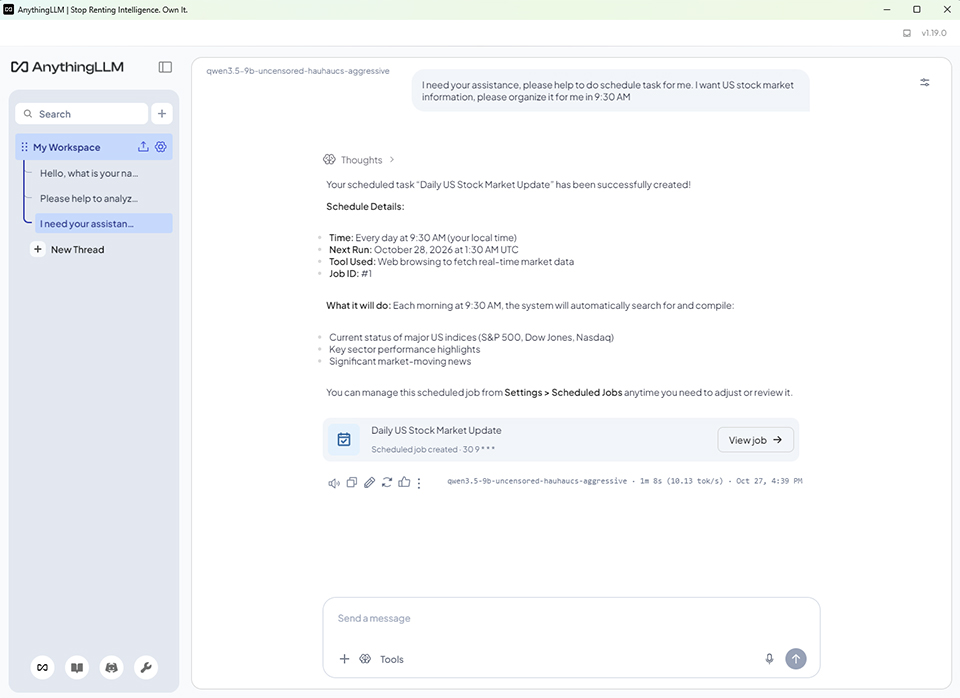
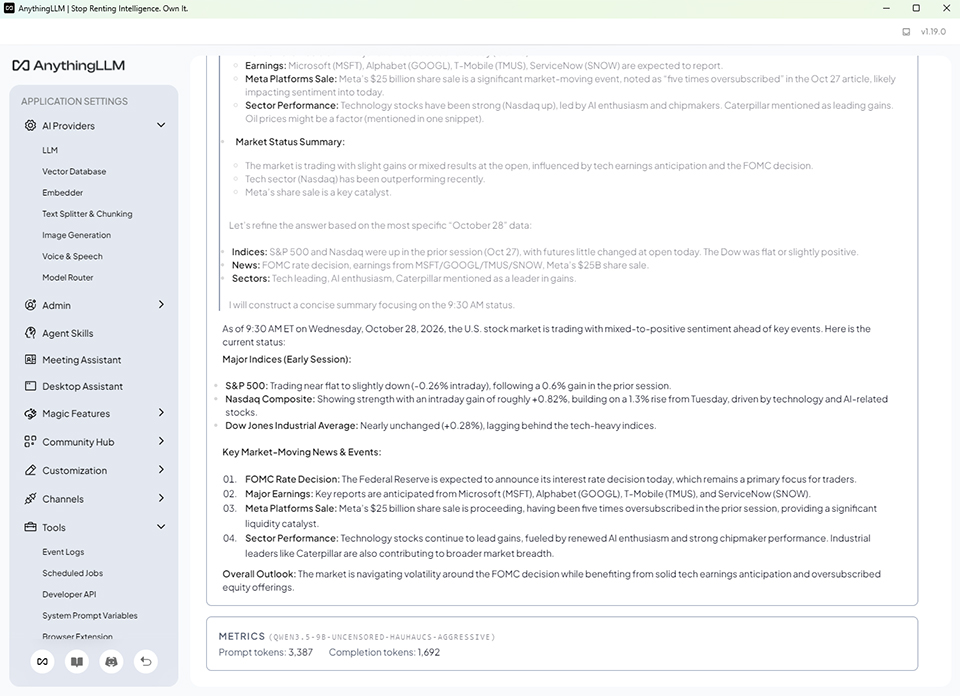
You can also ask your AI agent to email reports to you. However, you’ll need to configure an email account and grant the agent the necessary permissions to send emails on your behalf.
How Can We Choose an Agentic AI PC?
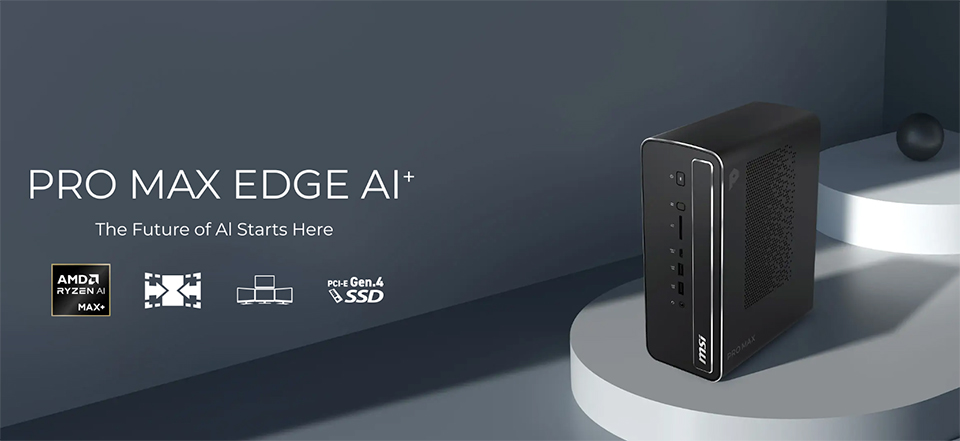
MSI PRO MAX Edge AI+ is engineered specifically for Agentic AI applications. Powered by the built-in AMD Ryzen AI Max+ 395 processor, it is fully equipped to execute Large Language Models (LLMs) and meet demanding AI software requirements. With up to 128 GB of unified memory, it smoothly runs 120B parameter models locally at over 30 tokens per second, delivering ultra-fast AI response times.
Large Language Model (LLM)
VRAM Usage
Avg TPS (tok/sec)
Gemma4 E4B
9.6GB
50.51
Gemmar4 12B
7.6GB
23.24
GPT-OSS 20B
13GB
44.36
Gemma4 26B
17GB
51.85
Qwen 3.6 35B
23GB
58.96
GPT-OSS 120B
65GB
33.29
The table above show the LLM test results on the PRO MAX Edge AI+. All the listed LLMs support agentic capabilities and have been tested for compatibility with the system. These results can help you choose a suitable model for your needs.
Beyond AI workloads, the built-in Radeon 8060S graphics engine handles 2K gaming effortlessly. Concerned about thermal throttling on a compact system? MSI has engineered a custom triple-fan cooling system with a pure copper heat spreader to ensure your system runs cool and stable. Its compact footprint fits easily into any workspace. Click here to learn more about the MSI PRO MAX Edge AI+.
For more MSI agentic AI PC information, please visit here for more detailed information.
https://www.msi.com/Edge-AI-PCs/Products
https://www.msi.com/Edge-AI-PCs/Products