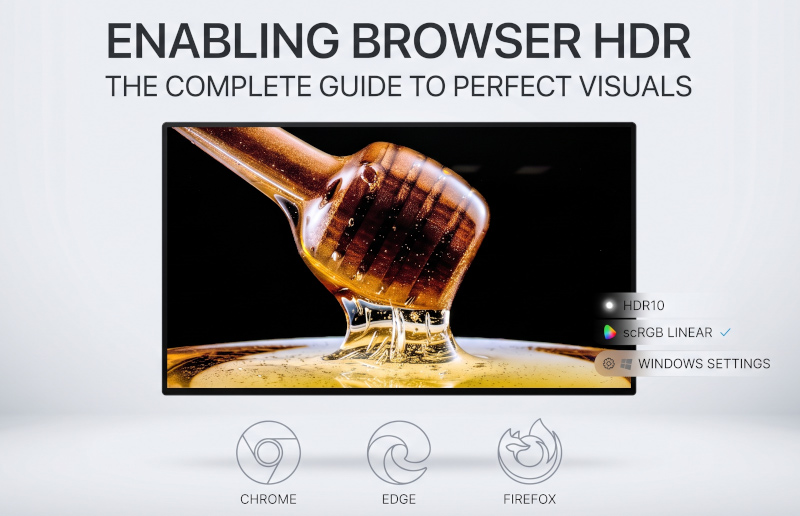
How to Enable HDR on Web Browser?
Monitors
As OLED monitors become increasingly popular, users are better able to appreciate the elevated visual experience that OLED brings, especially when it comes to HDR.
However, when we routinely watch contents on YouTube, Netflix, or Disney+ through a web browser, is the browser actually triggering HDR? Or have we just been trying in vain? This article provides you with a detailed breakdown.

Which Web Browser Supports HDR?
Chrome and Edge have already support HDR playback. Recently, Firefox has also joined the ranks. With the release of version 153.0, the HDR Video Playback feature has officially been introduced, allowing you to fully experience the rich visual delight of HDR.
How to Enable HDR on Web Browser?
Whether you are using Chrome, Edge, or Firefox, the similarity for enabling HDR is turning on the HDR feature in Windows. You can enable it under the "Display" section in Windows Settings, or simply use the keyboard shortcut Win + Alt + B.
In Chrome, you can even change specific color profile. Enter chrome://flags/#force-color-profile into the address bar to change the color profile under the "Force color profile" option. You can choose to apply options such as HDR10 or scRGB linear. Once applied, simply restart Chrome for the new settings to take effect.
Practical Images
Chrome
Edge
Firefox
 HDR10
HDR10

 scRGB linear