Wi-Fi 7 Ecosystem Guide: How to Eliminate Every Speed Bottleneck in 2026
Networking
You upgraded to multi-gigabit fiber. You bought a flagship Wi-Fi 7 router. And yet your video calls still buffer, your game still lags, and your file transfers top out well below what you paid for. The router isn't broken. The problem is that a Wi-Fi 7 router is only half the equation.
This guide explains what a complete Wi-Fi 7 ecosystem is, why both halves must be Wi-Fi 7 to unlock peak performance, and exactly how to build one — from mesh node placement to adapter selection. If you are new to the standard itself, see what is Wi-Fi 7 for a primer on the underlying technology.
What Is a Wi-Fi 7 Ecosystem?
A Wi-Fi 7 ecosystem is a complete wireless network in which every critical component — the router or mesh system and the client devices connecting to it — supports the Wi-Fi 7 (IEEE 802.11be) standard. The core features of Wi-Fi 7, and also the mandatory features for Wi-Fi Alliance certification, are Multi-Link Operation (MLO) for simultaneous multi-band connectivity, Preamble Puncturing for reliable wide-channel performance in RF-congested environments, and Multi-Resource Unit (MRU) allocation for more efficient spectrum sharing across connected devices.
Additional capabilities such as 320MHz channel bandwidth (available on the 6GHz band) and 4K-QAM modulation are enhancements that higher-tier hardware adds on top of the baseline.
These essential technologies distinguish Wi-Fi 7 from its predecessors, boosting 4.8x speeds and increasing RF efficiency, bringing the user experience to the next level.
Most Wi-Fi features require support from both the router and the client device. When establishing a connection, both sides negotiate and confirm their shared capabilities and functions, which makes upgrading both the router and the client equally important.
Why Your Wi-Fi 7 Router Alone Isn't Enough
Most Wi-Fi 7 marketing focuses on the router — throughput ratings, antenna configurations, and mesh coverage. What it omits is the other half of every wireless connection: the adapter inside the device receiving the signal.
The Broadcasting Half: Your Mesh Infrastructure
Your router or mesh system is the broadcaster. It transmits data over radio frequencies and manages traffic across all connected devices. A Wi-Fi 7 mesh system creates a unified network with a main router and one or more mesh nodes, eliminating the need for multiple subnetworks and ensuring seamless connectivity as you move around your home.
The Receiving Half: Your Device's Adapter
Every laptop, PC, and smart device contains a wireless adapter — a chip that receives the signal from your router. Most adapters shipped before 2024 support Wi-Fi 6 or Wi-Fi 6E, with a maximum channel width of 160MHz. Some older devices are capped at 80MHz. This matters because Wi-Fi connections do not override the weaker device; they negotiate down to the highest capability both sides support.
How Channel Width Mismatch Kills Your Speed
Wi-Fi 6 maxes out at 160MHz channel width. Wi-Fi 7 introduces 320MHz — twice as wide, enabling roughly twice the theoretical throughput on the 6GHz band. But if your laptop adapter is limited to 160MHz, your Wi-Fi 7 router has no choice: it communicates with that device at 160MHz. The 320MHz capability sits idle. MLO is entirely unavailable for that device — it is a Wi-Fi 7 feature that requires Wi-Fi 7 support on the client side to function. The performance gap between what you paid for and what you receive is not a signal problem. It is a hardware mismatch — and it is the most common Wi-Fi 7 deployment mistake made in 2025 and 2026.
Wi-Fi 7 Core Technologies Explained
Wi-Fi 7 is not simply a faster version of Wi-Fi 6. Two are mandatory for all Wi-Fi 7 certified devices (MLO and Preamble Puncturing); two are optional enhancements available on higher-tier hardware (320MHz and 4K-QAM). It introduces four distinct technical improvements, each of which contributes to the ecosystem performance ceiling.
Table: Wi-Fi 7 (802.11be) vs previous generations — key specification differences across max data rate, channel size, and modulation.
WiFi Generation Differences
-
WiFi 5
WiFi 6
WiFi 6E
WiFi 7
Launch date
2013
2019
2021
2024
IEEE standard
802.11ac
802.11ax
802.11ax
802.11be
Max data rate
3.5 Gbps
9.6 Gbps
9.6 Gbps
46 Gbps
Bands
5 GHz
2.4 GHz, 5 GHz
2.4 GHz, 5 GHz, 6 GHz
2.4 GHz, 5 GHz, 6 GHz
Channel size
Up to 160 MHz
Up to 160 MHz
Up to 160 MHz
Up to 320 MHz
Modulation
256-QAM OFDM
1024-QAM OFDMA
1024-QAM sOFDMA
4096-QAM OFDMA
MIMO
4×4 MIMO DL MIMO
8×8 UL/DL MU-MIMO
8×8 UL/DL MU-MIMO
16×16 UL/DL MU-MIMO
Multi-Link Operation (MLO) — Always-On Redundancy
MLO (Multi-Link Operation) is a Wi-Fi 7 feature that allows a single device to connect to a router across multiple frequency bands — for example, 2.4GHz, 5GHz and 6GHz — simultaneously rather than selecting one.
Wi-Fi 7 implements MLO in two operational modes: Simultaneous Multi-Link Operation allows traffic to be aggregated across multiple bands, delivering peak throughput and lower latency; Alternating Multi-Link Operation dynamically switches traffic between bands to avoid wireless interference, improving latency consistency even in heavily congested environments.
In practical terms: if the 6GHz band experiences a brief burst of interference, traffic shifts to the 5GHz connection instantly — with no disconnection and no perceptible latency spike.
For competitive gaming, this means connection stability is maintained even in RF-dense environments such as apartment buildings. For video calls, it eliminates the micro-drops that cause frozen frames.
MLO requires Wi-Fi 7 support on both the router and the client adapter to function — a Wi-Fi 6 adapter receives none of the MLO benefit.
Preamble Puncturing — Cutting through Interference
Preamble Puncturing is a Wi-Fi 7 mechanism that allows a device to use most of a wide 320MHz channel even when a portion of that spectrum is occupied by interference from a neighboring network. Earlier standards required the device to fall back to a narrower channel whenever any part of the wide channel was blocked. Preamble Puncturing carves out only the interfered sub-channel and continues transmitting on the remainder. In dense urban environments — apartment blocks, office buildings, co-working spaces — this feature substantially improves the real-world usability of wide-channel Wi-Fi 7, where interference is common.
320MHz Channels — The Data Highway
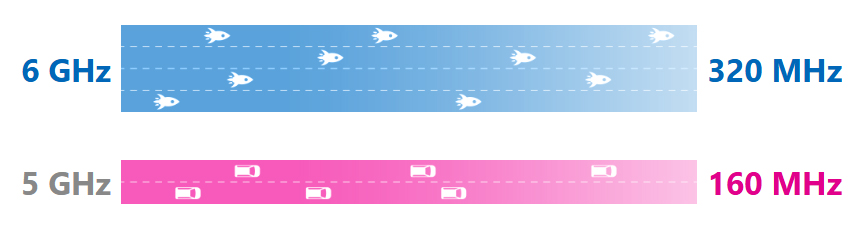
320MHz channel width is the maximum bandwidth per channel supported by Wi-Fi 7 on the 6GHz band, compared to the 160MHz ceiling in Wi-Fi 6 and Wi-Fi 6E. Wider channels carry more data simultaneously — the difference between a four-lane road and an eight-lane highway. In practice, 320MHz channels are essential for throughput-intensive tasks: 8K video editing, high-resolution VR/AR rendering, and simultaneous multi-device 4K streaming. The 6GHz band is required for 320MHz operation because the 5GHz spectrum is too congested and too narrow to support the full channel width reliably. This is one reason tri-band routers with a dedicated 6GHz radio offer a material performance advantage over dual-band systems for 6GHz-ready devices, as specified in the IEEE 802.11be standard.
320 MHz Channels
While older wireless standards rely on 160 MHz channel widths, Wi-Fi 7 boasts up to 320 MHz widths on the 6 GHz spectrum. These wider channels can accommodate more traffic – ensuring fast, smooth-flowing packets of wireless data.
4K-QAM — More Data per Signal Cycle
4K-QAM (4096-QAM) is the modulation scheme used by Wi-Fi 7, encoding 12 bits of data per symbol compared to Wi-Fi 6's 1024-QAM at 10 bits. The result is approximately 20% more data transmitted per transmission cycle under ideal signal conditions. In user-facing terms: higher sustained bitrate for streaming, faster large-file transfers, and reduced buffering during peak household network usage. 4K-QAM is most effective within close range (strong signal environments), making it particularly powerful when your adapter is close to a well-placed mesh node.
How to Build a Complete Wi-Fi 7 Ecosystem — Step by Step
Building a Wi-Fi 7 ecosystem is a four-step process. Each step eliminates a specific bottleneck in the signal chain from your internet service provider to your device.
Step 1 — Choose Your Mesh Foundation
Select your router or mesh system based on two factors: home size and whether you own 6GHz-capable devices.
- If you have a large home (multi-story, >2,000 sq ft) or own flagship smartphones and laptops released in 2023 or later (most of which support 6GHz), choose a tri-band Wi-Fi 7 mesh system with a 6GHz radio.
- If you live in an apartment or a single-floor home and your devices are primarily 5GHz, a dual-band Wi-Fi 7 mesh system delivers the efficiency and latency improvements of Wi-Fi 7 on the 5GHz band without the 6GHz hardware premium.
- In either case, look for 2.5G multi-gigabit WAN/LAN ports to ensure the router can handle ISP speeds above 1 Gbps without creating a wired bottleneck at the entry point.
Step 2 — Optimize Node Placement with Signal Diagnostics
Node placement is the single most common source of underperformance in mesh networks. The standard advice — "place nodes halfway between the router and the dead zone" — ignores wall composition, floor materials, and RF reflection patterns. A node placed based on guesswork can create a weak backhaul link that throttles every device connected through it.
Use app-based real-time signal diagnostics to walk the node through candidate positions and measure actual backhaul signal strength before committing. MSI's Find WiFi Spot feature in the MSI Router 2.0 does exactly this — it guides node placement with live diagnostics rather than guesswork. The goal is a backhaul RSSI strong enough to sustain the Wi-Fi 7 channel width without fallback.
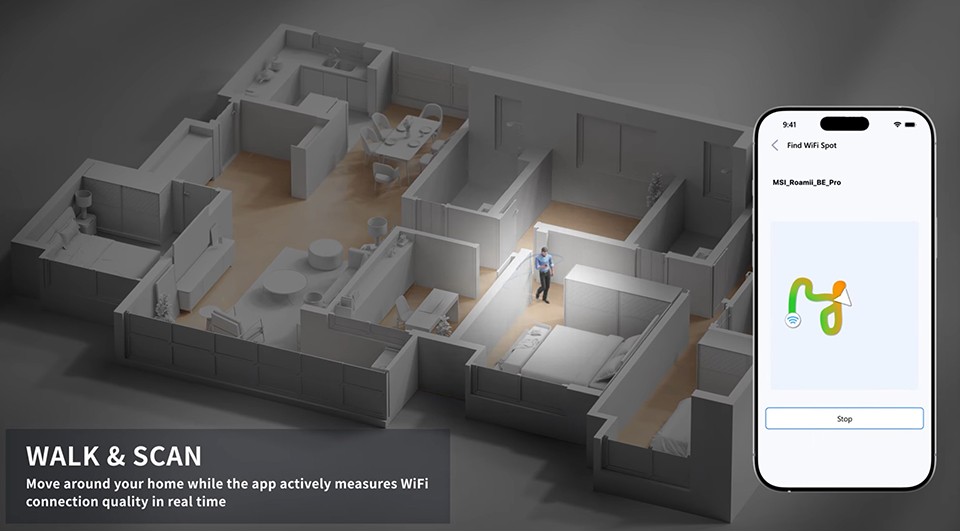
Use MSI Router 2.0's Find WiFi Spot to confirm backhaul signal strength before locking in your mesh node position.
Step 3 — Upgrade Your Receiving Devices
Once your broadcasting infrastructure is in place, audit your client devices:
- Laptops (external upgrade): A Wi-Fi 7 USB adapter plugged into any available USB port instantly upgrades the device's wireless capability without opening the chassis. This is the lowest-friction Wi-Fi 7 client upgrade available.
- Desktop PCs (internal upgrade): A Wi-Fi 7 PCIe card installed in an available expansion slot provides a direct motherboard connection — lower latency, higher stability, and support for external high-gain antennas that can be positioned outside the metal PC chassis to minimize RF shielding.
- Mobile devices and newer laptops: Flagship smartphones and laptops released in 2023 or later frequently ship with Wi-Fi 7 chipsets built in. Verify your device's spec sheet before purchasing an adapter.
Step 4 — Check Firmware and Driver Updates
Before confirming Wi-Fi 7 performance, ensure your hardware is running the latest software. Outdated firmware or drivers are among the most common reasons Wi-Fi 7 features fail to activate — and the fix costs nothing.
- Update your router or mesh system firmware: Open the router's companion app or admin interface and check for pending firmware updates. Firmware updates improve device compatibility, close security vulnerabilities, and can unlock Wi-Fi 7 features added post-launch.
- Confirm your Windows version supports Wi-Fi 7 and the 6GHz band: Full Wi-Fi 7 feature support — including 6GHz band access — requires Windows 11. Open Settings → Windows Update and install all available updates to ensure you are on the latest supported build.
- Install the latest wireless adapter driver: Visit your adapter manufacturer's support page and download the current driver. An up-to-date driver is required for full Wi-Fi 7 protocol support (MLO, 320MHz channels, 4K-QAM) and ensures you receive the latest security patches.
Once firmware and drivers are current, confirm your connection reports the expected link speed under Settings → Network & Internet → Wi-Fi to verify the ecosystem is operating at full capability.
MSI Wi-Fi 7 Ecosystem Components: Which to Choose
MSI's Wi-Fi 7 lineup covers all four positions in the ecosystem matrix: two mesh systems differentiated by band configuration and two client adapters differentiated by form factor.
MSI Roamii BE Pro — Best for Large Homes and Power Users
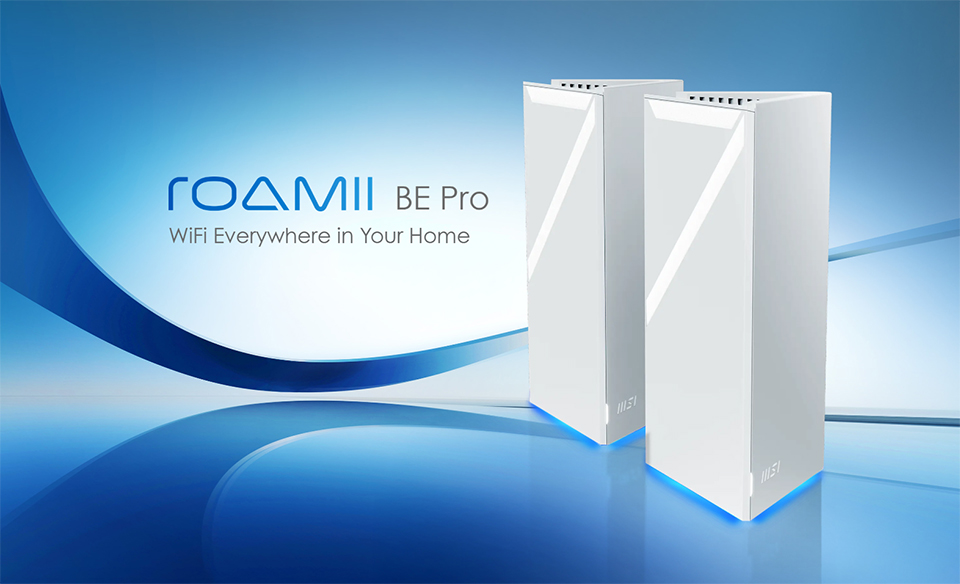
The MSI Roamii BE Pro is MSI's flagship tri-band Wi-Fi 7 mesh system, built for high-demand environments that need the full 320MHz experience.
- Tri-Band Coverage: Simultaneous 2.4GHz / 5GHz / 6GHz — the 6GHz band provides interference-free spectrum for 320MHz operation
- Ultra-fast speeds: Aggregated speeds up to 11Gbps to handle 8K streaming, VR/AR, and dense IoT workloads without congestion
- 2.5G Multi-Gigabit Ports: Eliminates the wired bottleneck for ISP connections above 1 Gbps, wired backhaul and multi-giga wired application like NAS
- MLO Across 3 Bands: Connects all three bands simultaneously for lowest possible latency
- FortiSecu Security: 24/7 device-level protection for every connected device — no subscription fee
Ideal for: Multi-story homes, professional workstations, households with 6GHz-ready flagship devices, competitive gamers who also need mesh coverage.
MSI Roamii BE Lite — Best for Apartments and Smart Upgraders
The MSI Roamii BE Lite is the Wi-Fi 7 mesh system built for apartment dwellers and households whose devices haven't yet moved to 6GHz. It delivers the performance improvements that matter most in everyday use — lower latency, stable multi-band connections, and better handling of RF congestion from neighboring networks — all on the 2.4GHz and 5GHz bands that most devices already support.
- MLO on 2.4GHz + 5GHz: Simultaneous dual-band connection reduces latency and eliminates mid-session drops
- Dual-band speeds: Delivers meaningful speed and latency improvements over Wi-Fi 6 on the most widely compatible frequencies.
- Preamble Puncturing: Maintains wide-channel performance even in RF-congested apartment buildings where interference is common.
- FortiSecu Security: Same enterprise-grade 24/7 protection as the Pro model, at no subscription cost.
- Compact Form Factor: Designed for smaller spaces without sacrificing Wi-Fi 7 protocol benefits.
Ideal for: Urban apartment dwellers, renters, smaller households, and buyers seeking the best-value Wi-Fi 7 entry point.
MSI BE6500 USB Adapter — Best Zero-Effort Laptop Upgrade
The MSI BE6500 Wi-Fi 7 USB Adapter is the fastest way to close the "fast router, slow laptop" gap — plug in and immediately access Wi-Fi 7 on any USB-equipped device.
- Plug-and-Play: No driver complexity, no chassis opening — instant Wi-Fi 7 access via USB port
- 2.4GHz + 5GHz + 6GHz Access: Unlocks both bands on older devices that were previously limited to 2.4GHz or 5GHz only
- Travel-Ready: Compact design maintains stable speeds in crowded airports, hotels, and conference venues
- Backward Compatible: Works with Wi-Fi 6/6E routers; Wi-Fi 7 features activate when paired with a Wi-Fi 7 router
Ideal for: Business travelers, students, older-laptop owners, and anyone who wants instant Wi-Fi 7 access without purchasing new hardware.
MSI Herald BE9400 PCIe — Best for Desktop Gamers and Content Creators
The MSI Herald BE9400 is a Wi-Fi 7 PCIe card for desktop users who need the lowest possible latency and full 320MHz bandwidth — installed directly into the motherboard.
- Qualcomm Chipset: Direct PCIe board connection delivers inherently lower latency than any USB adapter
- Full 320MHz Support: Utilizes the complete Wi-Fi 7 channel width on the 6GHz band for maximum throughput
- External Magnetized Antenna: Positions outside the metal PC chassis to eliminate RF shielding from mid-tower and full-tower cases
- Windows 11 Compatible: Installs into any available PCIe slot — no new PC required
Ideal for: Competitive gamers, 8K video editors, content creators handling large file transfers, and desktop PC owners building a high-performance Wi-Fi 7 workstation.
Wi-Fi 7 Component Selection Matrix
Your Scenario
Recommended Component
Key Technical Advantage
Large home / power user)
Roamii BE Pro (Tri-Band)
6GHz + 320MHz + MLO across 3 bands; BE11000; 2.5G ports
Apartment / smart upgrade
Roamii BE Lite (Dual-Band)
Wi-Fi 7 efficiency on 2.4/5GHz; compact; best-value entry point
Laptop upgrade (zero effort)
BE6500 USB Adapter
Plug-and-play 5GHz/6GHz Wi-Fi 7 — no tools, no chassis
Desktop / competitive gaming
Herald BE9400 PCIe
320MHz + Qualcomm + external antenna; lowest possible ping
Is Wi-Fi 7 Worth Upgrading to from Wi-Fi 6? (2026)
Wi-Fi 7 is worth upgrading to in 2026 if any of the following apply: you own or plan to buy flagship devices released in 2023 or later, your household streams 4K or 8K content on multiple devices simultaneously, you work from home with latency-sensitive applications, or you play competitive online games. Even on the 5GHz band — relevant for households that have not yet adopted 6GHz devices — Wi-Fi 7 delivers measurable improvements through Preamble Puncturing (better real-world channel utilization in dense environments), improved MLO (reduced connection drops), and enhanced multi-device scheduling that reduces congestion in households with 20 or more connected devices.
Wait if: Your ISP connection is below 500 Mbps, all your devices are more than four years old with no plans to replace them, and your household has fewer than 10 connected devices with no 4K or real-time gaming workloads. In this scenario, a Wi-Fi 6 or Wi-Fi 6E system will meet your needs today, and Wi-Fi 7 adoption can wait for your next natural hardware refresh cycle.
The future-proofing case is strong: Wi-Fi 7 hardware purchased in 2026 will remain the current standard through at least 2028–2029 based on historical Wi-Fi generation lifecycles. Building your ecosystem now means you capture the performance gain on each new device you bring into the network.
Frequently Asked Questions
Q1. What is the difference between Wi-Fi 7 and Wi-Fi 6?
Wi-Fi 7 introduces three mandatory innovations over Wi-Fi 6: Multi-Link Operation (MLO), Preamble Puncturing, and Multi-Resource Unit (MRU). It also adds optional enhancements including 320MHz channel bandwidth (on 6GHz) and 4K-QAM modulation. Peak theoretical throughput increases from 9.6 Gbps (Wi-Fi 6) to 46 Gbps (Wi-Fi 7).
Q2. Do I need a Wi-Fi 7 adapter to use a Wi-Fi 7 router?
No — any device will connect to a Wi-Fi 7 router using its existing Wi-Fi generation. However, to access Wi-Fi 7-specific features such as 320MHz channels, MLO, and 4K-QAM, the client device's adapter must also support Wi-Fi 7. Without a matching adapter, your device communicates with the router using protocol that both side supports.
Q3. What is MLO and why does it matter for gaming?
MLO (Multi-Link Operation) lets a device maintain simultaneous connections on multiple bands — for example, 5GHz and 6GHz — at the same time. If one band experiences interference, the other carries the traffic instantly with no latency spike. For competitive gaming, this translates to more consistent ping and fewer connection interruptions in RF-dense environments.
Q4. How many mesh nodes do I need for a typical home?
Start with a two-pack for most single-story homes under 2,500 sq ft. Add one node per additional floor. Node count is less important than node placement — a well-placed two-node setup consistently outperforms a poorly placed three-node setup. Use real-time signal diagnostics to confirm backhaul quality before finalizing positions.
Q5. Is Wi-Fi 7 better for apartments with interference from neighbors?
Yes. Preamble Puncturing, introduced in Wi-Fi 7, allows the radio to use most of a wide channel even when a portion is occupied by a neighboring network's signal. This makes 320MHz channels practically usable in congested urban environments where Wi-Fi 6 would have been forced to fall back to a narrower channel.
Q6. What does 320MHz channel width mean in practice?
Channel width determines how much data can flow simultaneously. 320MHz is double the 160MHz maximum in Wi-Fi 6, roughly doubling peak throughput potential on the 6GHz band. In practice, this matters most for tasks that demand sustained high bitrate: 8K streaming, large cloud backups, VR/AR, and simultaneous 4K streams on multiple devices.
Q7. Does MSI FortiSecu require a subscription fee?
No. FortiSecu is built into every MSI Roamii mesh system and provides 24/7 network security scanning for all connected devices — including IoT devices, smart TVs, and cameras — at no additional cost for the lifetime of the product.
Q8. Can I use the BE6500 USB adapter with an older Wi-Fi 6 router?
Yes, the BE6500 is backward-compatible with Wi-Fi 6 and Wi-Fi 6E routers. However, Wi-Fi 7-specific features (MLO, 320MHz, 4K-QAM) only activate when paired with a Wi-Fi 7 router. On an older router, you will still benefit from a newer, more efficient adapter chipset, but the Wi-Fi 7 protocol improvements will not apply.
Build Your Wi-Fi 7 Ecosystem Today
A Wi-Fi 7 router is the start, not the finish. True Wi-Fi 7 performance — MLO stability, Preamble Puncturing resilience, and the full 320MHz bandwidth for those with 6GHz-ready devices — requires a complete ecosystem where the broadcasting half and the receiving half both speak the same standard. Whether you are eliminating lag for competitive gaming, upgrading a home office for video conferencing, or future-proofing a whole-home network, the MSI Wi-Fi 7 ecosystem gives you the tools to close every bottleneck in the chain: smart placement with Find WiFi Spot, enterprise-grade security with FortiSecu, and a full range of adapters to bring every device up to speed. Don't let your client hardware be the weakest link in a network you paid to make fast.
Learn more about MSI Networking variants: https://www.msi.com/Networking