




[Notebook] How to Update BIOS on a System with BitLocker Enabled
Before updating the BIOS, you must disable BitLocker on your system. If BitLocker is not temporarily disabled before the BIOS update, the system will be unable to recognize the BitLocker key upon the next reboot. Users will be prompted to enter the BitLocker recovery key to proceed.
Log in to your Microsoft account to locate and save your system's BitLocker recovery key. For more details, please refer to [Notebook] How to Solve the BitLocker Recovery Screen That Appears After Boot Up?
Note:
1. If you do not know your BitLocker recovery key, you may lose your data or need to reinstall the operating system.
2. BitLocker is a Microsoft encryption security feature. MSI neither stores nor provides recovery keys and cannot bypass Microsoft's BitLocker key recovery process.
Steps to temporarily disable BitLocker protection:
1. Open “Control Panel” and go to “System and Security”.
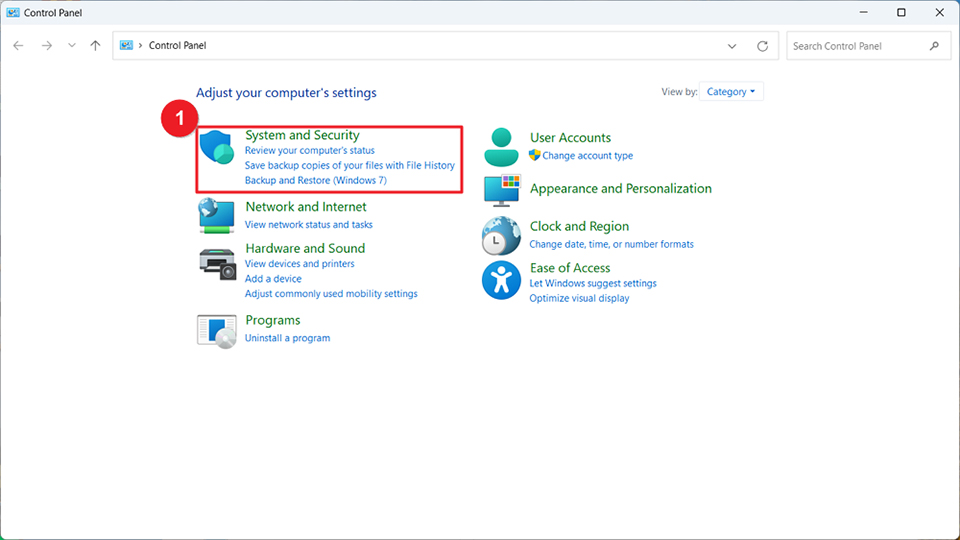
2. Select “BitLocker Drive Encryption”.
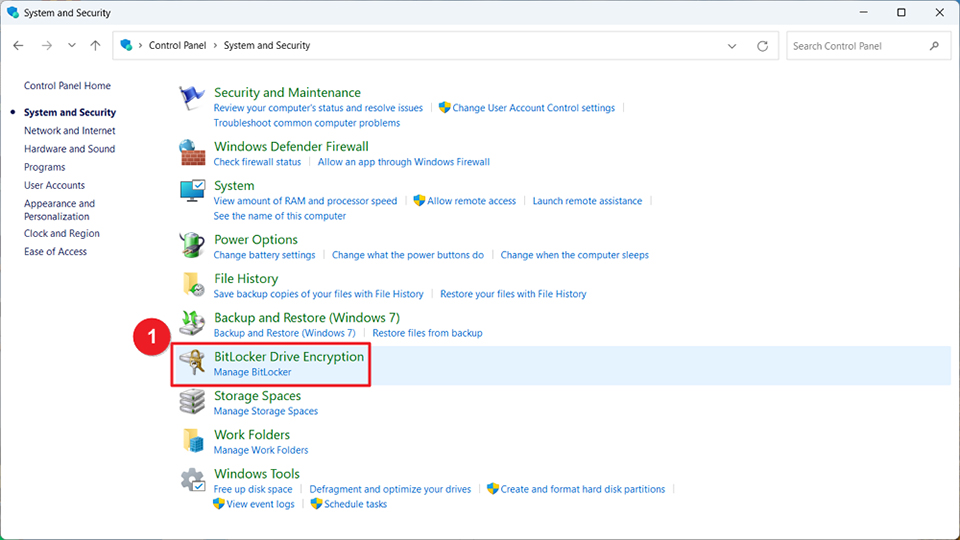
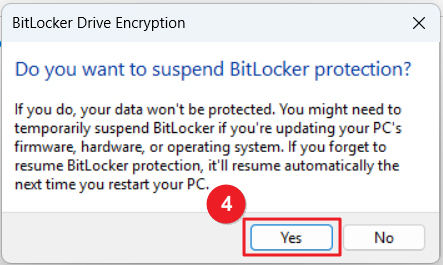
3. Click “Suspend protection”.
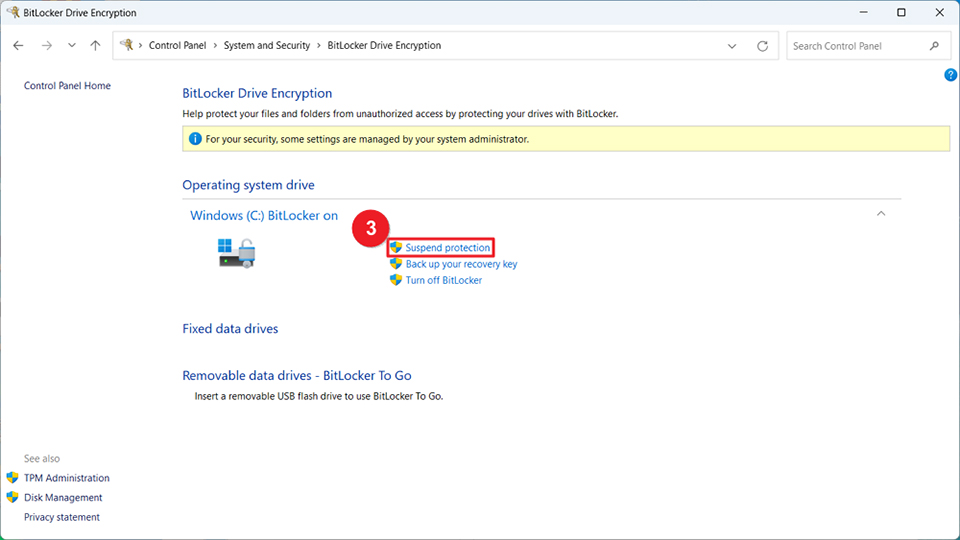
4. Click “Yes” to confirm.
5. Proceed with the BIOS update.
Please refer to the support article for detailed steps: [Notebook] How to update BIOS?.
6. Wait for the BIOS update to complete; the system will restart automatically.
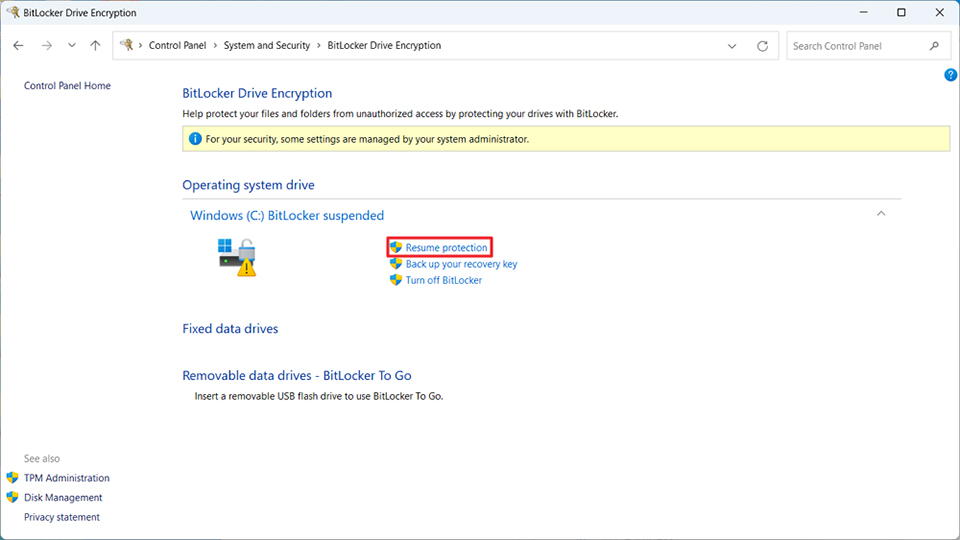
7. Open Control Panel again.
8. Go to the BitLocker settings page and click “Resume protection.”
Reference Information and Related Articles
[Notebook] How to Solve the BitLocker Recovery Screen That Appears After Boot Up?
[Notebook] How to update BIOS?.