

[Notebook] What should I do if the SSD hard drive is not detected by the BIOS/system after boot up?
If your computer could not detect the hard drive during the Windows installation process, please refer to [Notebook] How to troubleshoot the missing disk drives issue during Windows 11/10 installation for troubleshooting.
If your computer could not detect the hard driver under BIOS or the operating system, please refer to the steps below:
- Update BIOS
- Update driver
- Run Windows Update
- Confirm the status of the hard drive in Disk Management
- Reinstall the driver in Device Manager
- System restore
Update BIOS
When you discover that the system is unstable or unknown problems have occurred, updating to the latest version of the BIOS might help with the problem. Please refer to [Notebook] How to update BIOS? To update the BIOS to the latest version and then confirm again.
Update driver
Please refer to [Notebook] How to update the driver? And confirm that all the drivers of the computer are the latest version, and then confirm whether the problem is solved again.
Run Windows Update
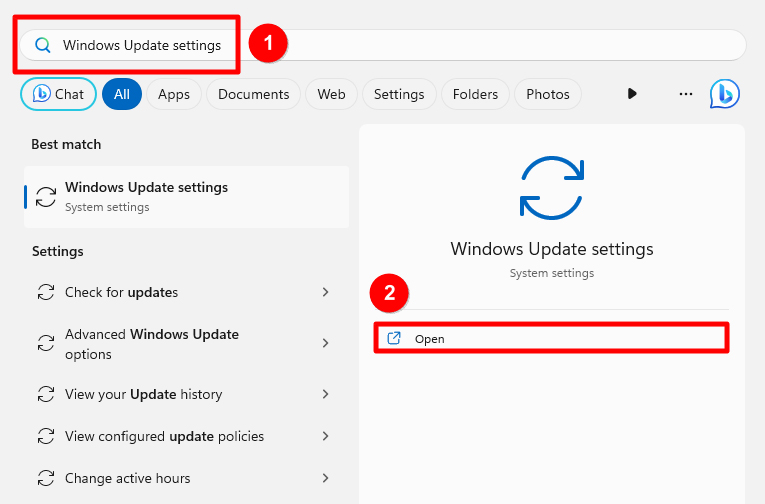
1. Enter “Windows Update Settings” in the system’s search field and click “Open”.
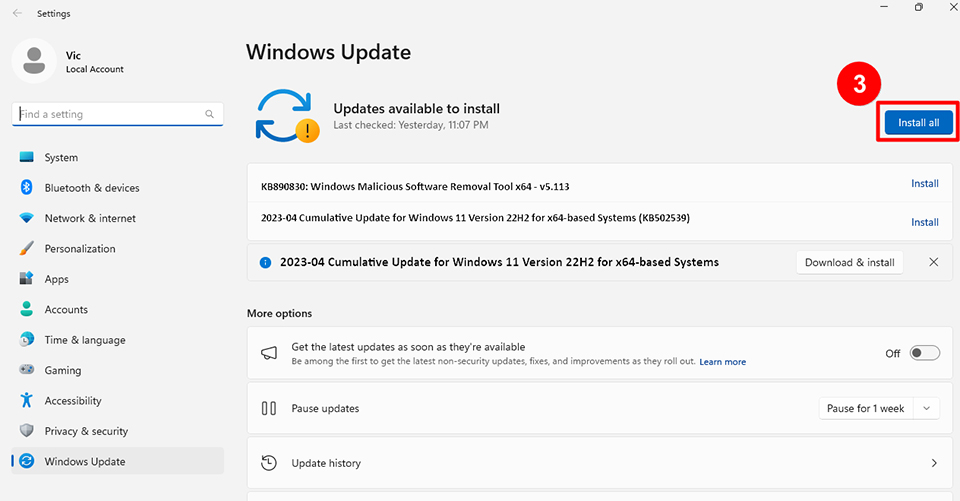
2. After entering the Windows Update page, the system will automatically check whether there are updates available for installing and download them; click “Install all” when downloading is completed.
Note: Some updates may need to restart the computer after installation; do not shut down the computer while the computer is restarting as this may cause the update to fail.
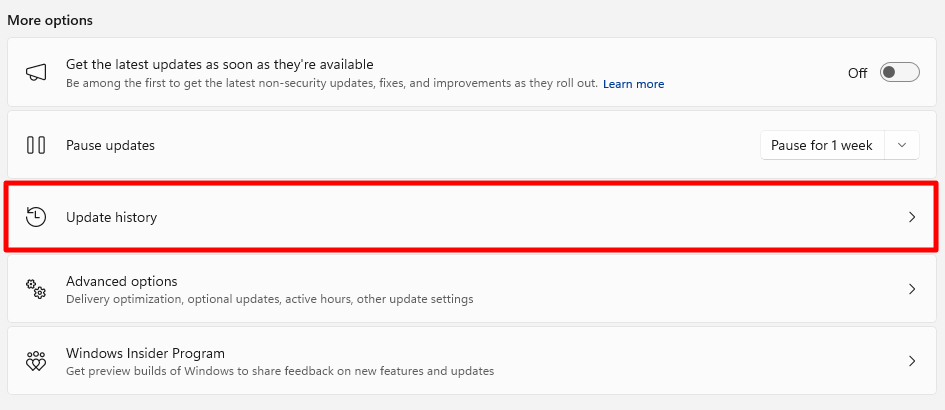
3. After updating, you can click “Update history” to view detailed information on recent updates.
Confirm the status of the hard drive in Disk Management
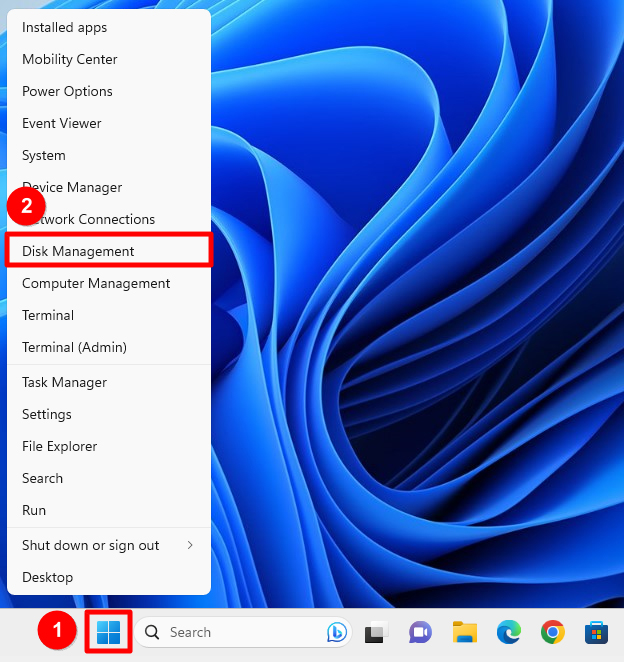
Right-click the Windows icon in the Windows taskbar and click “Disk Management”.
After entering the Disk Management page, confirm the status of the current hard drive:
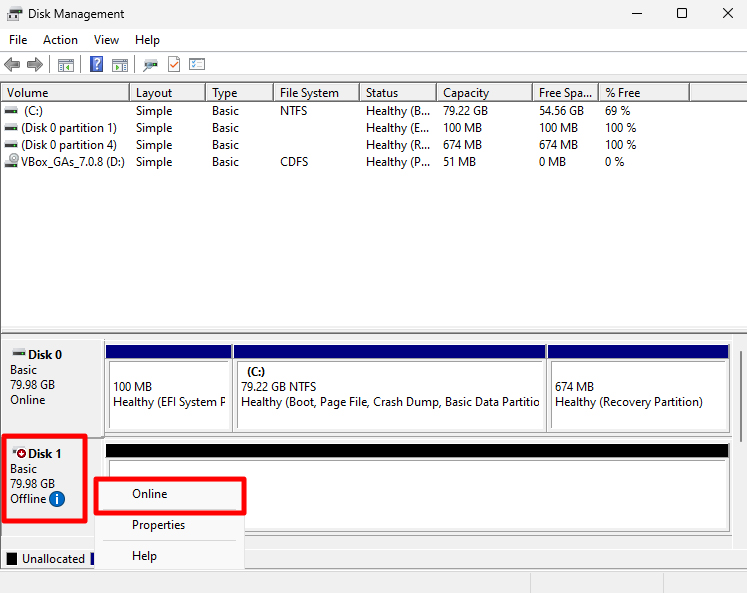
The hard drive shows “Offline”
If the hard drive shows “Offline”, please right-click the mouse on it and select “Online”.
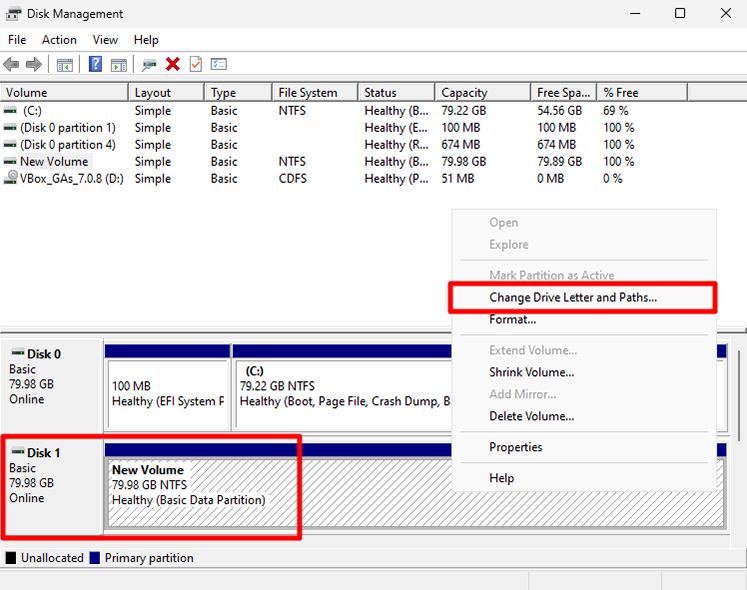
If it shows Online but there is no Drive Letter
If the hard drive is online but does not have a Drive Letter, such as D or E, please right-click the mouse on it and select “Change Drive Letter and Paths...”, then follow the steps to assign a Drive Letter to the hard drive.
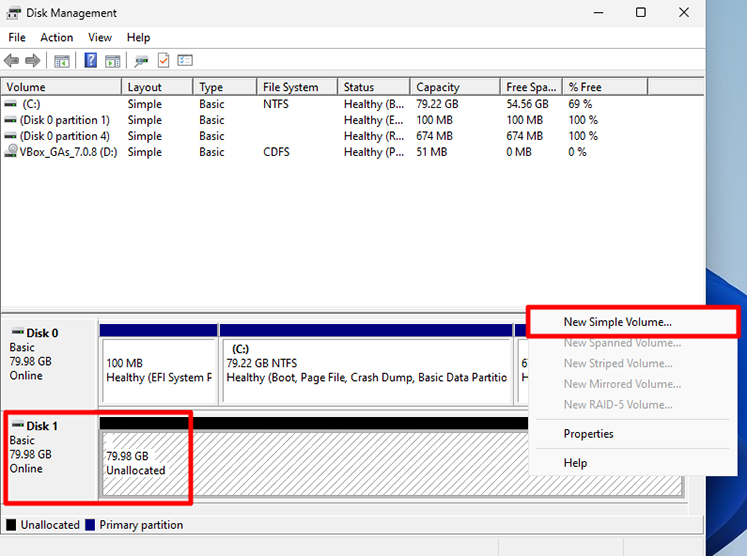
The hard drive shows “Unallocated”
If the hard drive shows “Unallocated”, right-click the mouse on it and select “New Simple Volume...”, and follow the steps to create a volume.
Reinstall the driver in Device Manager
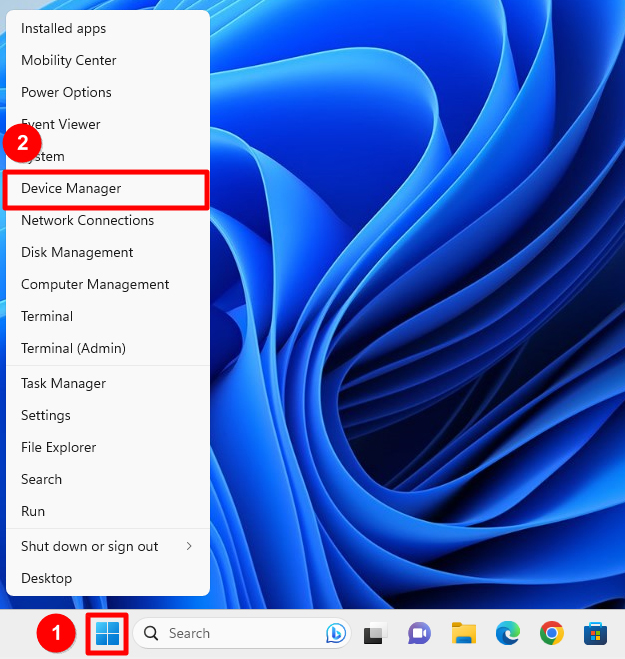
1. Right-click the Windows icon in the Windows taskbar and click “Device Manager”.
2. Click “Disk drives” in Device Manager, locate the hard drive that cannot be detected and right-click the mouse on it and select “Uninstall device”.
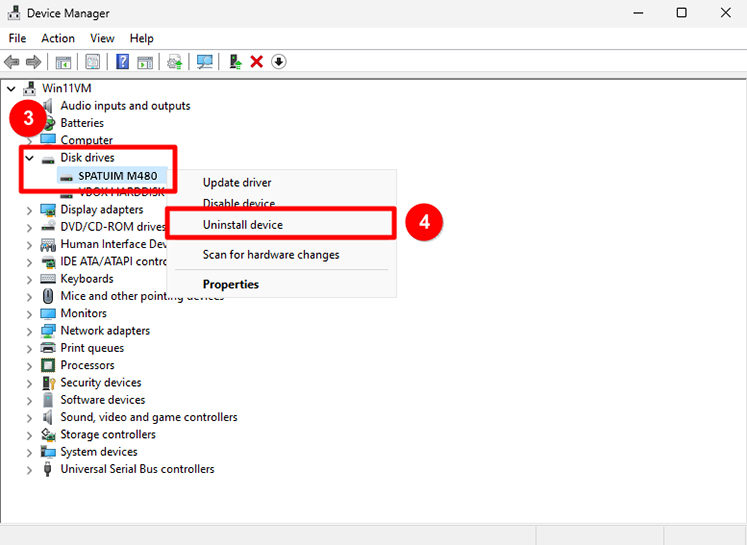
3. Please restart the computer after uninstalling the device; the system will reinstall the driver automatically. Please confirm again after the computer has finished restarting.
System restore
If the problem persists after checking all of the above, refer to [Notebook] How to restore the default factory system through F3 Recovery? to restore the system and then confirm again.
If you have tried the above troubleshooting methods and still cannot resolve the issue, please reach out to the MSI customer service center for further assistance.
Reference Information and Related Articles
[Notebook] How to troubleshoot the missing disk drives issue during Windows 11/10 installation
[Notebook] How to update BIOS?
[Notebook] How to update the driver?
[Notebook] How to restore the default factory system through F3 Recovery?