Battlefield 6 Early Access Beta & MSI Afterburner Setup Guide
Graphics Cards
Battlefield 6 early access beta has started. Many players are participating not only to experience the gameplay and visuals but also to test whether their PCs can run the game smoothly and decide if hardware upgrades are needed.
While Steam’s built-in FPS counter and other monitoring tools are available, MSI Afterburner remains one of the most powerful and popular options.

Introduction to MSI Afterburner
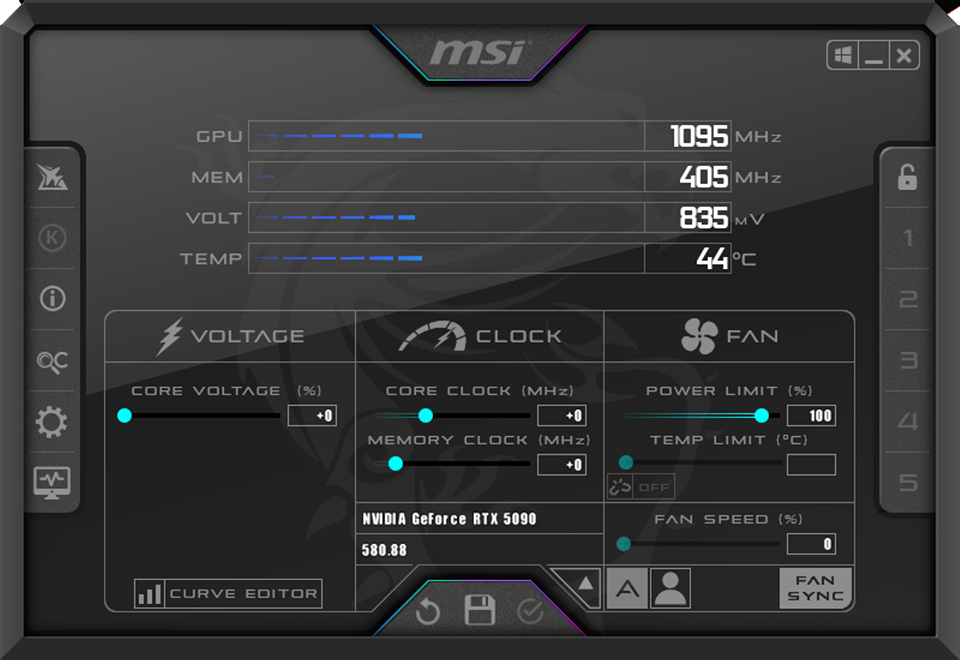
MSI Afterburner is a powerful GPU overclocking and monitoring tool. It is designed specifically for MSI graphics cards but also supports other brands.
With MSI Afterburner, users can easily adjust GPU core clock, memory clock, fan speed, and other parameters to boost graphics card performance.
Additionally, MSI Afterburner offers real-time hardware monitoring, displaying CPU and GPU temperatures, usage rates, and more—helping players better understand their system status.
Why OSD Doesn’t Show in Battlefield 6
While pre-downloading Battlefield 6 and adjusting graphics settings, some players noticed that MSI Afterburner’s on-screen display (OSD) doesn’t work in-game.
This happens because EA updated its anti-cheat system (EAAC) in June last year, which blocks RTSS version 7.3.5 and earlier from displaying overlays.
Solution:
Update RTSS to version 7.3.6 or later to resolve the conflict with EAAC.
MSI Afterburner Installation Steps
- Visit the official website to download the latest version of MSI Afterburner.
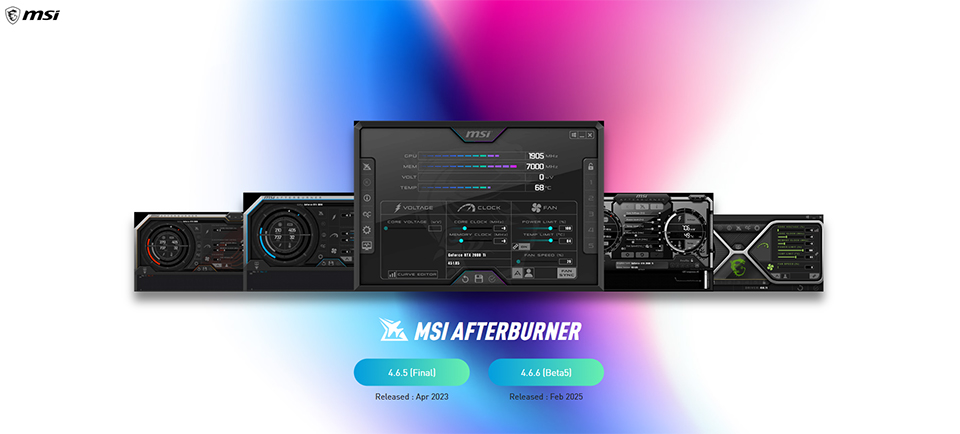
- Once downloaded, extract the files and double-click the installer.
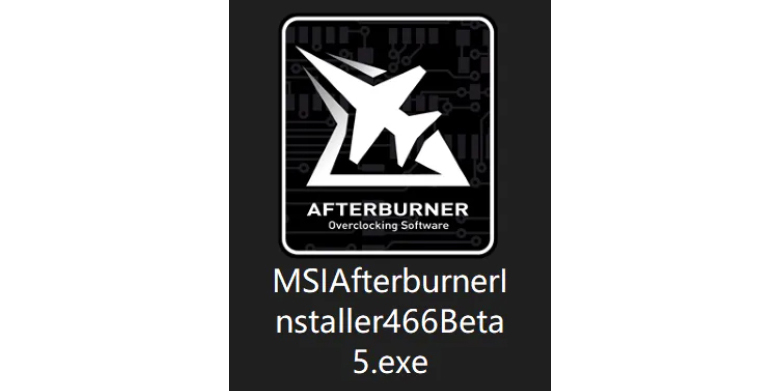
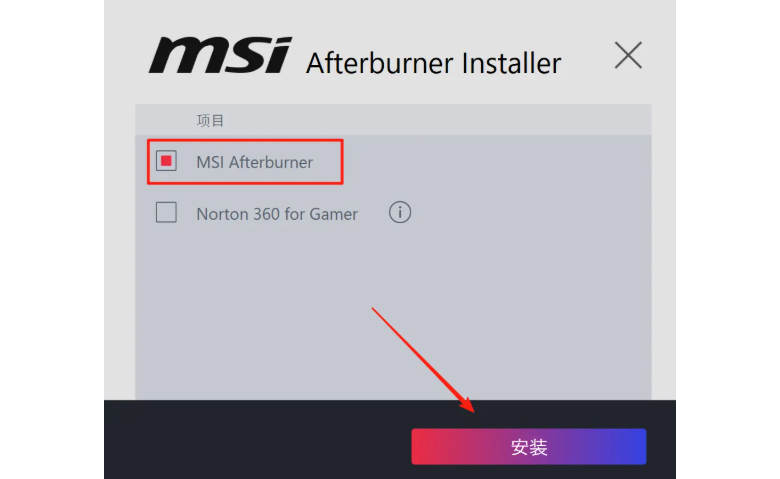
- In the installation options, check only MSI Afterburner, then click Install.
- Select your preferred language (English recommended), click OK, then Next.

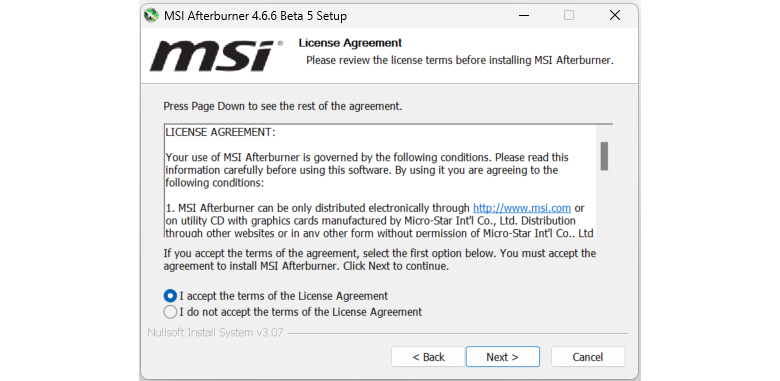
- Accept the license agreement and click Next.
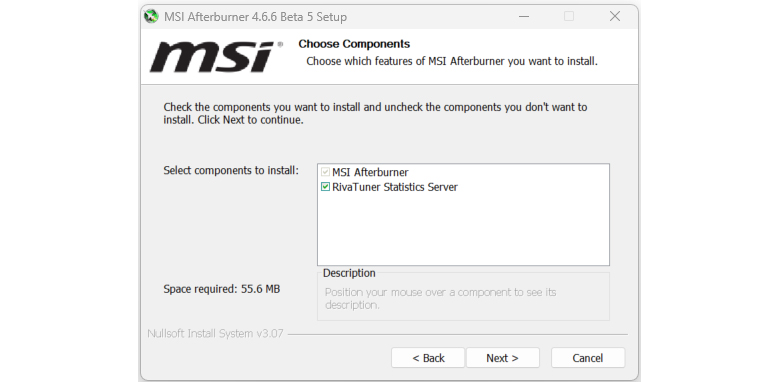
- Make sure to check RivaTuner Statistics Server, then click Next.
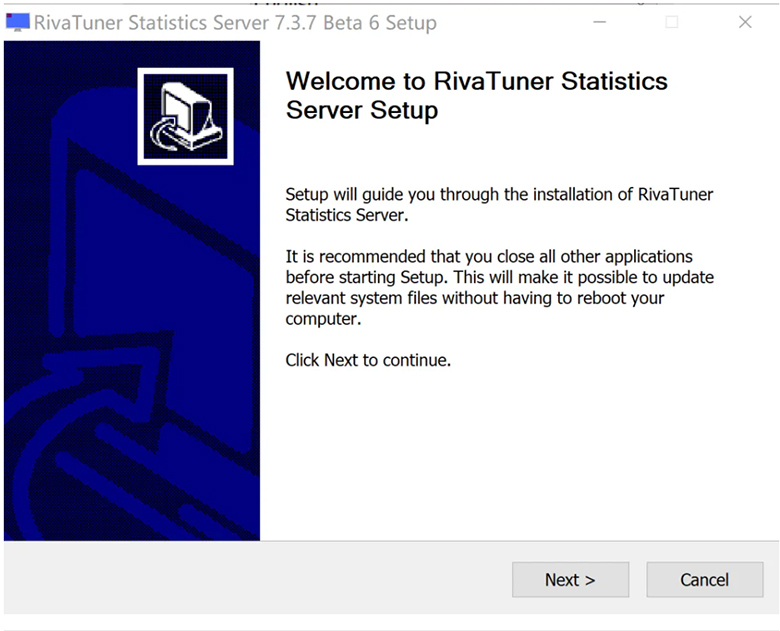
- Choose the installation RivaTuner Statistics Server 7.3.7 Beta6 directory, click Next, then Install.
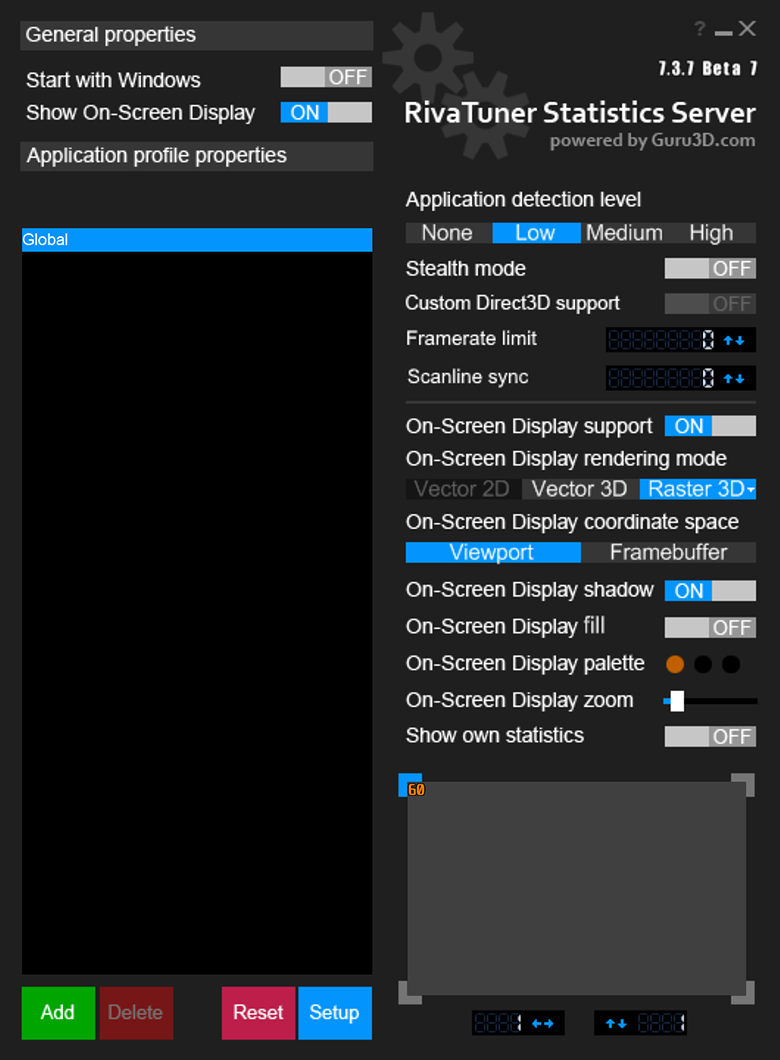
Recommended Version
The latest official MSI Afterburner 4.6.6 Beta 5 comes with RivaTuner Statistics Server 7.3.7 Beta 6, which resolves the OSD display issue in Battlefield 6, allowing players to conveniently monitor performance and hardware temperatures during the beta.
Recommended OSD (On-Screen Display) Settings
After installation, launch MSI Afterburner and RTSS, and enable the following monitoring items:
- GPU Temperature
- GPU Usage
- CPU Temperature
- CPU Usage
- Frames Per Second (FPS)
- Power
- Core Clock
- RAM Usage
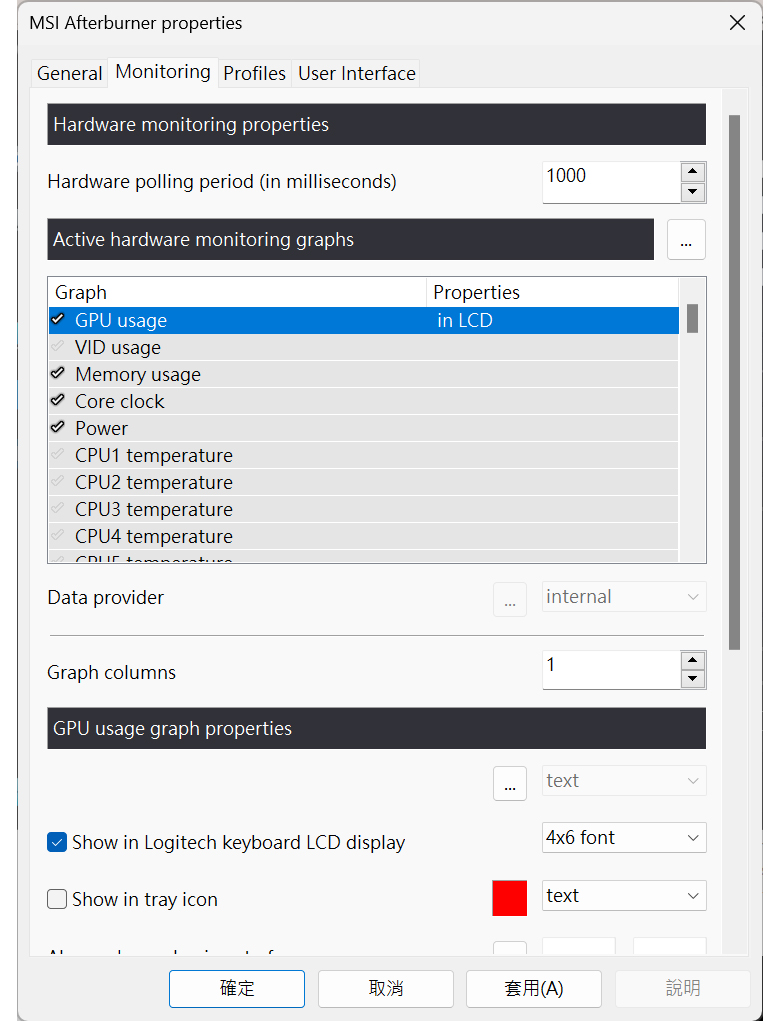
- After installing MSI Afterburner, the RivaTuner Statistics Server installation window will appear automatically. Follow the same process as above.
Deeper Insights into MSI Afterburner
To further empower users with advanced control and monitoring capabilities, here are two comprehensive guides that dive into the inner workings of MSI Afterburner:
MSI Afterburner Walkthrough Part 1: Overclocking Guide & Undervolting Guide:
https://www.msi.com/blog/msi-afterburner-overclocking-undervolting-guide
https://www.msi.com/blog/msi-afterburner-overclocking-undervolting-guide
MSI Afterburner Walkthrough Part 2: On Screen Display, Monitoring and Features:
https://www.msi.com/blog/msi-afterburner-on-screen-display
https://www.msi.com/blog/msi-afterburner-on-screen-display