How to Choose the Best Dual Monitor Setup for Gaming, Work and Streaming?
Monitors
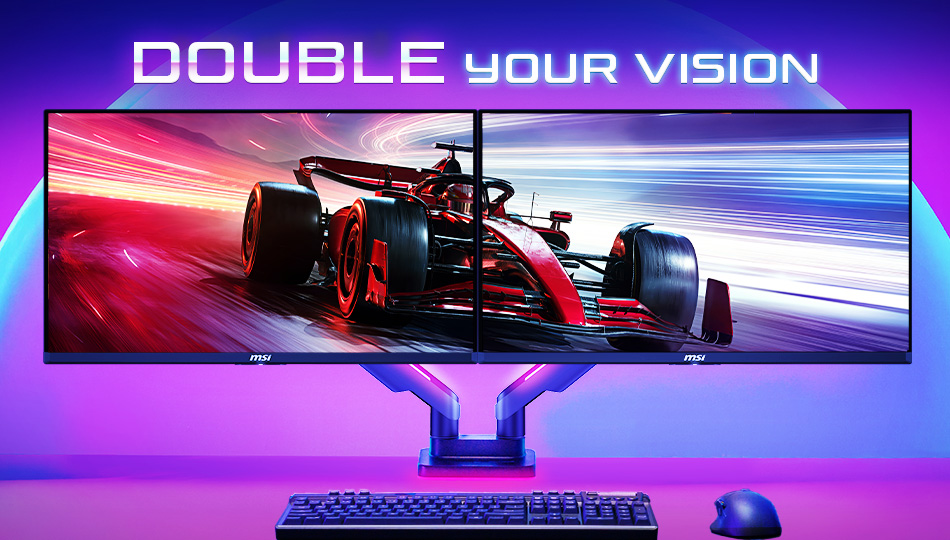
A dual monitor setup is one of the easiest ways to improve productivity, enhance gaming immersion, and streaming content creation workflows. Whether you're a gamer, streamer, or creator, the right monitor combination can provide more screen space, smoother multitasking, and a better overall experience for you.
However, choosing the best dual monitor setup involves more than simply placing two screens side by side. Factors such as monitor size, resolution, refresh rate, panel technology, and connectivity all play an important role in creating an efficient and comfortable setup.
In this guide, we'll explain everything you need to know to choose the best dual monitor setup for your needs.
Why Choose a Dual-Monitor Setup?
Many users start with a single monitor, but quickly discover the limitations of gaming, working, or creating within a single screen.
While a single monitor gets you started, expanding to a dual-screen setup completely transforms how you game, work, and create.
There’s no better time to upgrade. Unlock exclusive bundle savings on MSI e-shop dual monitor deals, and complete your ultimate workspace with an eligible monitor arm at 50% OFF. Building a clean, ergonomic, and high-performance setup has never been easier.
Enhanced Gaming Experience
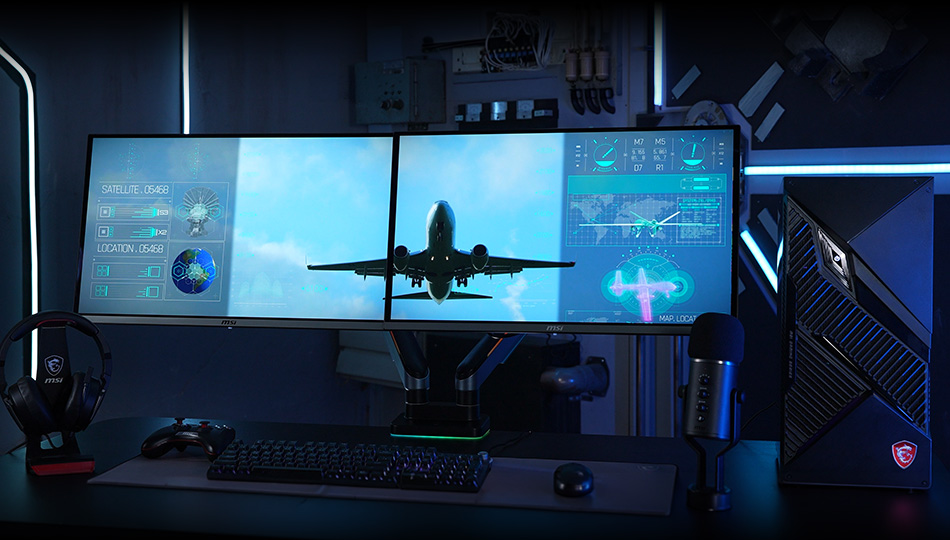
Break free from the confines of a single screen. A dual-monitor setup broadens your field of view, pulling you deeper into the game and delivering a truly immersive, expansive visual experience that puts you at the heart of the action.
Improved Productivity
A dual monitor setup allows users to work across multiple applications simultaneously without constantly switching between windows. For example, you can keep spreadsheets open on one screen while attending meetings or responding to emails on the other. This helps reduce interruptions and improves workflow efficiency.
Better Streaming and Content Creation Workflows
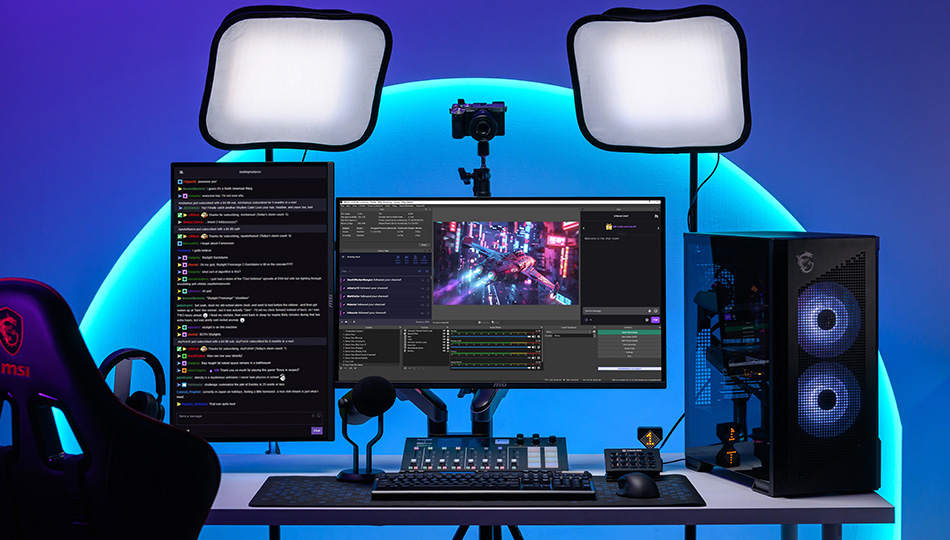
Streamers and content creators often rely on multiple applications at the same time. A second monitor can be used to monitor OBS Studio, read live chat, manage social media, or review content while keeping the main display focused on gameplay or editing software.
How to Choose the Best Dual Monitor Setup for Different User Scenarios?
Choosing the right dual monitor setup isn't just about adding a second screen. The best combination depends on your available desk space, how you use your monitors, and the type of experience you're looking for. Before you buy, consider the following factors to build a setup that fits both your workspace and your daily needs.
1. Evaluate Your Available Desk Space
Before purchasing two monitors, make sure your desk has enough room to accommodate both displays while maintaining a comfortable viewing distance.
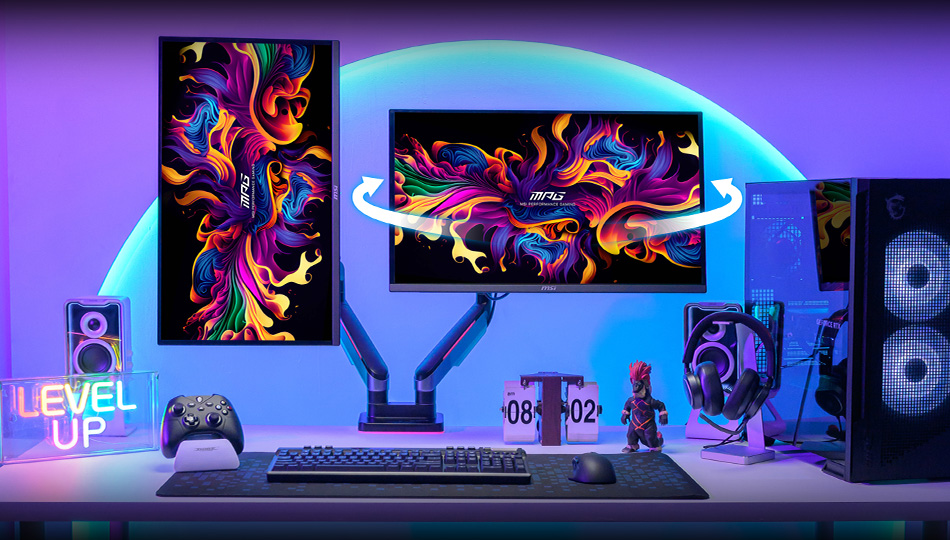
If your workspace is limited, consider using a monitor arm. It helps maximize desk space, improves ergonomics, and allows you to position both monitors more flexibly for gaming, multitasking, or work.
2. Choose the Best MSI Dual Monitor Setup for Your Needs
Every user has different needs. Whether you're looking for the best dual monitor setup for gaming, streaming, multitasking, or productivity, choosing the right monitor size, resolution, refresh rate, and panel type can make your setup more comfortable and efficient.
Immersive 3A Gaming
Elevate your immersion with a dual MSI gaming monitor setup. By pairing identical displays, you create a seamless, panoramic workspace that draws you deeper into your games. With matching screen sizes, resolutions, and ultra-slim bezels, leaving you with nothing but a clean, consistent, and truly immersive field of vision.
Recommended specifications
- Monitor Size: 27 inch gaming monitor
- Resolution: 4K or 2K 1440P monitors for sharper details
- Refresh Rate: 165Hz or above for smoother gameplay (200Hz or 240Hz is even better)
- Panel Type: QD-OLED or Mini-LED for rich colors and deep blacks
- Recommended MSI Models:【link】
Esports Gaming
For competitive gaming, speed is more important than resolution. A dual monitor setup for esports lets you focus on gameplay on your main monitor while using the second display for Discord, team communication, game guide, map or live chat.
Recommended specifications
- Monitor Size: 24 inch or 27 inch monitor
- Resolution: QHD(2K) or FHD
- Refresh Rate: 240Hz or higher
- Panel Type: IPS/Rapid IPS or Rapid VA monitor for fast response times and consistent image quality
- Recommended MSI Models 【link】
Multitasking & Productivity
Maximize your productivity with a dual-monitor setup that makes multitasking effortless. By keeping multiple applications visible simultaneously, such as spreadsheets, emails, video calls, and web browsers, you stay organized and in control. Equipped with Eye Care technology, adjustable ergonomic stands, and seamless USB Type-C single-cable connectivity, your workspace becomes an oasis of comfort and high-efficiency performance.
Recommended specifications
- Monitor size: 27 inch gaming monitor
- Resolution: QHD 2K, offering the perfect balance between sharp image quality and comfortable text size for everyday productivity.
- Refresh Rate: 100/120 Hz monitor or above for the main monitor
- Features: Eye Care technology, ergonomic stand with height/tilt adjustment, and USB Type-C connectivity for one-cable convenience
- Recommended MSI Models【link】
How to Set Up Dual Monitors?
Setting up dual monitors is straightforward once you have compatible hardware.
Step 1: Check Your Device Compatibility
Before connecting your monitors, make sure your PC or laptop supports multiple displays. Most modern devices support dual monitor output, but it’s important to confirm that you have enough available video output ports such as HDMI, DisplayPort, or USB-C.
Step 2: Connect Your Monitors
Connect each monitor to your device using the appropriate cable (HDMI, DisplayPort, or USB-C), and ensure both monitors are powered on.
For the best performance, it’s recommended to use high-quality cables that support your desired resolution and refresh rate.
Step 3: Enable Extended Display Mode
On Windows, right-click your desktop and select Display settings, then choose Extend these displays to use both monitors as one continuous workspace.
On macOS, go to System Settings > Displays to configure your monitor setup.
Step 4: Arrange and Optimize Your Setup
Arrange the monitors in the settings menu to match their physical placement on your desk. This ensures smooth cursor movement between screens.
Quick Summary
A dual-monitor setup offers more than just extra screen space.
It helps improve multitasking, enhance immersion, and create a more efficient workflow. Pairing dual monitors with a monitor arm further improves comfort, flexibility, and workspace organization.
Whether you're gaming, creating, studying, or working, a dual-monitor setup can help you see more, do more, and achieve more.
Ready to upgrade your setup? — visit MSI online store to discover exclusive deals!【link】