Enhance the Work Efficiency with KVM of the Modern & Summit Series Monitor
Monitors
Organizing a workspace at home or work is challenging. The setting up of a workspace is always a time-consuming process, whether it is at home or in the office. You may need multiple computers, monitors, and peripherals to always be at your side. Controlling all the devices is the most time-consuming part of the job. Have you experienced the following similar situation or problem?
1. I work with a laptop because my job takes me to different locations. However, I work with a desktop pc at home or in the office because of its higher performance.
2. I have a new second computer, but some necessary data is saved on the first one, so I have to work with these two computers simultaneously.
3. I got one laptop from my company, and I have the other computer at home, but I prefer my personal one when I work or stay at home.
4. I bought a second computer for my family to learn from home or for entertainment, but I still work with my first laptop.
5. My work environment looks like a mess because I have to work with computers, laptops, and other devices.

Do you have to work with two computers and wish to use one keyboard and mouse for both computers? Then, it would help if you had an MSI Modern or Summit series monitor with a built-in KVM (Keyboard, Video, and Mouse) function. If so, you can easily switch between PCs you control using one set of keyboard and mouse.
Before Starting the KVM Function
Before using an MSI monitor with a built-in KVM function, let's prepare some information for your reference.
1. MSI Monitor support model list:
• Modern MD272QP
• Modern MD272QPW
• Modern MD272P
• Modern MD272PW
• Summit MS321UP
• Modern MD272QP
• Modern MD272QPW
• Modern MD272P
• Modern MD272PW
• Summit MS321UP
2. Please prepare two personal computers, which could be a desktop PC and a laptop, and please ensure these two computers have been installed with Windows 10 or Windows 11. One of these computers must equip with a USB Type-C which simultaneously supports the display and data transmission function.
3. Please download the utility “Productivity Intelligence” and install it on both computers you will use. You can find the utility from the support page of the models as mentioned earlier, or you can also directly download it from the following link: https://download.msi.com/uti_exe/monitor/ProductivityIntelligence-x64.zip
4. Please prepare the proper cables for connecting the MSI monitor and your computers, or you can find some cables in the carton of the monitors as mentioned above.
5. A Type C cable with a display and USB signal function is required.
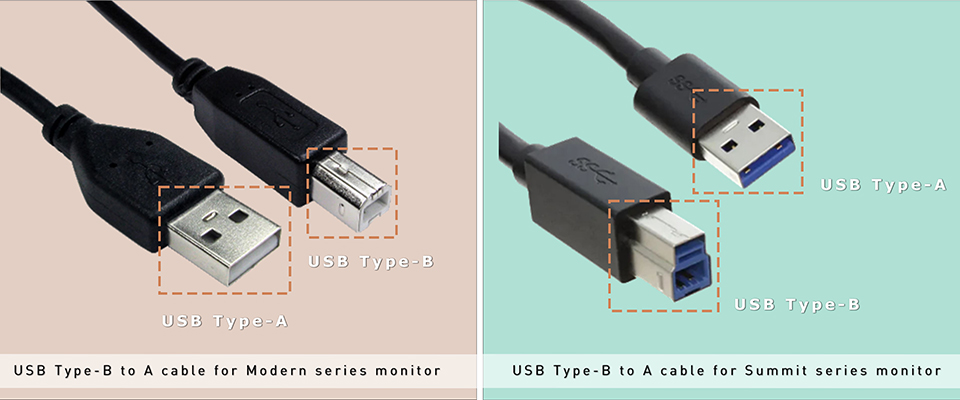
6. A USB Type-B to Type-A cable is required, and you can find the cable in the carton of the monitors as mentioned in the support model list.
Connecting Your Computers with an MSI Monitor
1. Connection for your 1st PC
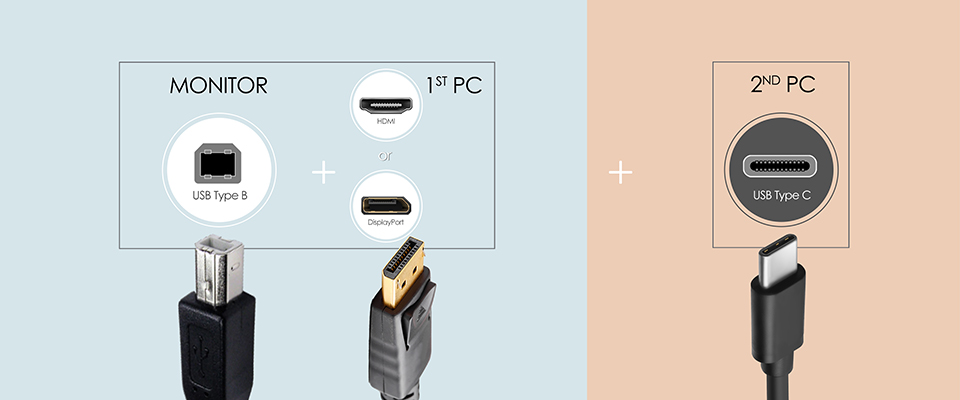
(a.) Connect a USB Type-B to A cable to your first computer and Modern MD272 series or Summit series monitor. Please connect the USB Type-B side to the monitor, and plug the Type-A side into your PC's USB port.
(b.) Connect an HDMI™ or DisplayPort with the monitor and your first PC.
(a.) Connect a USB Type-B to A cable to your first computer and Modern MD272 series or Summit series monitor. Please connect the USB Type-B side to the monitor, and plug the Type-A side into your PC's USB port.
(b.) Connect an HDMI™ or DisplayPort with the monitor and your first PC.
2. Connection for your 2nd PC
(a.) Connect a USB Type-C to C cable to your second laptop/PC and Modern MD272 series or Summit series monitor.
(b.) Please ensure your laptop equips with a USB Type-C port that simultaneously supports the display and data transmission function.
(c) A Type C cable with a display and USB signal function is also required.
(a.) Connect a USB Type-C to C cable to your second laptop/PC and Modern MD272 series or Summit series monitor.
(b.) Please ensure your laptop equips with a USB Type-C port that simultaneously supports the display and data transmission function.
(c) A Type C cable with a display and USB signal function is also required.
Connecting Keyboard & Mouse with the Monitor
Option 1.
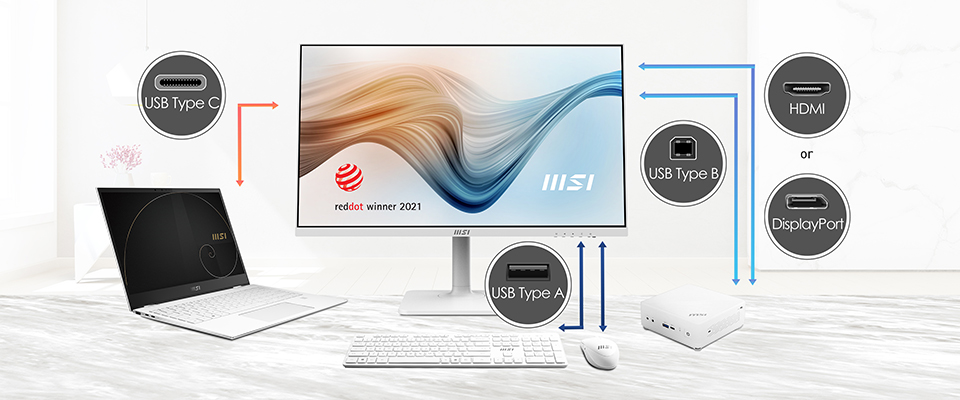
Please connect the wired keyboard & mouse to the USB ports of the Modern MD272 series or Summit series monitor.
Please connect the wired keyboard & mouse to the USB ports of the Modern MD272 series or Summit series monitor.
Option 2.
Connect the receiver of the wireless keyboard & mouse to the USB port of the Modern MD272 series or Summit series monitor.
Connect the receiver of the wireless keyboard & mouse to the USB port of the Modern MD272 series or Summit series monitor.
KVM Switch Setting
1. Download the utility “Productivity Intelligence (P.I.)” from the following link or visit the product page of the Modern & Summit series monitor:
https://download.msi.com/uti_exe/monitor/ProductivityIntelligence-x64.zip
2. Install the P.I. on both computers you will use.
2. Launch the Productivity Intelligence (P.I.)
3. Find the KVM function in the Productivity Intelligence.
4. Keep the KVM in “Auto” mode, then you just need to switch the input source and enjoy the convenience of KVM Switch.
https://download.msi.com/uti_exe/monitor/ProductivityIntelligence-x64.zip
2. Install the P.I. on both computers you will use.
2. Launch the Productivity Intelligence (P.I.)
3. Find the KVM function in the Productivity Intelligence.
4. Keep the KVM in “Auto” mode, then you just need to switch the input source and enjoy the convenience of KVM Switch.
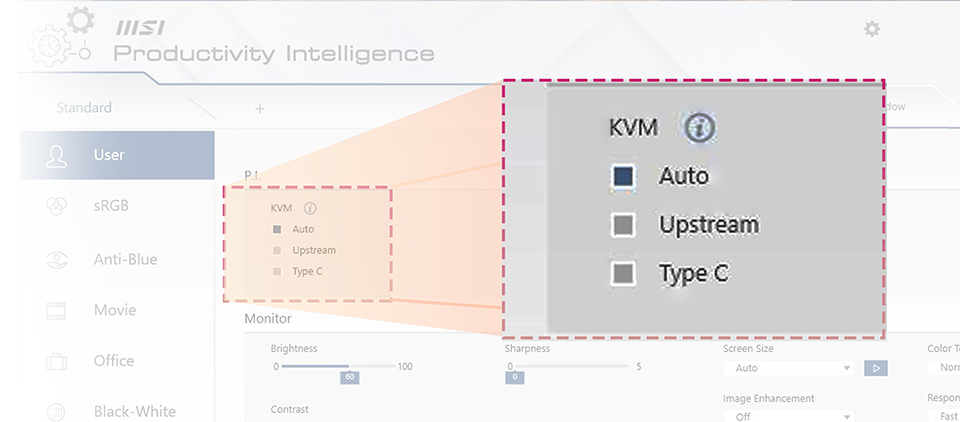
Switch between Two Computers
1. Find the “Settings” (Gear icon) in the top-right corner of P.I.
2. Enable the hotkey function via the “Off/On” button on the right.
2. Setting for the KVM switch:
(a) Option 1: You can select the different input sources via the “System Setting” of P.I. with a mouse connected to the monitor.
(b) Option 2: Press the Hotkey, which can be customized by yourself.
2. Enable the hotkey function via the “Off/On” button on the right.
2. Setting for the KVM switch:
(a) Option 1: You can select the different input sources via the “System Setting” of P.I. with a mouse connected to the monitor.
(b) Option 2: Press the Hotkey, which can be customized by yourself.
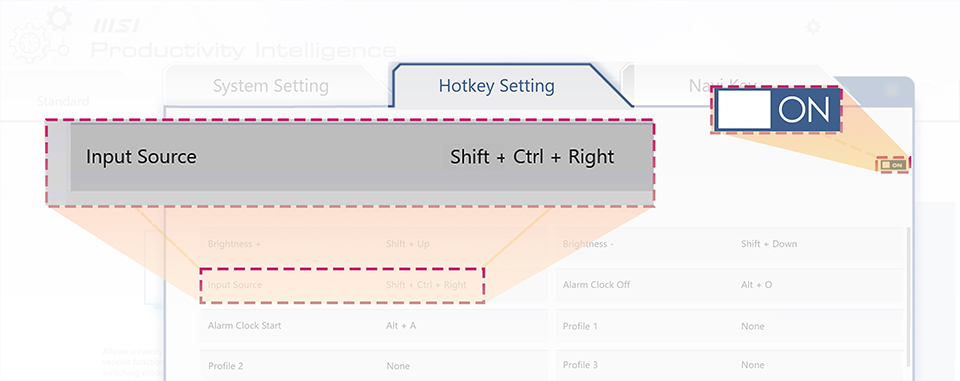
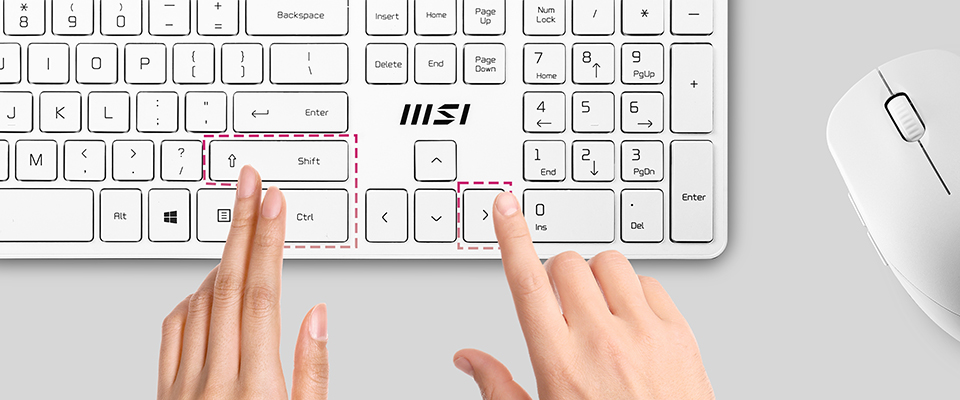
We strongly suggest you customize the hotkey you prefer, E.G., Shift + Ctrl + Right, so that you can quickly switch between two computers and enjoy the benefit and efficiency of the KVM.
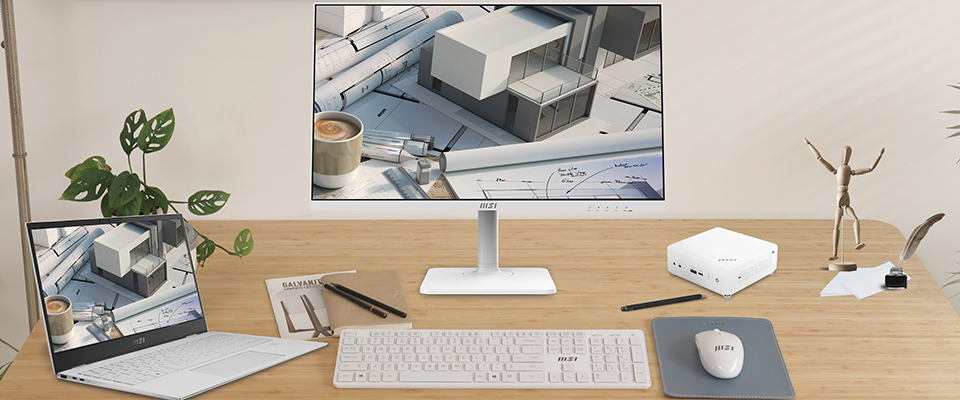
You can now enjoy KVM's benefits with the MSI Modern MD272 series or Summit MS321 series monitor:
It’s
Clean,
Stylish,
and Efficient.
With the KVM function of the Modern & Summit series monitor, your desk will No longer be a Mess.
Clean,
Stylish,
and Efficient.
With the KVM function of the Modern & Summit series monitor, your desk will No longer be a Mess.
For more information, please visit the product page of Modern MD272 & Summit MS321 series monitors:
https://www.msi.com/Business-Productivity-Monitors/Products#?tag=Modern-Series
https://www.msi.com/Business-Productivity-Monitors/Products#?tag=Summit-Series
https://www.msi.com/Business-Productivity-Monitors/Products#?tag=Modern-Series
https://www.msi.com/Business-Productivity-Monitors/Products#?tag=Summit-Series