How to Master Your MEG CORELIQUID E15 360 with MSI EZ DISPLAY – Complete AMOLED Screen Customization Guide
Case & Components
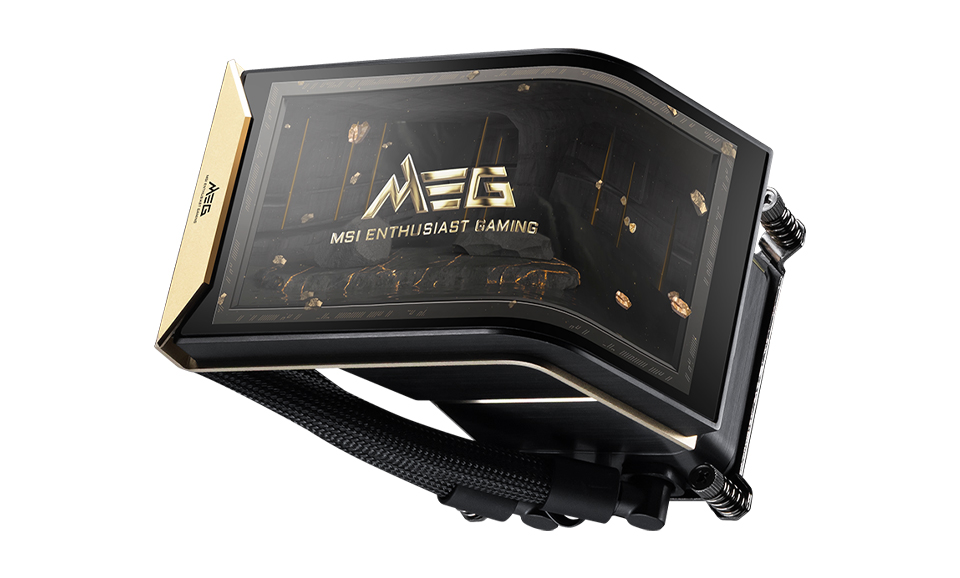
The MEG CORELIQUID E15 360 features a stunning 2K 6.67-inch ultra-high-resolution AMOLED display. To provide an unprecedented visual experience, we specifically engineered a 110-degree fold precisely at the 2:1 ratio of the screen. By pairing this unique hardware marvel with the latest MSI EZ DISPLAY software, you can completely unlock the full potential of this revolutionary water block display. Today, we will guide you through how to navigate the MSI EZ DISPLAY software to operate and customize this cutting-edge screen, helping you build the ultimate flagship PC aesthetic.
To fully unlock all the features of this display—including Full Screen Mode, Split Screen Mode, and Extended Mode—please first visit the official MSI website to download and install the latest version of the MSI EZ DISPLAY software. (1.0.7 or newer version)
Software Configuration
The main interface displays system information and the monitor connection status.
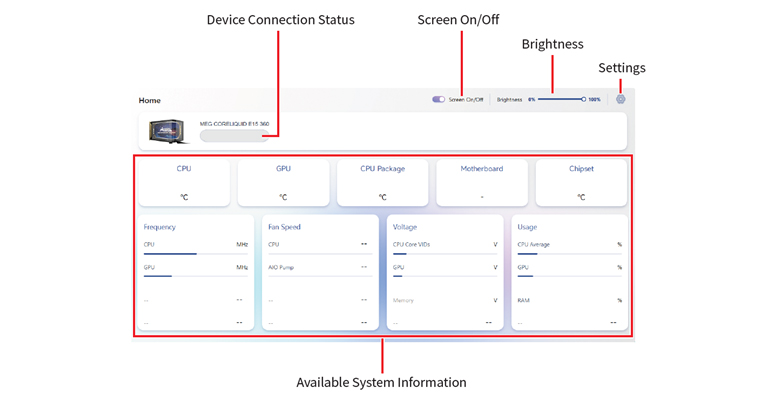
Brightness - Adjust screen intensity from 0%−100%.
Screen On/Off - Main power switch for the screen.
Settings - Set display language, temperature unit (°C/°F), enable launch on startup, and toggle Standby Mode.
Upon successfully connecting and entering the software's main interface, you will be greeted by three primary function options. Users can freely switch between these settings based on their personal visual preferences and hardware monitoring needs. These three core modes are: Full Screen Mode, Split Screen Mode, and Extended Mode.
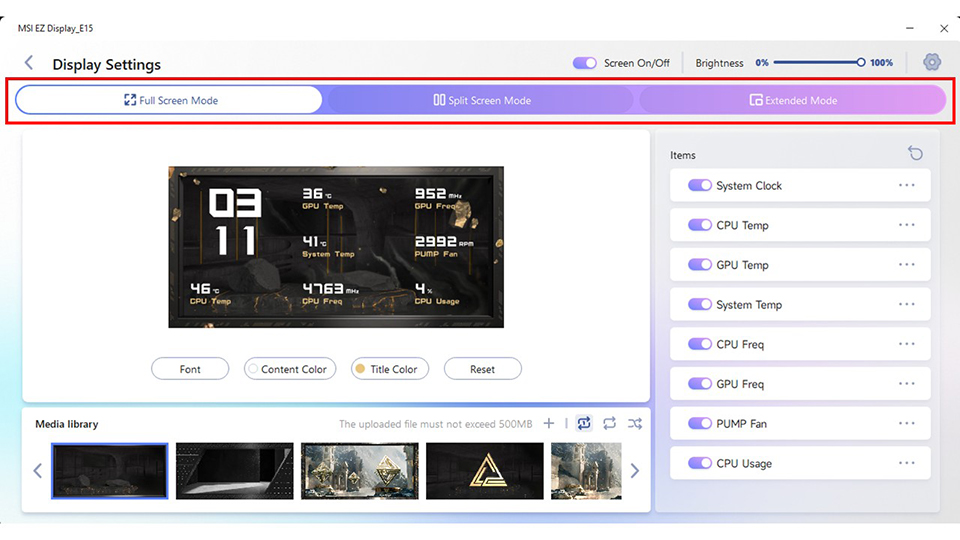
1. Full Screen Mode - Displays system information in a single full-screen layout.
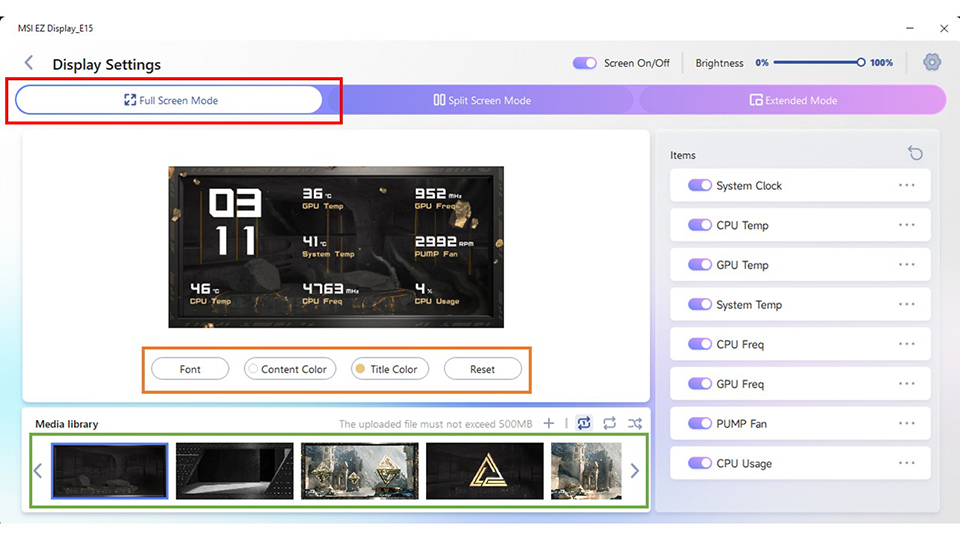
Displays system information in a single full-screen layout.
When paired with the exclusive videos from MSI's default media library, this mode delivers a highly immersive and complete naked-eye 3D visual experience. You have the ultimate flexibility to customize your hardware monitoring by displaying anywhere from 0 to a maximum of 8 system information items simultaneously. Thanks to the brilliant 2K resolution AMOLED screen, every dynamic detail, 3D effect, and data readout is rendered with absolute perfection.
Font: Change the text style.
Content Color / Title Color: Adjust the colors of the displayed information.
Reset: Revert all appearance settings to default.
Media Library: Customize the background by selecting default animations or uploading personal video files. You can upload up to 8 custom videos, with each file limited to a maximum size of 500MB and a duration of under 2 minutes. If the maximum upload limit is reached, simply delete one of your previously uploaded custom videos to make room for a new one.
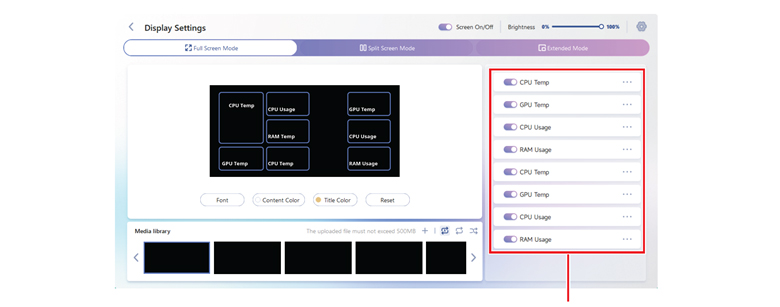
Monitoring Items: Toggle the switches to select which system data to display on the screen. You can display up to 8 hardware monitoring items simultaneously across 8 preset locations, with a wide variety of data types available for each spot. For a completely clean visual experience, you also have the flexibility to turn them all off and display 0 items.
Advanced Settings: Click the ellipsis icon“ ...” next to each item to configure detailed parameters or switch the display to Clock mode.
2. Split Screen Mode - Splits the screen into two sections to display different background videos simultaneously.
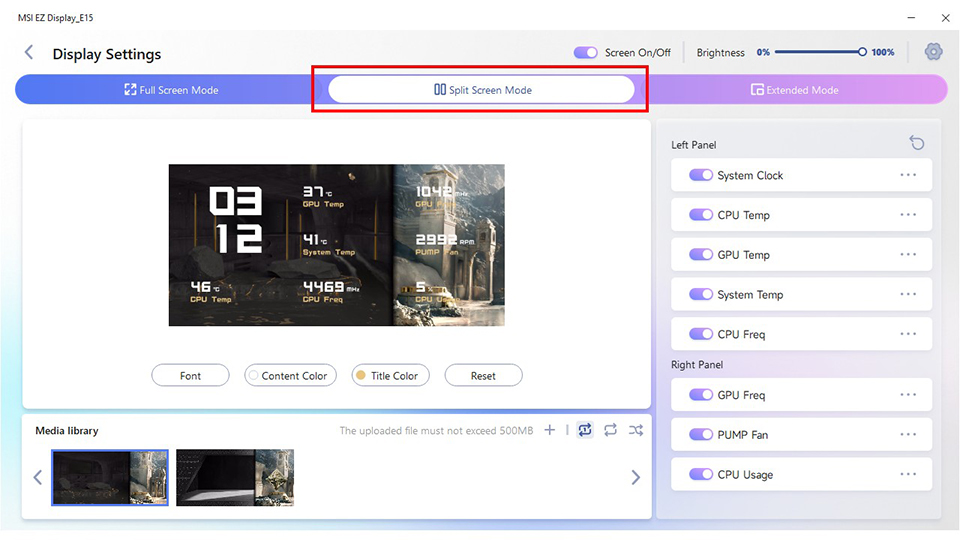
The Split Screen Mode offers exceptional flexibility for customization. We have intelligently divided the visual space into a 2:1 ratio, allowing you to independently assign different images or videos as backgrounds for each area. Furthermore, you can overlay real-time hardware system information directly on top of your customized backgrounds. For instance, you can choose to showcase your favorite videos on the larger section of the screen, while utilizing the smaller section for a static image paired with crucial system diagnostics—achieving the perfect balance between visual entertainment and practicality. Regarding hardware monitoring, you retain the flexibility to display a total of 0 to 8 system information items. Specifically, the larger screen area can accommodate up to 6 data items, while the smaller area can hold up to 3 items. Please note that the media library upload capacity is shared with Full Screen Mode; you can upload a combined total of up to 8 custom videos across both modes, with each file limited to a maximum of 500MB and under 2 minutes in duration.
3. Extended Mode - When using the Extended Display feature, the screen can function as a secondary display.
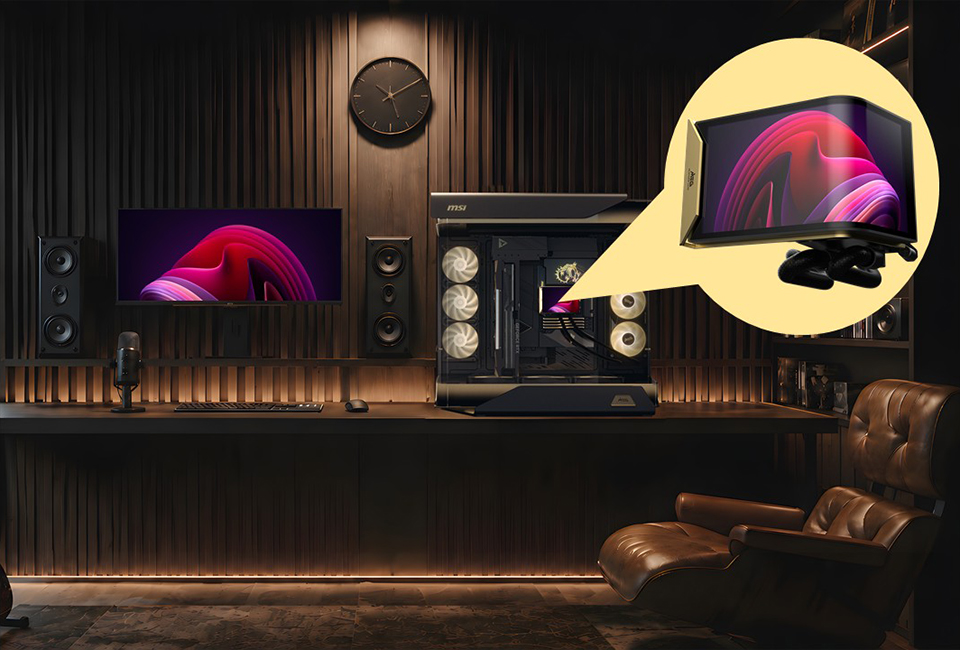
The Extended Mode is a breakthrough feature that instantly transforms your 6.67-inch 2K AMOLED screen into a secondary display. It only takes a simple "one-click" toggle to effortlessly turn this mode on or off. More importantly, we have specially optimized the software experience: while this mode is off, your mouse cursor will never accidentally drift into the water block's screen. This thoughtful design ensures that your daily workflow on your main monitor remains completely smooth and uninterrupted.
Whether you are an enthusiast seeking ultimate visual impact or a hardcore user demanding precise system monitoring, the combination of the MEG CORELIQUID E15 360’s 2K AMOLED display and the MSI EZ DISPLAY software delivers an unprecedented, personalized experience. From the immersion of Full Screen Mode and the freedom of Split Screen Mode, to the practicality of Extended Mode, your imagination is the only limit. This liquid cooler is not just the visual centerpiece of your chassis, but the ultimate canvas for your personal aesthetic. Download the latest software (1.0.7 or newer version) today and build your truly unique flagship PC!
FAQ
Q1: How many default files are included in the Media Library? Can I delete them?
A: The Media Library includes 6 default full-screen videos and 2 default split-screen videos. These built-in videos ensure that display content is always available, so they cannot be deleted.
Q2: How many custom files can I upload? Are there any file size limitations?
A: You can upload up to 8 custom videos. Each video must meet the following requirements:
File size: Less than 500 MB
Video length: Less than 2 minutes
If you’ve reached the upload limit, simply delete one of your existing custom videos before uploading a new one.
File size: Less than 500 MB
Video length: Less than 2 minutes
If you’ve reached the upload limit, simply delete one of your existing custom videos before uploading a new one.
Q3: Can I customize the Hardware Monitor display? Can I freely move the information on the screen?
A: Yes. You can choose to display 0 to 8 hardware monitoring items, depending on your preference. For layout, the software provides 8 preset display positions to ensure the best visual balance and readability. Free dragging and custom positioning are not supported.