Everything You Need to Know to Get the Best Out of Your Claw A8
Handheld PCs
Following the enthusiastic response to our 8" Lunar Lake Claw 8 AI+, we heard your feedback loud and clear: an AMD-powered handheld. We're excited to unveil the MSI Claw A8, the very first MSI handheld equipped with the AMD Ryzen™ Z2 Extreme Processor.
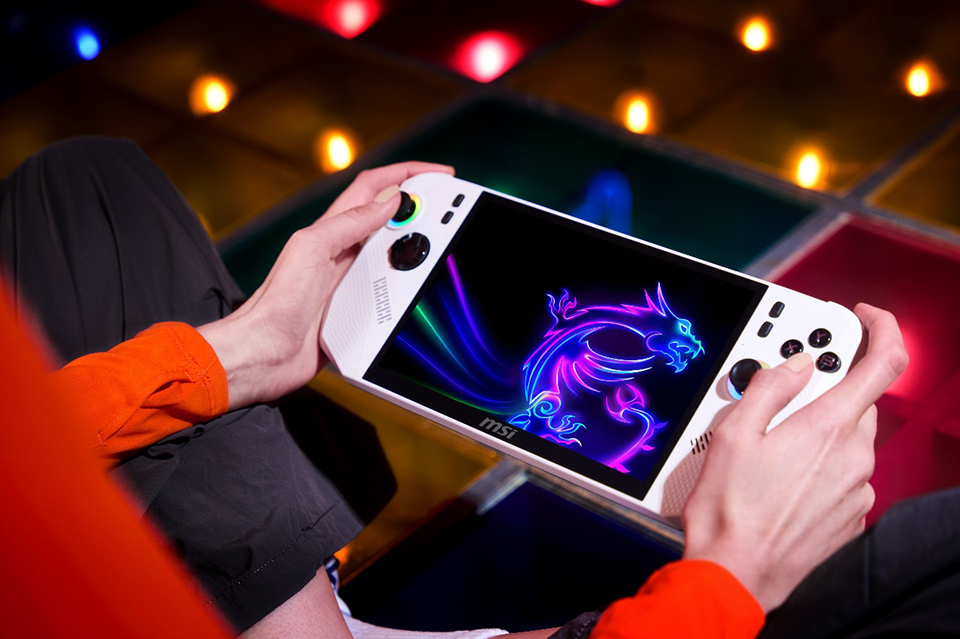
▲ The MSI Claw A8, powered by the AMD Ryzen™ Z2 Extreme Processor.
Built for Performance and Precision
The Claw A8 comes loaded with AMD-exclusive features like RSR (Radeon Super Resolution), RIS (Radeon Image Sharpening), and AFMF (AMD Fluid Motion Frames), all designed to enhance your gameplay with sharper visuals and smoother motion. The best part? You can easily toggle these settings on or off right within Quick Settings.
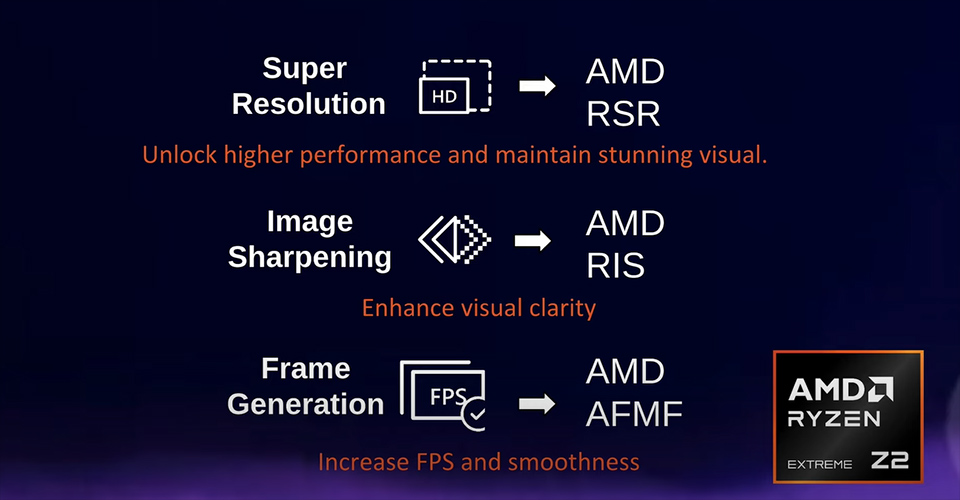
▲ The Claw A8 comes equipped with AMD-exclusive features like RSR, RIS, and AFMF.
Your Style, Your Choice
This powerful device also brings fresh personality to the lineup, available in two bold colorways: Polar Tempest and Neon Green.
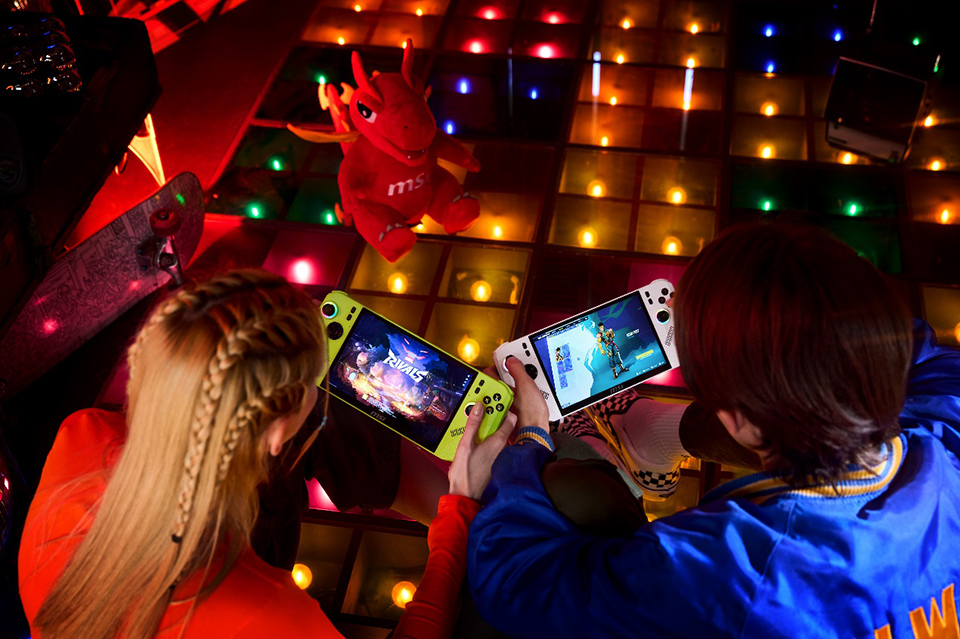
▲ The Claw A8 comes in two bold colors: Polar Tempest and Neon Green.
From Handheld to Mini PC
With dual USB4 ports, Claw A8 supports charging while connecting to an external monitor, GPU, or other accessories. It seamlessly transforms from a handheld gaming device into a fully functional mini PC.
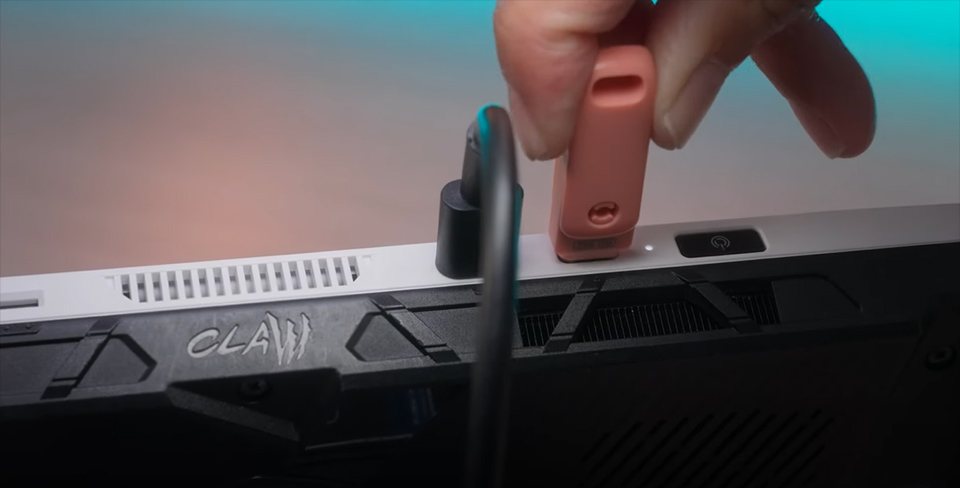
▲ Claw A8 supports simultaneous charging and connection to an external monitor, GPU, or other accessories.
Your Favorites, Fully Retained
We retained all the beloved elements from the original Claw: our exclusive Cooler Boost HyperFlow thermal design, ultra-precise Hall effect triggers and joysticks, and a stunning 8” 120Hz VRR display that eliminates screen tearing for a seamless gaming experience.
And with a massive 80Whr battery, you can enjoy up to 19 hours of usage time.
(Disclaimer: Tested under 1080p video playback conditions.)
(Disclaimer: Tested under 1080p video playback conditions.)
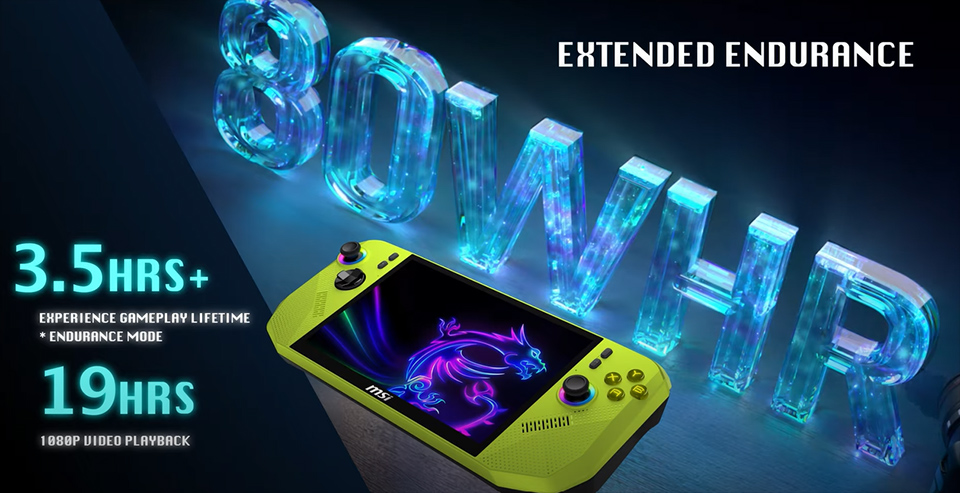
▲ Equipped with a massive 80Whr battery, Claw A8 delivers up to 19 hours of usage time.
First Boot & Upgrade: Getting Started
To get started with your Claw A8, plug in the power and begin the Out-Of-Box Experience (OOBE). This setup process takes around 30 minutes and includes region selection, network connection, and logging into your Microsoft account. Make sure to stay connected to the internet throughout—some features require it during initial setup.
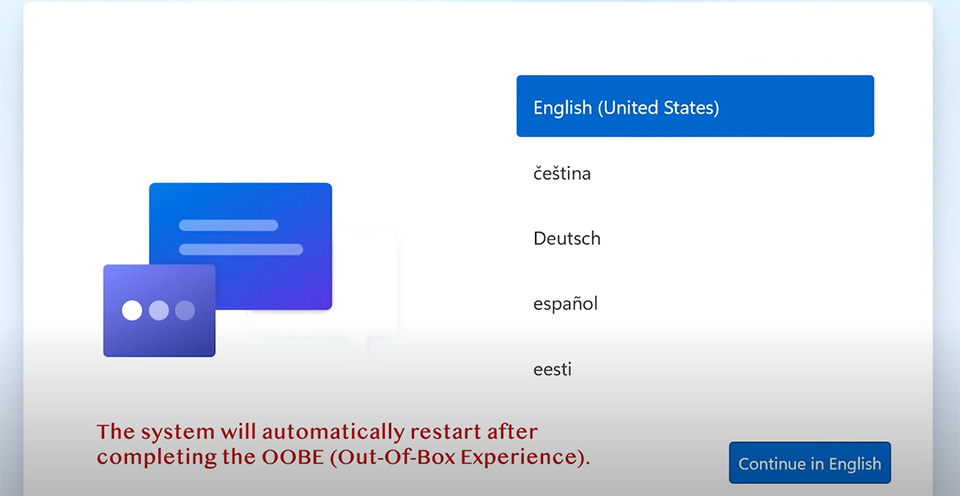
▲ The full OOBE process takes about 30 minutes. Please stay connected to the internet throughout the setup.
After setup, head to Windows Update to install the latest patches, then launch MSI Center M, enable Live Update, and make sure your drivers and BIOS are up to date. This will keep your Claw A8 running smoothly right out of the box.
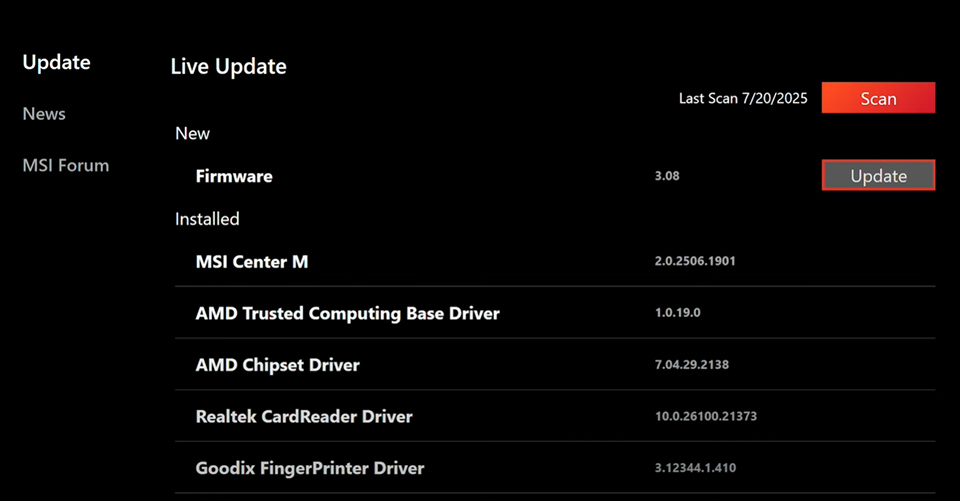
▲ Keep your Claw A8 optimized by enabling Live Update in MSI Center M to install the latest firmware and drivers.
MSI Center M: Tailored for Handheld Gaming
MSI Center M is purpose-built for handhelds, bringing all your essential tools and performance settings into one intuitive interface. It offers three primary modes to help you get the most out of your device, depending on your usage scenario.
To begin with, AI Engine automatically balances performance and power usage, delivering a seamless plug-and-play experience without the need for manual adjustments.
When you're on the move, Endurance Mode is your go-to. It reduces power consumption to maximize battery life—ideal for extended sessions away from a power outlet. For instance, you can enjoy approximately 3.5 hours of Diablo IV gameplay in this mode.
For users who prefer hands-on control, Manual Mode provides advanced customization. You can fine-tune TDP and fan speed, including SPL (Sustained Power Limit), SPPT (Short-term Peak Power), and FPPT (Very Short-term Peak Power), to match your specific performance needs.
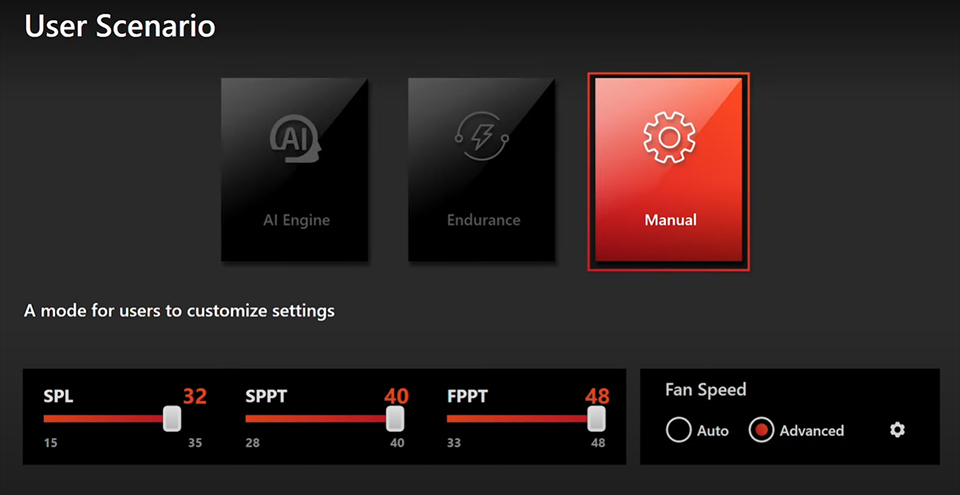
▲ User Scenario in MSI Center M offers AI, Endurance, and Manual Modes. Want full control? Manual Mode lets you adjust power limits and fan speed to match your performance needs.
In Control Mode, you can seamlessly switch between Gamepad Mode and Desktop Mode, depending on your usage needs. Within Gamepad Mode, users can fine-tune joystick dead zones, set up macro keys, and adjust gyro sensitivity for a more customized control experience.
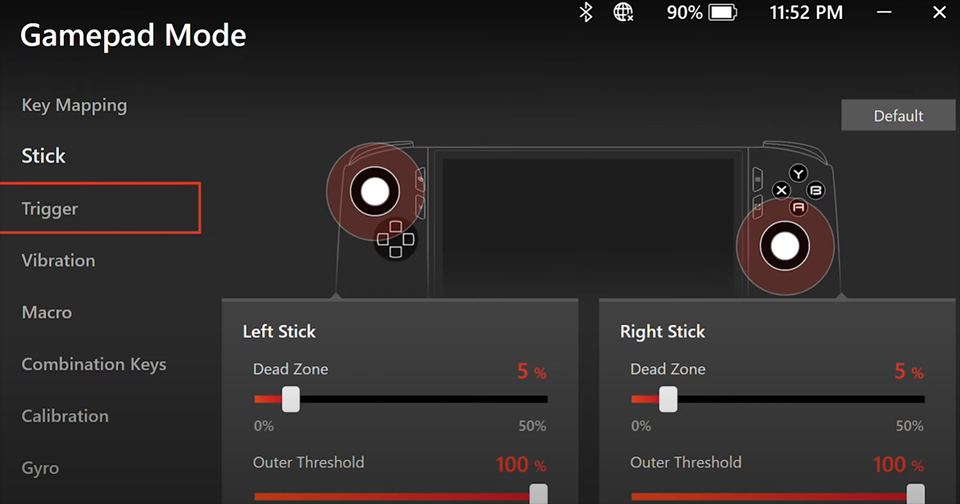
▲ In Control Mode, switch to Gamepad Mode to adjust dead zones, macro keys, gyro, and triggers—designed for players who demand precision.
Additionally, Quick Settings is now deeply integrated with the Xbox Game Bar, offering instant access to frequently used tools such as the friends list, widgets, and screen capture. For first-time setup, please ensure your device is connected to the internet, as some features require online access during initialization.
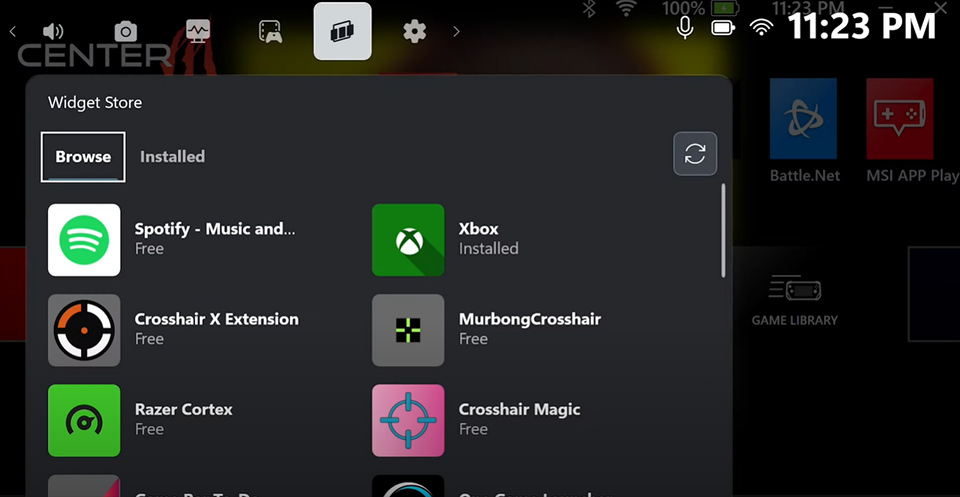
▲ Quick Settings is integrated with Xbox Game Bar, giving you instant access to friends, popular widgets, and essential tools. An internet connection is required during initial setup.
Want to tailor the interface to your preferences? Simply tap the settings icon to add or remove functions on your dashboard—just apply the changes, and your personalized layout is ready to go.
Moreover, a built-in FPS Limiter allows you to cap frame rates at 30, 45, 60, 90, or 120 FPS. This not only helps conserve battery life but also ensures smoother gameplay under varying power conditions.
(Note: Feature availability may vary by game.)
(Note: Feature availability may vary by game.)
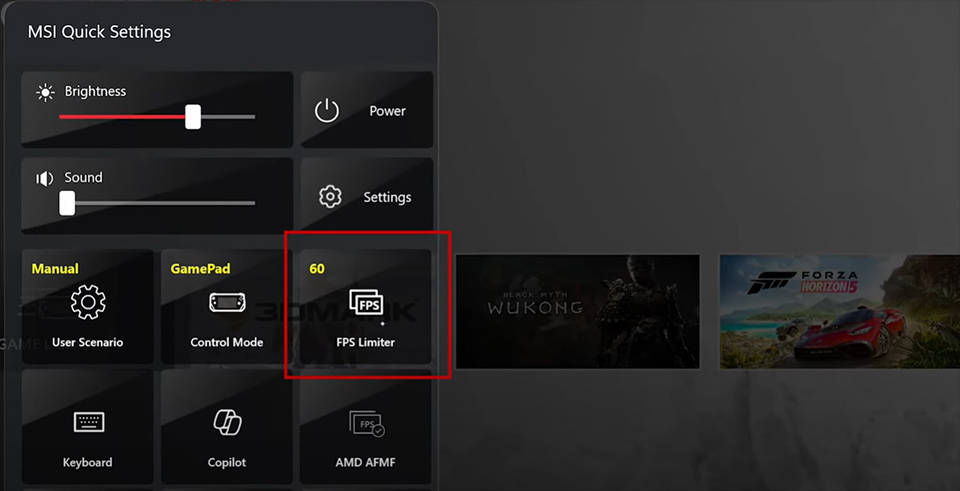
▲ Personalize your layout and use the built-in FPS Limiter to save power and maintain consistent performance across different titles.
Finally, don’t miss the Force Feedback Audio feature, which leverages speaker vibrations to deliver tactile feedback—adding a layer of immersion that enhances every gaming moment.
Game Installation & Gameplay
Getting started with games on the Claw A8 is a breeze. Let’s take Steam as an example:
1. Launch MSI Center M and head to the gaming platform section.
2. Select Steam, and you’ll be redirected to the official site—just download, install, and log in.
3. Pick your game, download it, and click Play—that’s it.
1. Launch MSI Center M and head to the gaming platform section.
2. Select Steam, and you’ll be redirected to the official site—just download, install, and log in.
3. Pick your game, download it, and click Play—that’s it.
Once installed, your games will appear in MSI Center M’s dashboard for quick, one-click access.
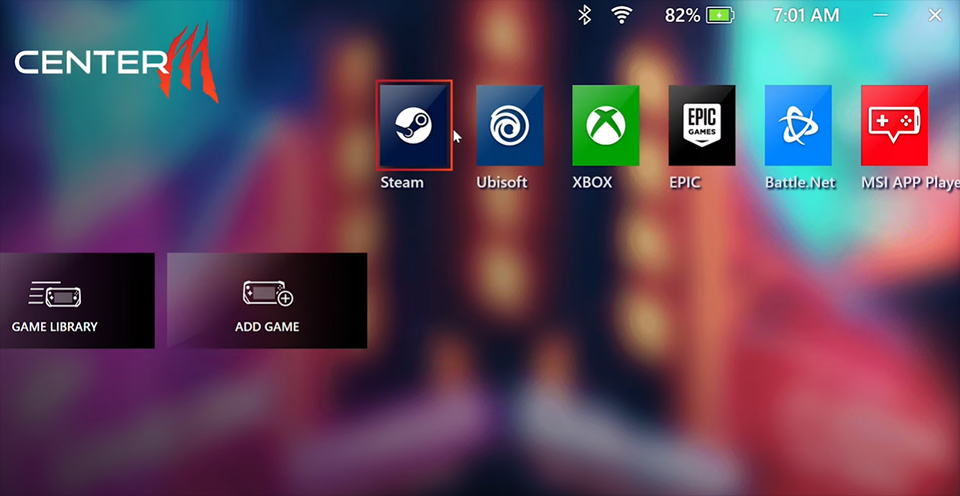
▲ Launch MSI Center M and access your favorite platforms like Steam, Ubisoft, Xbox, and more—all in one place.
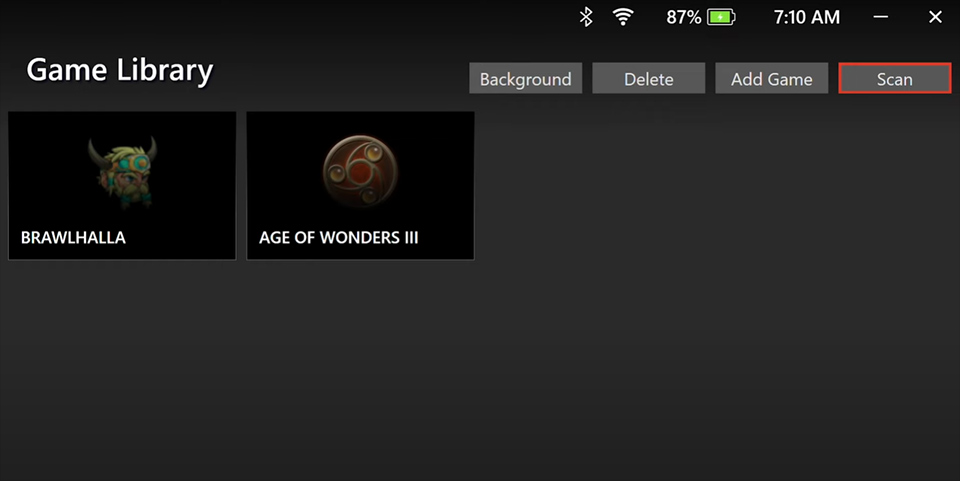
▲ Your installed games will automatically appear in Game Library for easy one-click access.
Want smoother performance with crisp visuals? Here’s a tip for you—try enabling AMD FSR in supported games. It works by rendering at a lower resolution and intelligently upscaling the image, giving you higher frame rates without sacrificing visual quality. You can usually find it under Graphics > Upscaling, Image Scaling, or Advanced Graphics in your game settings.
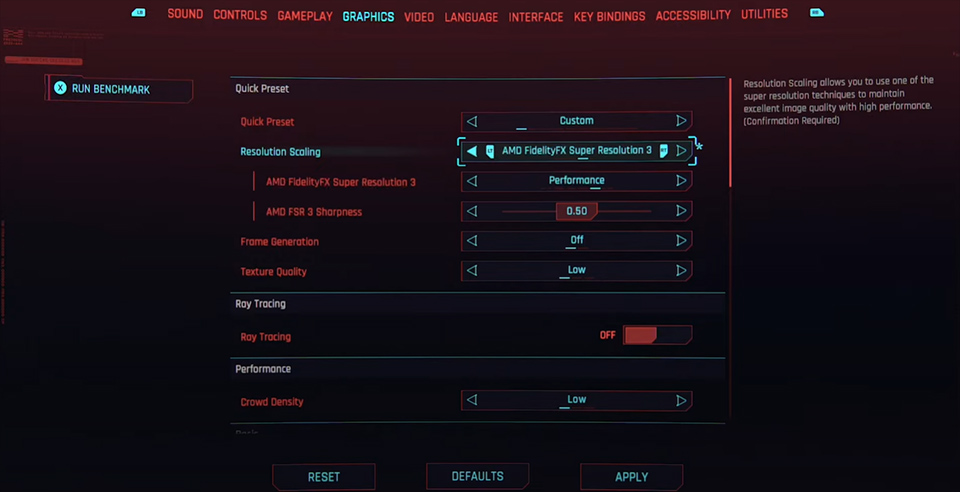
▲ You can usually enable AMD FSR in the Graphics settings under options like “Resolution Scaling” or “Upscaling.” It’s a smart way to boost frame rates while maintaining sharp visuals.
Ready to Play
That’s it—you’re all set to enjoy your favorite games on the new MSI Claw A8.
Got questions or want to explore more tips and tricks? Join the conversation over at our official Claw Forum, where fellow gamers and MSI experts are ready to connect.
Watch the Claw A8 Tutorial here to get the most out of your device.
Until next time—happy gaming!
Got questions or want to explore more tips and tricks? Join the conversation over at our official Claw Forum, where fellow gamers and MSI experts are ready to connect.
Watch the Claw A8 Tutorial here to get the most out of your device.
Until next time—happy gaming!