Gyro Tutorial and Know-How on MSI Claw
Handheld PCs
Hi everyone,
Gyro is a versatile feature that allows you to aim in shooting games or control movements in racing games. If you’re looking to elevate your gaming experience, you can now access more detailed gyro configurations on Claw. For further details, please refer to the information and instructions below.
Gyro is a versatile feature that allows you to aim in shooting games or control movements in racing games. If you’re looking to elevate your gaming experience, you can now access more detailed gyro configurations on Claw. For further details, please refer to the information and instructions below.
Note:
Please make sure your MSI Center M’s version is v1.0.2411.0401 or above and the firmware’s version is v1.60 or above. The new version has been rolled out via Live Update in MSI Center M and will be available to download on the official support page.
Below will then demo the instructions of the assigned gyro:
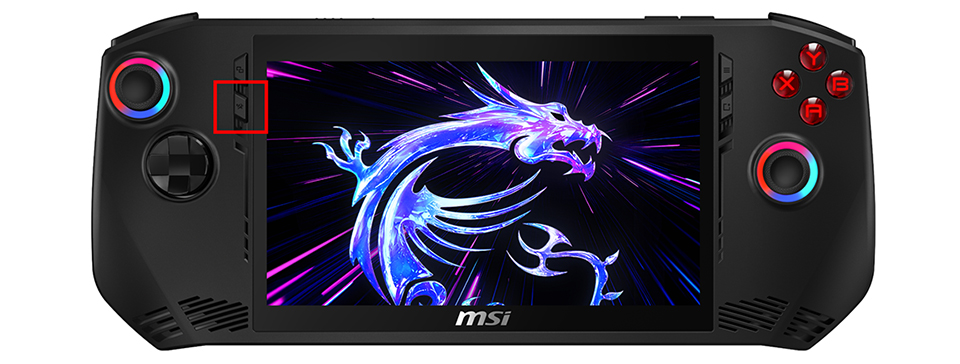
1. Launch MSI Center M by pressing the bottom-left button.
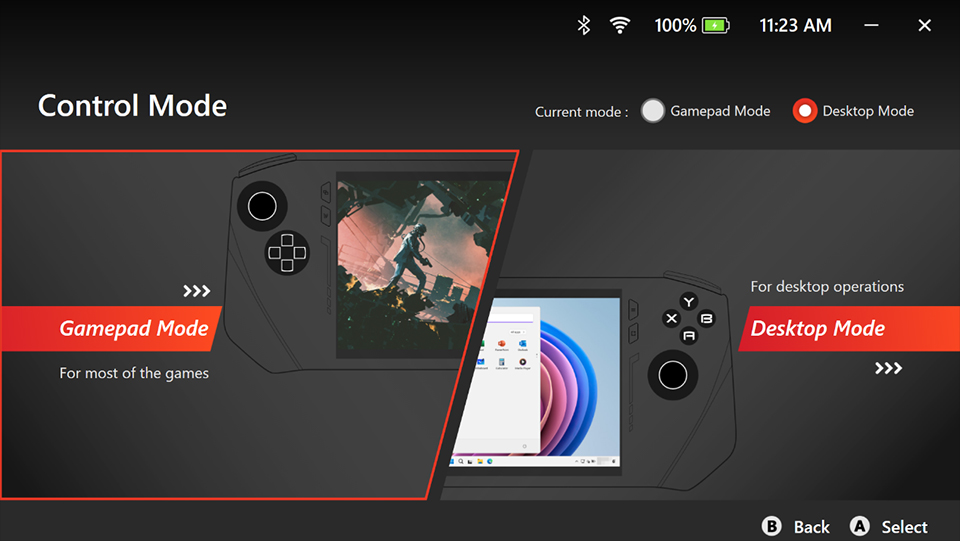
2. Select “Control Mode”.

3. Select “Gamepad Mode”.
4. Choose “Calibration” to start the calibration process before using gyro.

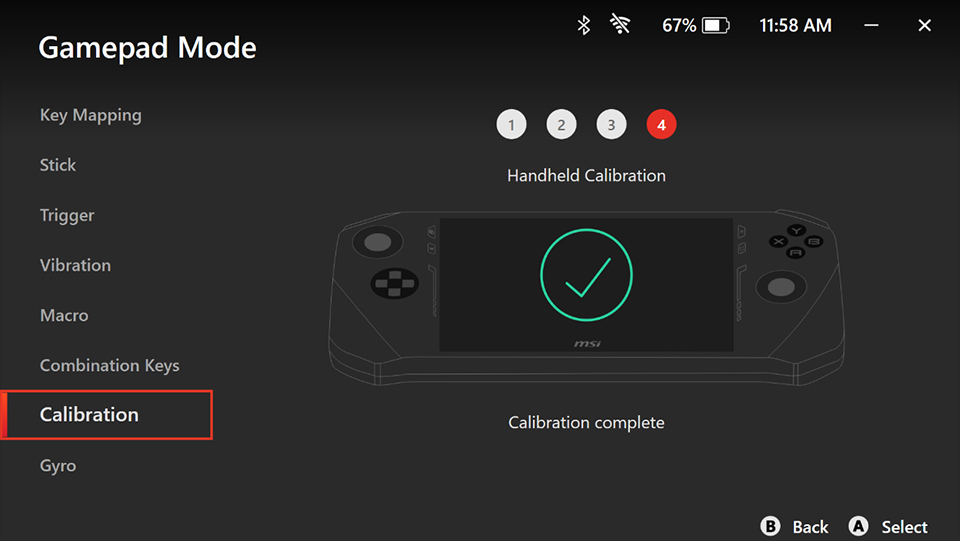
5. After calibration, then Choose “Gyro” and explore more configurations.
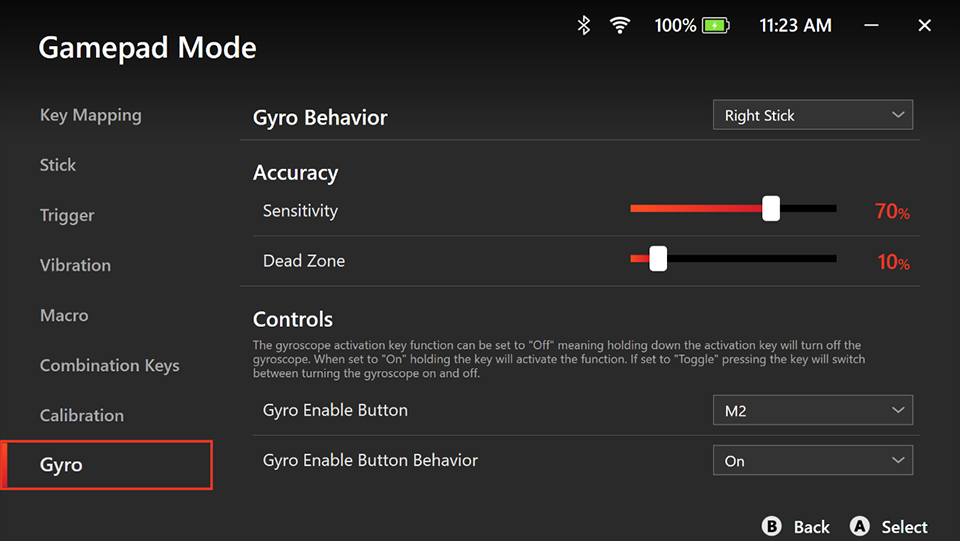
Configuration details:
- Gyro Behavior: Select which inputs (Left Stick, Right Stick, Mouse) behavior you would like to control with gyro. The mouse will allow the gyro to move the mouse cursor in games, while the right and left sticks will replace the thumbstick's movements with the gyro. Control the right stick with gyro might be most natural in shooting games, but you might want to use gyro to control the left stick in racing games to trade for a more intuitive lean-in driving style.
- Accuracy
- Sensitivity: Control how fast you move in games when tilting the device. Higher sensitivity will move faster with longer distances as you tilt the device. Note: In-game sensitivity settings will also influence the overall experience.
- Dead Zone: If you would like to ignore some tiny movements, such as the vibration naturally from your hands, you may consider setting the dead zone higher. For instance, when setting the Dead Zone to 100, you won’t move in the game if you’re slowly moving the device.
- Controls
- Gyro Enable Button: Select which inputs (LT Button, A Button, M1, etc.) you would like to use to enable gyro.
- Gyro Enable Button Behavior
- On: In default, the gyro will be off, you could hold the Enable Button to activate the gyro.
- Toggle: Pressing the Enable Button will switch between turning the gyro on or off.
- Off: In default, the gyro will be on, hold the Enable Button to deactivate the gyro.
Let’s take a shooting game – Apex as an example, below are my configurations:
- Gyro Behavior: Right Stick (to aim or view the visual more precisely and smoothly)
- Accuracy
- Sensitivity: 20% (also set in-game sensitivity settings to High)
- Dead Zone: 10%
- Controls
- Gyro Enable Button: M1
- Gyro Enable Button Behavior: On
Now everything is set, and I can enjoy the game differently with the help of Gyro!
Real demo:
Note: Optimal settings may vary by game and require personal testing to find the most suitable configurations. Feel free to try the gyro and find the perfect profile. If you find the ideal profile or something interesting, feel free to share it on the MSI Claw Official English Forum or MSI Claw Official Reddit. We love to hear from you!
Enjoy and have fun with the Gyro!