How to Enable Frame Generation on MSI Claw 8 AI+: A Quick Guide
Handheld PCs
MSI Claw handheld series supports both AMD FidelityFX Super Resolution (FSR) and Intel Xe Super Sampling (XeSS), allowing gamers to take advantage of advanced upscaling and Frame Generation (FG) technology.
While many gamers know about upscaling settings, not everyone is aware that FG can be enabled separately for an even smoother experience. In this guide, we’ll walk you through how to enable Frame Generation on the MSI Claw 8 AI+ in some of the most popular supported games, along with a look at the performance benefits.
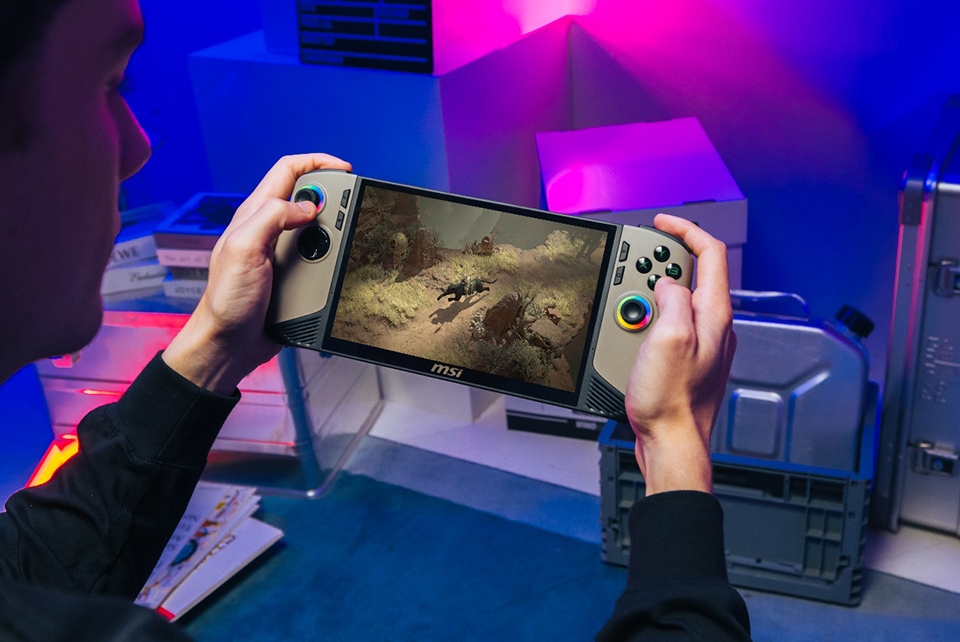
↑ MSI Claw handheld series supports FSR & XeSS, unlocking AI-powered upscaling and Frame Generation for smoother gameplay.
What is Frame Generation?
Frame Generation uses AI-based technology to generate additional frames between rendered ones, significantly boosting frame rates without putting extra load on the GPU. This results in smoother gameplay, especially in high-resolution settings.
Here are some examples below illustrating how to enable Frame Generation in popular games on Claw 8 AI+.
F1 24
How to Enable:
- Open the game and navigate to Settings > Graphics Settings.
- Select Video Mode.
- In Anti-Aliasing, choose Intel XeSS or AMD FSR.
- Under Frame Generation, choose Intel XeSS FG or AMD FSR Frame Scaling.
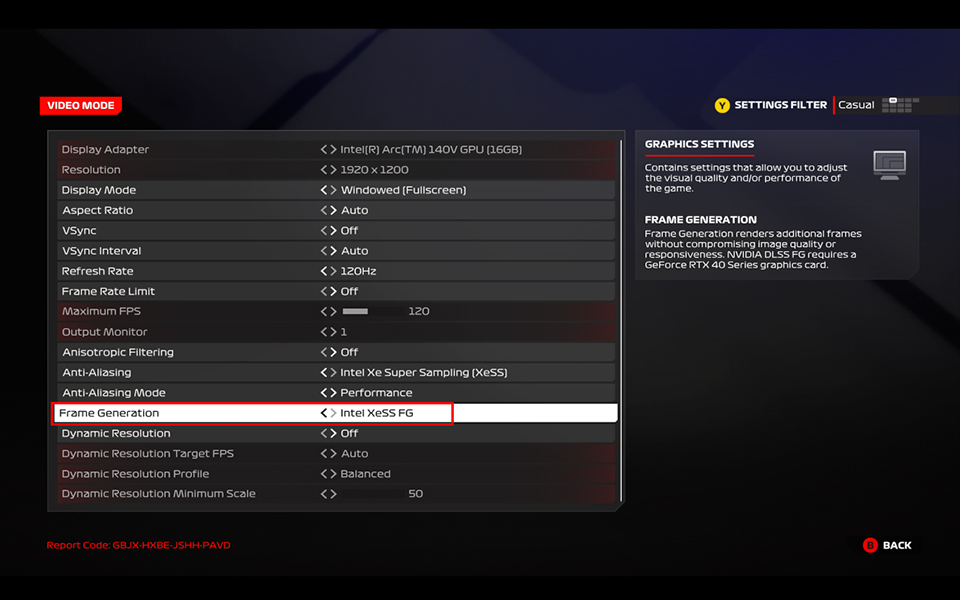
↑ F1 24 is one of the few games that currently supports Frame Generation with Intel XeSS.
Performance Difference:
- FG Off: ~110 FPS
- FG On: ~155 FPS
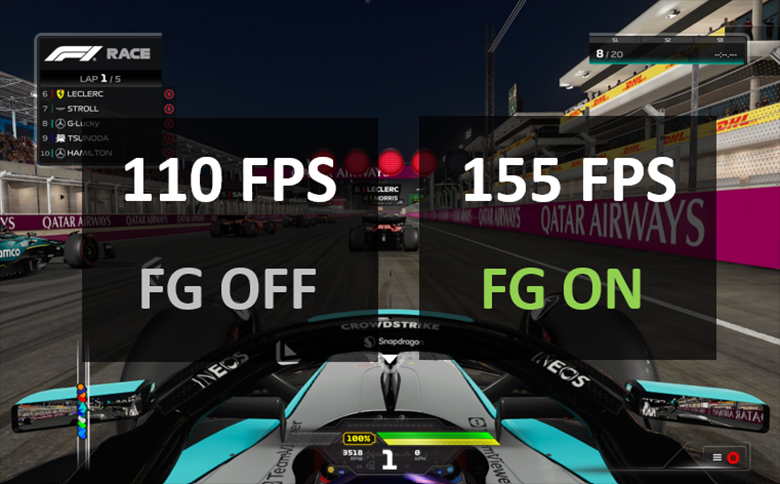
↑ Enabling FG boosts FPS by approximately 45.
Monster Hunter Wilds
How to Enable:
- Open the game and navigate to Options > Graphics.
- Select Upscaling Options and choose AMD FSR 3
- Then enable Frame Generation.
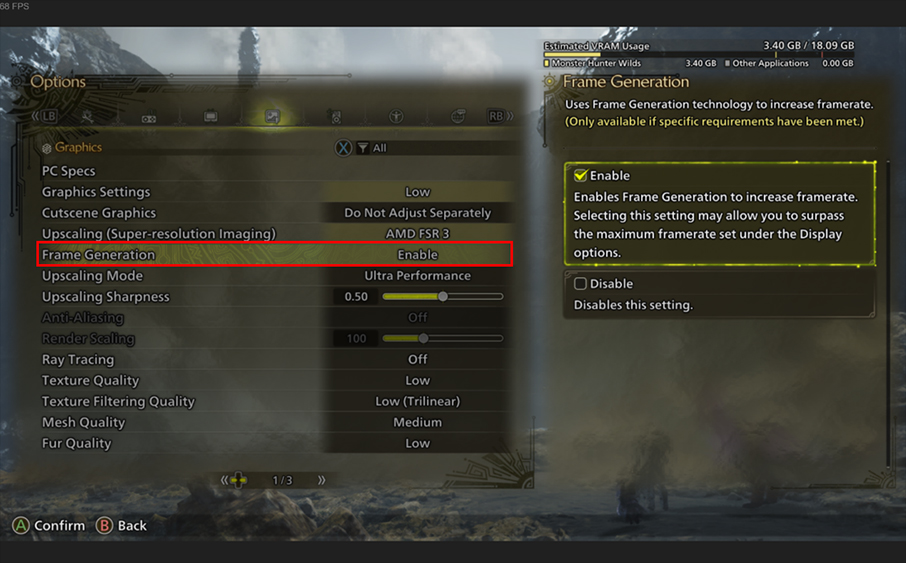
↑ To enable Frame Generation in Monster Hunter Wilds, you need to select FSR 3 for upscaling and activate Frame Generation.
Performance Difference:
- FG Off: ~40 FPS
- FG On: ~64 FPS
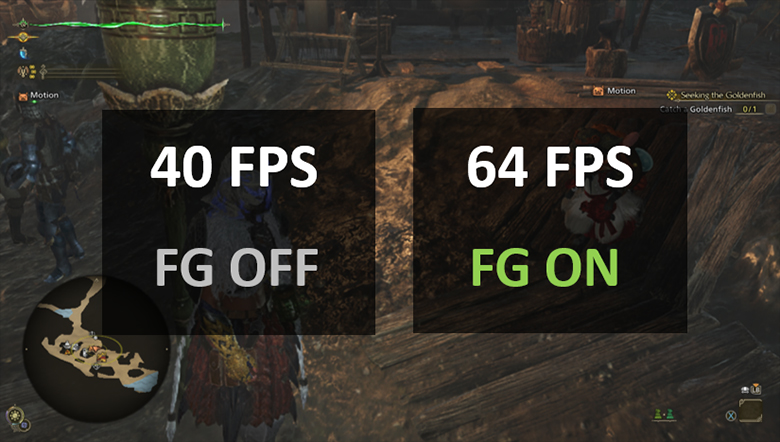
↑ Enabling FG boosts FPS by approximately 24.
This ensures smoother monster battles and better response times, making every hunt more immersive.
Cyberpunk 2077
How to Enable:
- Open the game and navigate to Settings > Graphics
- Scroll down to Resolution Scaling and choose AMD FidelityFX Super Resolution 3 as your upscaling method.
- Toggle Frame Generation to AMD FSR 3 Frame Generation.
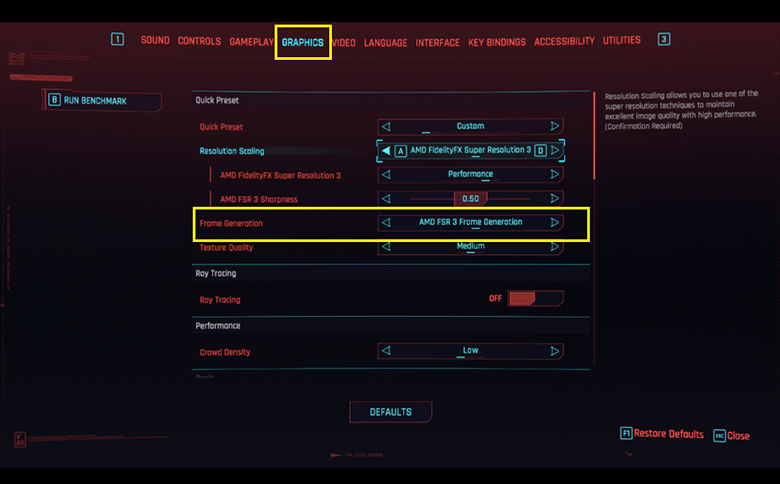
↑ To enable Frame Generation in Cyberpunk 2077, you need to select AMD FSR 3 for upscaling and enable AMD FSR 3 Frame Generation.
Performance Difference:
- FG Off: ~48 FPS
- FG On: ~75 FPS
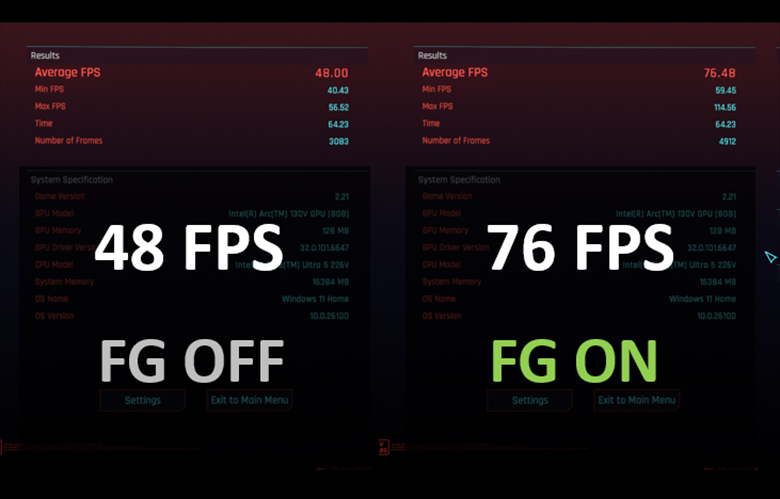
↑ Enabling Frame Generation increases FPS by about 28.
This means you get nearly a 60% FPS boost just by turning FG on, making Night City feel much more fluid.
Horizon Forbidden West
How to Enable:
- Open the game and navigate to Settings > Display.
- Find Upscale Method and select AMD FSR 3.
- Enable AMD FSR 3 Frame Generation.
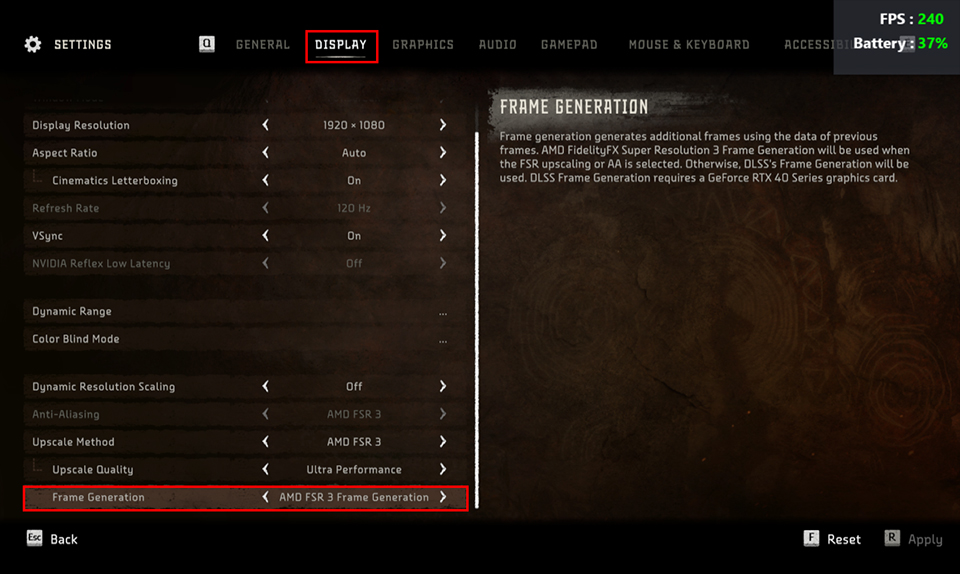
↑ If you want to enable Frame Generation in Horizon Forbidden West, you must select AMD FSR 3 for upscaling and choose AMD FSR 3 Frame Generation.
- FG Off: ~50 FPS
- FG On: ~70 FPS
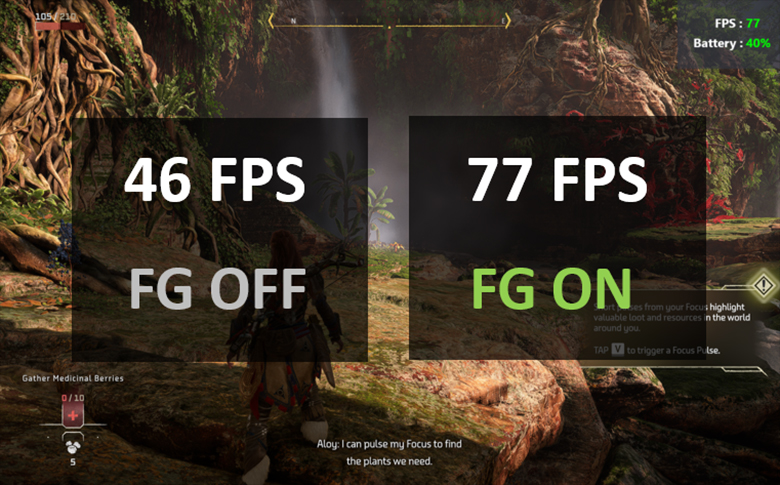
↑ Enabling Frame Generation increases FPS by about 31.
You’ll immediately notice smoother character animations and reduced input lag, especially in fast-paced combat sequences.
Conclusion
Frame Generation is a game-changer, especially when paired with FSR 3 or XeSS on the MSI Claw 8 AI+. If you haven’t enabled it yet, you’re leaving free performance on the table! Whether you’re roaming Night City in Cyberpunk 2077 or hunting the mysterious monsters of Monster Hunter Wilds, turning on FG ensures a smoother, more responsive gaming experience.
Give it a try on your MSI Claw 8 AI+ and experience the FPS boost for yourself!
Give it a try on your MSI Claw 8 AI+ and experience the FPS boost for yourself!