How to Improve PC Gaming Performance? Graphics Settings That Matter
Desktops
Quick Answer (TL;DR): Three changes get you most of the way when it comes to balancing performance and quality: match your resolution to your GPU tier, turn on DLSS/FSR when it’s offered, and drop Shadow Quality if you need a bit more performance. Upping the Resolution and Ray Tracing cost the most; upscaling and frame generation buy performance back. Everything else is fine-tuning.
Setting Category
What It Controls
Performance Impact
Resolution
Overall image sharpness and base render workload s
Very High
Upscaling & Frame Generation (DLSS/FSR/XeSS)
Recovers performance after rendering by reconstructing or inserting frames
Performance Gain
Anti-Aliasing
Smooths jagged edges on the finished frame
Low–Medium (method-dependent)
Ray Tracing
Physically accurate light, reflections, and global illumination
Very High
Texture Quality
Surface detail up close
Medium (generally more VRAM heavy)
Geometry (LOD, Draw Distance, Tessellation)
How much geometric detail survives at a distance
Low–Medium
Post FX (DOF, Motion Blur, Bloom, Sharpening)
Cinematic finishing touches
Low
Frame Sync (VSync, G-Sync, FreeSync)
Smoothness and screen tearing
Affects feel; VSync also caps FPS
HDR / Gamma / Field of View
Color range, brightness, and view angle
Visual / comfort only
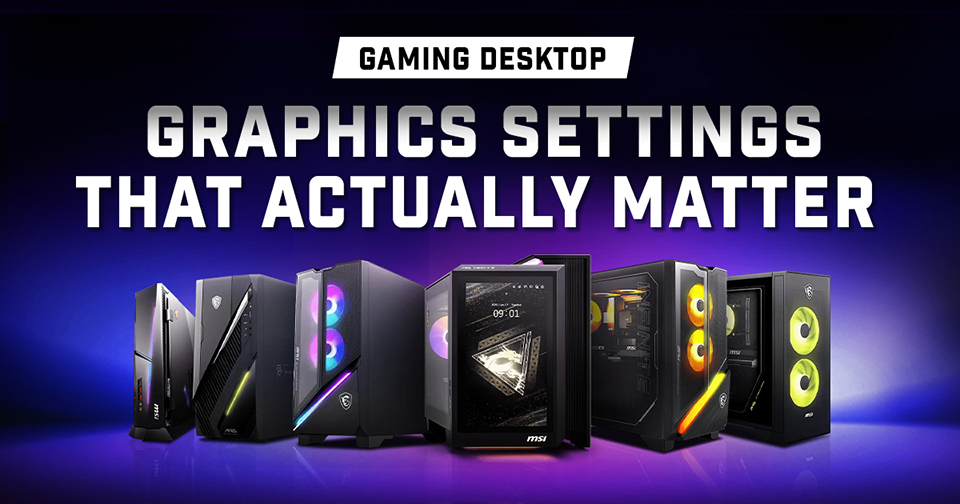
With highly-anticipated titles like Grand Theft Auto 6 launching soon, next-gen visuals are only going to get more demanding on your hardware. Understanding each setting will help you dial in the perfect balance the moment these next-gen games land.
Learn more about how to choose a gaming PC first: https://www.msi.com/Landing/best-gaming-desktop-pc
Below, we’ll walk through all five categories, cover what each setting actually changes, and how to tune it for the best balance between performance and visuals on your hardware.
Quick Navigation
- What Are Graphics Settings and Why Do They Matter?
- Display & Frame Delivery
- Image Reconstruction & Enhancement
- Ray Tracing & Lighting
- Geometry & Texture
- Post FX
- Find the Right MSI Desktop for Your GPU Tier
- FAQ
What Are Graphics Settings and Why Do They Matter?
Here’s the deal: every graphics setting is a trade between better visual fidelity (quality) and frame rate (performance). Each slider/toggle in the menu changes how much work your GPU does per frame. More detail means more calculations, and more calculations translates to fewer frames. Once you know what each setting actually changes, you can stop defaulting everything to “Ultra” and start making choices that get you a smooth game instead of a stuttering one without sacrificing too much quality.
Display & Frame Delivery
Start here. These settings decide how hard your GPU works on every single frame, before any visual effect enters the picture. Get them right, and everything after this builds on top.
Quick check before you start: Make sure your monitor cable is plugged into your graphics card's HDMI/DP port — not the motherboard's. If your CPU has integrated graphics, the motherboard's video output routes through that instead of your GPU, which means none of your games will actually use your dedicated graphics card's power.
What Is Resolution in Gaming?
Ever wonder why 4K destroys frame rates?
Resolution is simply how many pixels your game draws (width × height, e.g. 1920×1080). More pixels means a sharper image, but it’s also the single biggest driver of stress on your GPU because most other settings scale with how many pixels your GPU has to render.
Our take: If you’re chasing max frame rates in competitive games, stick with 1080p for budget builds and go 1440p for mid-range and up. For most gamers, 1440p is the sweet spot and you should opt for 4K when you’re chasing maximum detail and fidelity. Also, you should ideally pair that resolution with a high-end GPU and DLSS/FSR/XeSS.
What is Frame Sync?
Your GPU renders frames; your monitor dictates how many you actually see.
A monitor’s refresh rate is basically the rate at which a panel can refresh its image and is typically measured in Hertz (Hz). So, a 60Hz display, for example, can refresh a displayed image 60 times a second.
This means that when your GPU is rendering more frames than your monitor’s refresh rate, the monitor is forced to disregard several or only show them partially.
Does this mean a higher FPS means a worse gaming experience? Absolutely not.
Several blind tests (here’s an example from LTT collaborating with Shroud) have conclusively shown that playing at a higher FPS makes your games feel more fluid thanks to better responsiveness. However, because your monitor may be partially displaying some frames due to its refresh rate, you can experience what’s known as 'tearing'.
Frame Sync technologies like adaptive sync or Vsync seek to resolve this issue by keeping your frames consistent.
- VSync locks your frame rate to your monitor’s refresh rate, so no more tearing. But you’ll feel the higher input lag when it’s active. The best way to describe this is – your games feel ‘heavier’.
- G-Sync (NVIDIA) & FreeSync (AMD) are Variable Refresh Rate technologies that adapt your monitor’s refresh rate to whatever your GPU is putting out in real time, which eliminates tearing and VSync’s characteristic input lag. The catch: you need a compatible monitor.
Our take: If your monitor supports G-Sync or FreeSync, make sure you’re using it. It solves tearing far more cleanly than VSync. In fast-paced competitive titles, it’s best to not use Vsync to avoid the added latency.
Image Reconstruction & Enhancement
Everything in this category tends to act on a frame after the scene is already rendered: upscaling and frame generation claw performance back, and anti-aliasing tidies up the result. Nothing here changes what your GPU is actually drawing, just how efficiently it reaches your screen and how clean it looks when it gets there.
Upscaling: DLSS, FSR, and XeSS
Upscaling renders the game at a lower internal resolution, then reconstructs a sharper image at your screen’s native resolution — so you get a big boost to performance without sacrificing much visible quality. Technologies like DLSS leverage the power of dedicated AI cores (Tensor cores on NVIDIA GPUs) to ensure minimal loss of quality and accuracy during upscaling.
Technology
Hardware Requirement
NVIDIA DLSS
RTX GPUs with Tensor Cores; Frame Generation needs at least RTX 40 Series, and Multi Frame Generation is exclusive to RTX 50 Series
AMD FSR / Intel XeSS
AMD FSR / Intel XeSS You can use FSR on any GPU, but more modern FSR implementations like FSR 4 may require newer Radeon Graphics Cards
Our take: If a game offers upscaling and you’re not hitting your target frame rate, toggle it on before touching anything else. It’s the closest thing to ‘free’ performance you’ll get.
Frame Generation
Frame generation goes a step further than upscaling: it inserts brand-new frames your GPU never rendered, interpolated between two real frames using motion data. Your FPS counter climbs, but so does input latency, so turn it on only when you have a solid base frame rate (around 60 FPS). Since additional latency is not ideal in competitive titles, avoid enabling Frame Gen technologies in such games.
Anti-Aliasing (AA)
You know those jagged “staircase” edges along diagonal and curved lines? That’s aliasing: smooth geometry being forced onto a grid of square pixels. It’s visible enough at typical gaming resolutions to break immersion, which is why every engine ships an anti-aliasing method to soften it.
The most frequently-used techniques trade visual fidelity for performance in various ways:
Method
How It Works
Performance Cost
Best For
Supersampling (SSAA)
Renders at a much higher resolution, then shrinks the frame down
Very High
Rarely practical for real-time gaming
Multisampling (MSAA)
Samples only the edges of 3D geometry
Medium
Crisp model edges when you have GPU headroom to spare
Fast Approximate (FXAA)
Post-processing filter applied to the whole finished frame
Very Low
Squeezing extra frames from older or lower-end hardware
Temporal (TAA)
Compares the current frame with the previous one to smooth edges over time
Low–Medium
Modern default; handles moving scenes well
DLAA (DLSS's built-in AA)
Applies DLSS's AI reconstruction model without lowering render resolution
Medium
RTX cards; the sharpest practical option
Our take: TAA or DLSS’s built-in anti-aliasing (DLAA) is your best bet — offering the strongest balance of image quality and performance in most current titles. Opt for FXAA only when you’re squeezing every last frame out of older hardware.
Ray Tracing & Lighting
With your image pipeline sorted, lighting is the next place your frames are going. Fair warning: this is where your GPU’s generation can show its age (or its muscle).
What Is Ray Tracing in Games?
Ray tracing simulates how light actually bounces, reflects, and casts shadows within a scene in real-time, instead of faking it with pre-baked lighting. It’s the most visually transformative setting in modern games, and one of the most demanding from a performance POV, because it needs dedicated ray tracing hardware to deliver playable experiences.
Rasterized vs. Ray-traced Lighting
Here’s how each ray-traced effect upgrades its traditional counterpart — and what it’ll cost you. Want to go deeper? We cover tuning these in How to Optimize Your Gaming PC for Ray Tracing.
Effect
Standard Setting & Options
Ray Tracing Upgrade
Shadows
Adjustable via Shadow Quality/Resolution (edge sharpness), Shadow Distance (how far shadows render), and Contact Shadows (fine detail where objects meet a surface)
Noticeably better edges than traditional shadows. Traces the actual light source directly, replacing shadow maps with physically accurate, soft-edged results — a modest performance cost for the quality gain.
Ambient Occlusion
Typically offered as SSAO (cheapest, screen-space only) or HBAO+ (a more refined screen-space method)
Switches to RTAO, calculated from real scene geometry instead of only what's visible on screen. Noticeably more accurate than either screen-space method, and one of the lighter ray-traced effects — generally worth enabling if your GPU supports it.
Reflections
Usually Screen-Space Reflections — limited to whatever is already visible on screen
Adds full reflections, including objects that are off-screen, at a medium-to-high performance cost.
Global Illumination
Traditionally baked into the level at design time as static lightmaps; some engines also offer real-time approximations such as SSGI or software-based Lumen
Recalculated dynamically as light and objects change. Biggest single visual leap of the four, and also the single heaviest to run.
Our take: Here’s where your GPU generation matters more than almost anywhere else. On MSI's latest desktops featuring NVIDIA GeForce RTX 50 Series graphics with fourth-generation RT cores, you can still enjoy playable frame rates even when enabling full ray tracing including GI and path-traced lighting in the most demanding titles.
Path Tracing: Ray Tracing Taken Further
Path tracing takes the same idea and applies it to nearly every light source in the scene, rather than layering a few ray-traced effects onto traditional lighting. It’s the closest games currently get to physically accurate light, and is by far the heaviest setting you can turn on. So, this is best left to only high-end, modern RT hardware like the 80 and 90-class GPUs in the GeForce RTX 50-Series lineup.
Geometry & Texture
These settings decide how detailed the game world itself looks. Some gobble up VRAM; others, like tessellation, still lean on raw GPU horsepower.
Surface Detail
Before you touch anything here, know that every engine already applies a base layer of bilinear or trilinear filtering — the two settings below build on top of it.
Setting
What It Does
Performance Note
Texture Quality
Controls the resolution of textures applied to every surface in the game
The single biggest VRAM consumer of any setting — pushing Ultra without enough VRAM causes stutter and pop-in rather than a smooth frame rate drop
Anisotropic Filtering (AF)
Keeps textures sharp at a distance and at steep viewing angles, on top of the base filtering every engine already applies
Minimal cost on modern GPUs
Our take: Crank Texture Quality as high as your VRAM allows and set Anisotropic Filtering to 16x — they rarely compete for the same performance budget, so there’s no reason to hold back on either.
Geometry & Visibility
These decide how much geometric detail survives as distance and camera angle change — not how sharp a texture looks up close.
Setting
What It Does
Performance Cost
Level of Detail (LOD)
Switches a model to a lower-polygon version as it moves further from the camera, so full detail isn't wasted on something barely visiblee
Moderate
Draw Distance
Controls how far away objects and terrain render at all before fading in or disappearing
Real cost as distance increases, especially in open-world games
Tessellation
Dynamically subdivides a surface into extra polygons in real time to add fine detail like bumps, cracks, displacement, mostly on terrain and rock
Can be significant at Ultra, since it multiplies geometry on affected surfaces
Our take: Medium-High LOD and Draw Distance is usually the happy medium. And don’t sweat Tessellation — High rarely looks any different from Ultra, but the performance gain when stepping down to high is usually very noticeable.
Post FX
Post FX gets layered on after a scene is fully rendered, so nothing here changes scene detail or lighting accuracy. It just tweaks the final look of the frame.
In other words: this category of settings is about taste, rather than GPU horsepower or quality.
Effect
What It Does
Common Player Preference
Depth of Field (DOF)
Blurs the background or foreground to draw focus to what's in frame, mimicking a camera lens
Often disabled by competitive players who want maximum clarity at every distance
Motion Blur
Blurs fast-moving objects or camera pans for a more cinematic feel
Frequently turned off, since it can make fast motion feel less responsive
Bloom
Adds a soft glow around bright light sources to exaggerate brightness and glare
Mostly a matter of taste; heavy bloom can wash out detail in bright scenes
Sharpening
Sharpens the final image, often used to counteract the slight softness introduced by TAA or upscaling
Commonly left on at a light-to-moderate level; overdoing it creates visible haloing around edges
Our take: These are taste settings, not performance settings. If DOF or Motion Blur make fast motion feel sluggish, turn them off guilt-free and dial Bloom to whatever looks right to you.
Find the Right MSI Desktop for Your GPU Tier
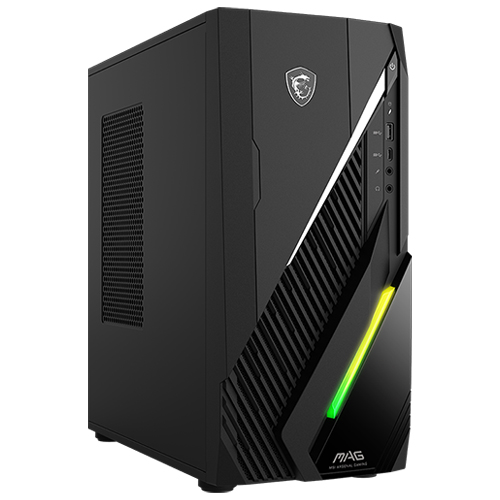
Now that you know what each of these settings actually does, it's clear that the best gaming experience comes from a well-balanced system, not just maxed-out sliders. Here are a few of MSI's best prebuilt gaming desktop picks worth considering, organized by GPU tier:
Prebuilt Desktop Model
Supported VGA
Best For
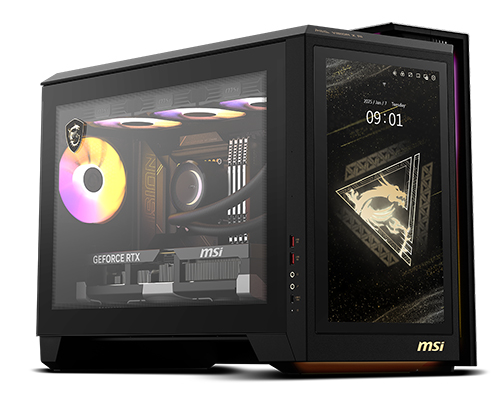
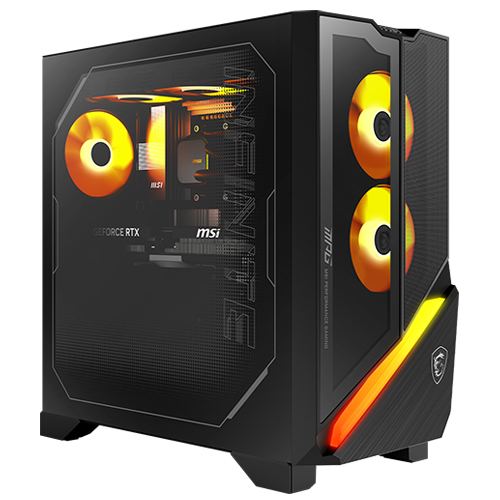
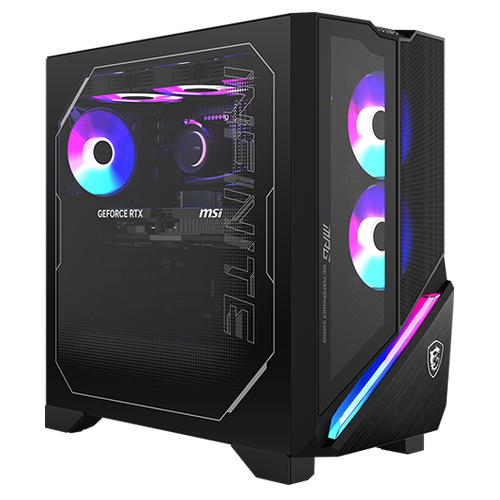
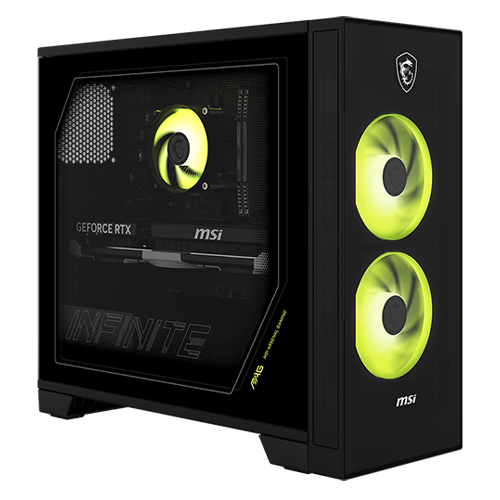
Up to RTX 5070 Ti
Compact 25L chassis, 1440p–4K mainstream performance
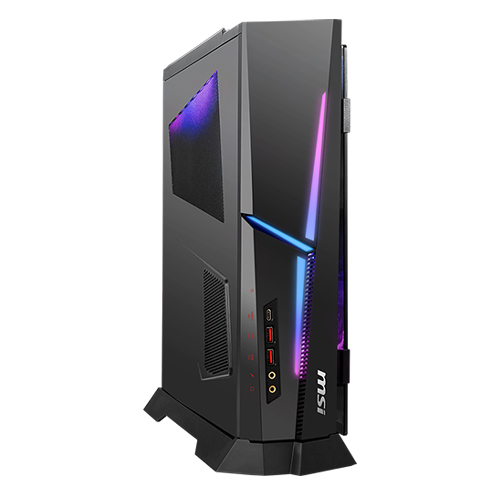
FAQ
What is the single most important graphics setting for performance?
Resolution, hands down because most other effects scale with pixel count. Ray tracing is the second-biggest lever in titles that support it.
Should I turn on DLSS or FSR?
If you’re not hitting your target frame rate, yes, you should definitely flip it on before you adjust anything else.
Does anti-aliasing affect FPS a lot?
Less than resolution or ray tracing, but it depends on the method. FXAA and TAA cost you almost nothing; MSAA and supersampling do cause a performance hit.
What's the difference between TAA and DLAA?
Both smooth edges by comparing information across frames, but DLAA uses NVIDIA’s AI reconstruction model and generally looks sharper than TAA at only a slightly higher cost on RTX cards.
Do I need special hardware to turn on ray tracing?
It runs best with dedicated ray tracing hardware, which modern NVIDIA RTX, AMD Radeon, and Intel Arc GPUs all have. Without it, hardware ray tracing is either unavailable or way too slow to enjoy. That said, some engines offer software approximations that run on most GPUs but this varies from game to game.
What's the fastest way to fix stuttering or low FPS?
Depends which problem you’ve got. For low FPS across the board, drop Shadow Quality first — you’ll barely notice the difference between Ultra and High in motion, but your frame rate will improve. For stutter and texture pop-in, lower Texture Quality instead: it’s usually a sign that your VRAM is filling up.