How to run OpenClaw AI Agent locally on a desktop PC
Desktops
AI technology is evolving year by year. From the debut of ChatGPT and the rise of generative AI to today’s AI agents, each phase represents a major milestone in AI development. You may have already heard of OpenClaw—it is one of the most popular topics in the AI community right now. Many people are eager to use OpenClaw, sharing how powerful and useful it is for their daily workflows. Some even say it can act as a 24/7 digital employee. In this guide, we will provide a quick introduction to OpenClaw and show you how to run it locally on your desktop PC to make it work for you.
What is AI Agent ?
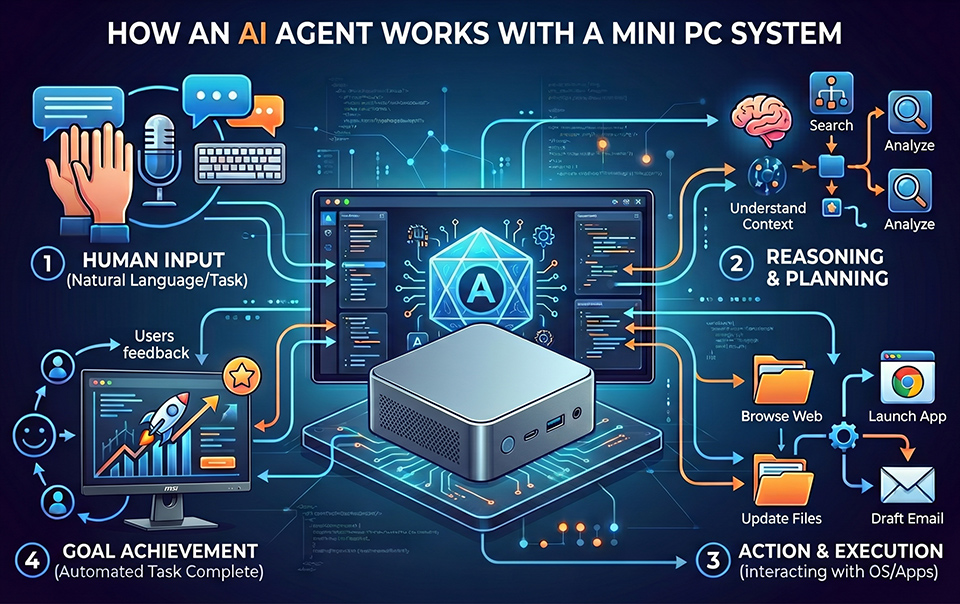
AI agent like an assistant can do the task you request. It is different the traditional chatbot. Chatbot is passive design. It waits your question then provide the answer for you, like ChatGPT, Gemini, or Grok…etc. But AI agent is initiative. After you setup or plan the task, it will automatic starts to operate. Even you can setup a schedule plan for the routine mission.
What is OpenClaw ?
It is an AI agent capable of running locally on a desktop PC to perform tasks directly on your system. One of its standout features is long-term memory, which allows it to track your preferences, work tasks, and finances. By remembering every interaction, OpenClaw becomes a true personal assistant. Think of it as a real-life Jarvis from the Iron Man movies—a digital employee that is always ready to serve you.
Preparation of install Open Claw
The OpenClaw application serves as the interface that operates your desktop PC. However, it still requires a 'brain' to process logic. The quickest way to start is by using Cloud AI APIs (like ChatGPT, Gemini, or Claude). However, this can become expensive, as costs depend on the number of requests you make. To save money, the best approach is to use a local LLM instead.
For security reasons, we strongly suggest using a dedicated, 'clean' PC rather than your primary computer. Since OpenClaw requires full access rights to the operating system to perform tasks, it is safer to isolate the AI agent. Keeping the host and client files separate prevents any risk of data leaks or system errors.
5 Steps to install OpenClaw on your PC
1. Install “Git”
First, you need to install the ‘Git’ software to run OpenClaw commands. Visit the official Git website and download the Windows x64 version.
2. Install “Ollama” for Local LLM Execution
After installing Git, you will need Ollama to run your local large language models.
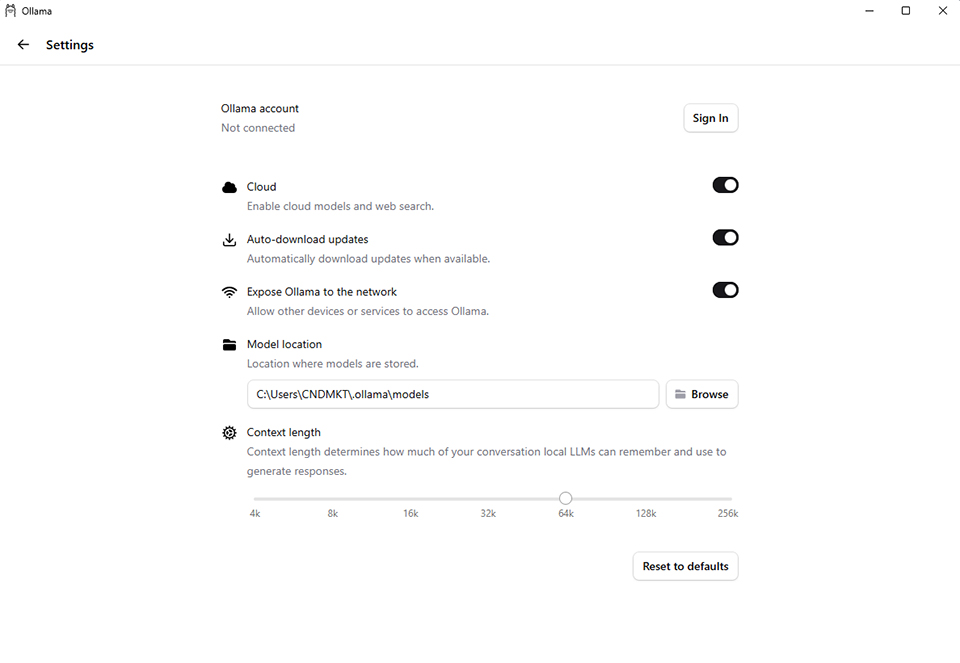
Visit the Ollama website and download the software. Once installed, ensure you enable the “Expose Ollama to the network” setting. Set the context Length to 64K to allow the agent to remember more information during your sessions.
3. Download a supported LLM using Ollama
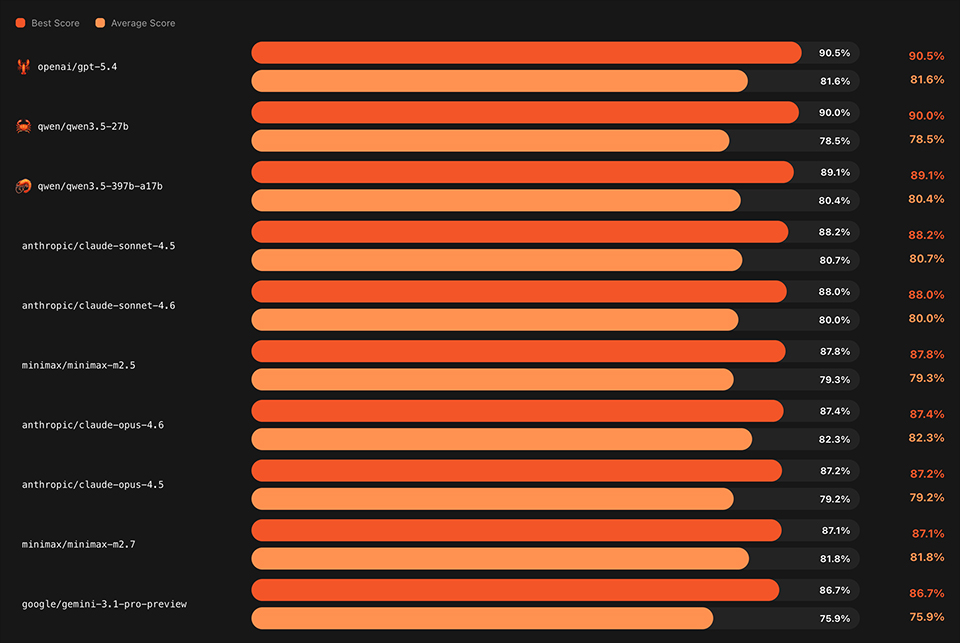
Now, you need to download a large language model using the Ollama command line. Below is a list of LLMs compatible with OpenClaw for your reference.
Important: Please ensure your PC hardware is powerful enough to run these models locally. For a detailed ranking of LLM performance and hardware requirements, you can check the following link: https://pinchbench.com/
4. Install OpenClaw
Open “Windows PowerShell” with Administrative privileges (right-click and select “Run as Administrator”). Once the terminal is open, copy and paste the installation command to begin the process. You can find the specific installation command on the official OpenClaw website.
https://openclaw.ai/
5. Connect your LLM, Interface, and Skills
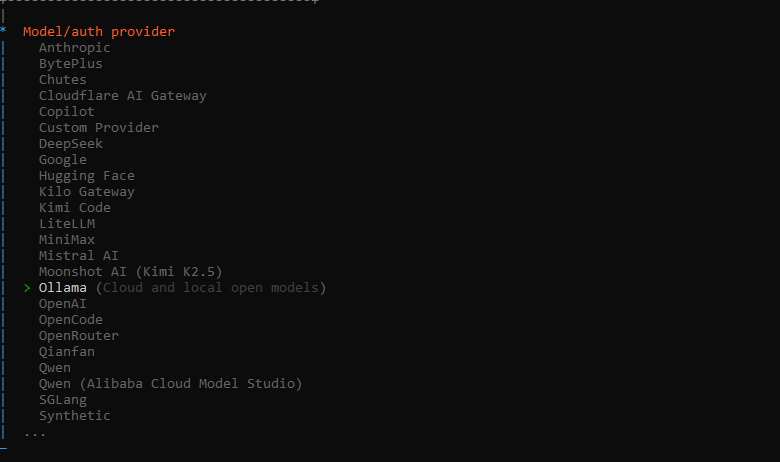
During installation process, you will be asked to choose a model provider. For local execution, select Ollama as your LLM engine. Alternatively, if you prefer to use a cloud AI service (such as ChatGPT, Gemini, or Claude), you can choose your preferred vendor.
Noted: If you choose a cloud service, you must provide your API key to integrate it with OpenClaw. This step is essential for the AI agent to access its “brain” and begin performing tasks.
After setting up LLM, then choose the skills you want to use. And remember to enable “session-memory” function to make sure AI agent has memory function activiate.

The desktop PCs listed below are well-suited for OpenClaw and similar AI agent applications. These systems are energy-efficient and operate silently, making them ideal for 24/7 long-term use. If you are interested in MSI’s business PC solutions, please check the products below for more detailed information.
Cubi NUC AI+ 3MG: https://www.msi.com/Business-Productivity-PC/Cubi-NUC-AI-Plus-3MX
Cubi NUC AI+ 2MG: https://www.msi.com/Business-Productivity-PC/Cubi-NUC-AI-Plus-2MX
Cubi NUC AI 1UMG: https://www.msi.com/Business-Productivity-PC/Cubi-NUC-AI-1UMX
Cubi 5 1M: https://www.msi.com/Business-Productivity-PC/Cubi-5-1MX
Cubi Z AI 8M: https://www.msi.com/Business-Productivity-PC/Cubi-Z-AI-8MX
Cubi NUC AI+ 2MG: https://www.msi.com/Business-Productivity-PC/Cubi-NUC-AI-Plus-2MX
Cubi NUC AI 1UMG: https://www.msi.com/Business-Productivity-PC/Cubi-NUC-AI-1UMX
Cubi 5 1M: https://www.msi.com/Business-Productivity-PC/Cubi-5-1MX
Cubi Z AI 8M: https://www.msi.com/Business-Productivity-PC/Cubi-Z-AI-8MX
PRO DP180 AI: https://www.msi.com/Business-Productivity-PC/PRO-DP180-AI-X
PRO DP180 A14: https://www.msi.com/Business-Productivity-PC/PRO-DP180-A14X
PRO DP80 AI A2G: https://www.msi.com/Business-Productivity-PC/PRO-DP80-AI-A2GX
PRO DP80 A14G: https://www.msi.com/Business-Productivity-PC/PRO-DP80-A14X
PRO DP180 A14: https://www.msi.com/Business-Productivity-PC/PRO-DP180-A14X
PRO DP80 AI A2G: https://www.msi.com/Business-Productivity-PC/PRO-DP80-AI-A2GX
PRO DP80 A14G: https://www.msi.com/Business-Productivity-PC/PRO-DP80-A14X