MSI High-Efficiency Mode Tested: Maximize Local LLM AI Performance
Motherboards
Computing power on AI platforms has become increasingly critical. While upgrading hardware delivers noticeable AI performance gains, it can be costly. To find a more cost-effective alternative, we conducted hands-on benchmark tests: by simply tweaking High-Efficiency Mode—one of the built-in memory overclocking options in the MSI BIOS—users can optimize DDR5 memory performance and significantly accelerate Large Language Model (LLM) performance without purchasing additional hardware.
Testing on the AMD & Intel Platform: Higher Tokens/s and Lower Latency
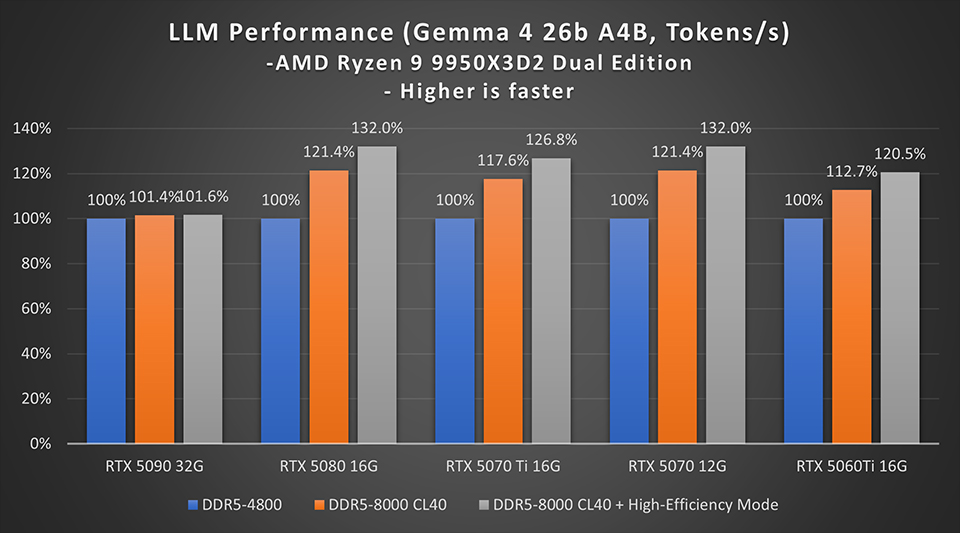
Using the AMD Ryzen™ 9 9950X3D2 processor, benchmark results show that overclocking DDR5 memory to 8000 MT/s and enabling High-Efficiency Mode significantly improves AI operational performance by up to 32%.
Throughput (Tokens/s): We tested various graphics cards across different overclocking modes to measure differences in tokens (the smallest text unit processed by AI) produced per second; higher values indicate faster AI generation speed.
Compared to default settings, overclocking the RAM to 8000 MT/s on the RTX 5080 16G and RTX 5070 12G boosted performance by 21.4%; enabling High-Efficiency Mode further enhanced performance, reaching a total increase of 32%. For the RTX 5070 Ti 16G, performance improved by 17.6% after overclocking to 8000 MT/s, and saw a similarly notable boost once High-Efficiency Mode was enabled, yielding an overall 26.8% gain.
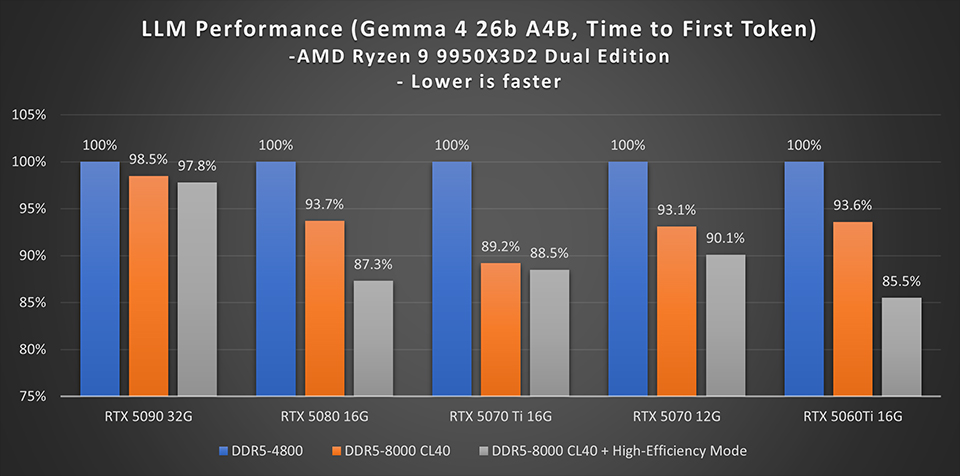
TTFT (Time to First Token): Measuring the duration between submitting a prompt and generating the first token—where shorter durations indicate higher AI generation efficiency—, overclocking to 8000 MT/s and enabling High-Efficiency Mode effectively reduced wait times. When overclocked to 8000 MT/s, the wait time for the RTX 5080 16G decreased by 6.3%; after enabling High-Efficiency Mode, response latency was reduced by 12.7% compared to default settings. The RTX 5060 Ti 16G saw an even larger reduction of 14.5%.
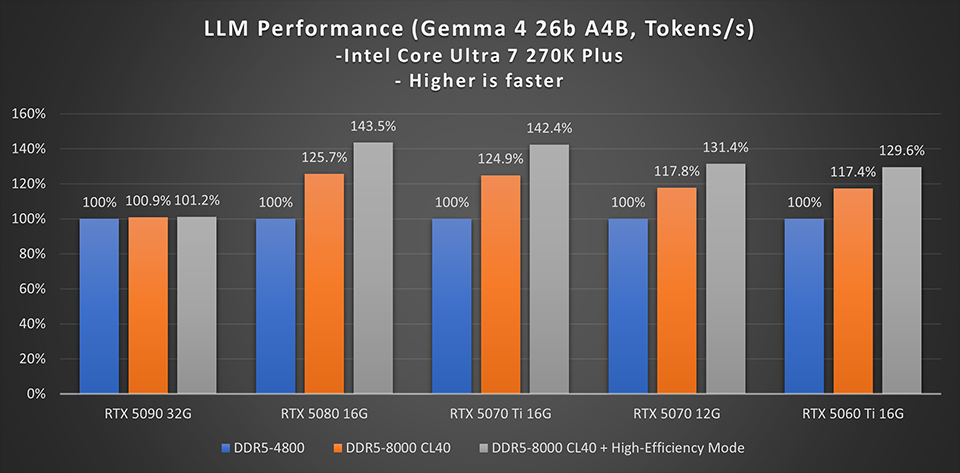
On the Intel platform using the Intel Core Ultra 7 270K Plus processor, the performance improvements from enabling High-Efficiency Mode were even more pronounced, delivering gains of up to 43%.
Throughput (Tokens/s): Overclocking to 8000 MT/s increased performance on the RTX 5080 16G and RTX 5070 Ti 16G by 25.7% and 24.9%, respectively; after enabling High-Efficiency Mode, their Tokens/s improved by 43.5% and 42.4% over stock defaults. The RTX 5070 12G, which initially gained 17.8% from overclocking to 8000 MT/s alone, exceeded a 30% performance uplift once High-Efficiency Mode was turned on, demonstrating that High-Efficiency Mode allows the system's full potential to be effectively realized.
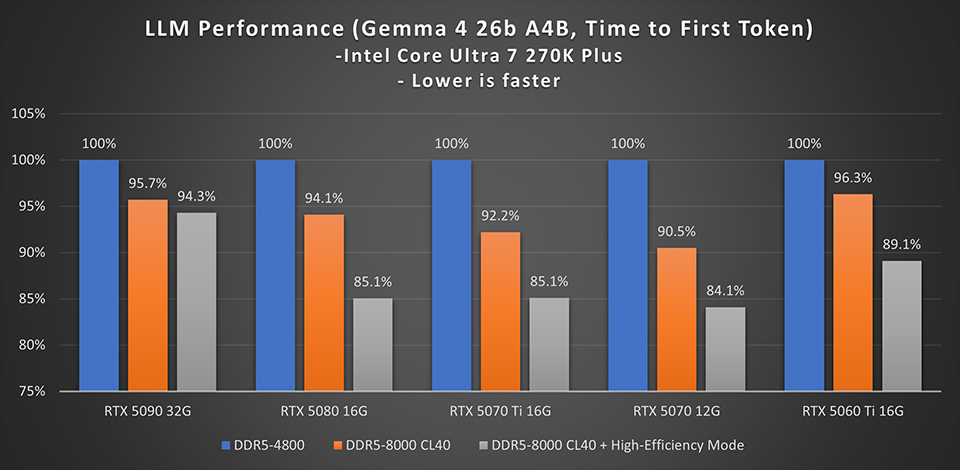
TTFT (Time to First Token):
All tested GPUs saw less than a 10% latency reduction with the 8000 MT/s memory overclock alone. Pairing this with High-Efficiency Mode further reduced TTFT across the board: the RTX 5070 12G showed the most prominent result with a 15.9% reduction, while the RTX 5080 16G and RTX 5070 Ti 16G also delivered solid improvements.
After building a PC, many users retain stock BIOS configurations. While default settings are sufficient for everyday tasks, simple adjustments can unlock substantial untapped performance. Through extensive internal validation, MSI provides streamlined BIOS presets that allow users to fine-tune memory profiles easily while maintaining system stability.
If you want to accelerate your local AI and LLM workloads, enabling MSI High-Efficiency Mode is an effective, zero-cost optimization available with just a few clicks in the BIOS.
Test Methodology and Configuration
- Load LLM model (Gemma 4 26B A4B) via LM Studio; context length = 8192, GPU offload = default (RTX 5090 = 30, others = 19).
- Prompt: Provide a blog URL and request a summary.
- Configure three test profiles: (1) Default settings (RAM: 4800 MT/s). (2) Overclock RAM to 8000 MT/s. (3) Overclock RAM to 8000 MT/s + High-Efficiency Mode (AMD platform set to Tighter mode).
- Record the TPS (Tokens/s) and TTFT (Time to First Token) reported by LM Studio.
CPU: AMD – Ryzen 9 9950X3D2 / Intel – Core Ultra 7 270K Plus
Motherboard: AMD - MEG X870E ACE MAX / Intel – MEG Z890 ACE
System DRAM: ADATA 24GB x2 DDR5
GPU:
MSI GeForce RTX™ 5090 32G SUPRIM SOC
MSI GeForce RTX™ 5080 16G Gaming Trio OC
MSI GeForce RTX™ 5070 TI 16G Inspire 3X OC
MSI GeForce RTX™ 5070 12G Shadow 3X OC
MSI GeForce RTX™ 5060 TI 16G Shadow 2X OC PLUS
Motherboard: AMD - MEG X870E ACE MAX / Intel – MEG Z890 ACE
System DRAM: ADATA 24GB x2 DDR5
GPU:
MSI GeForce RTX™ 5090 32G SUPRIM SOC
MSI GeForce RTX™ 5080 16G Gaming Trio OC
MSI GeForce RTX™ 5070 TI 16G Inspire 3X OC
MSI GeForce RTX™ 5070 12G Shadow 3X OC
MSI GeForce RTX™ 5060 TI 16G Shadow 2X OC PLUS
How to Enable High-Efficiency Mode in MSI BIOS
On AMD Platforms:
- Press the Del key continuously during system startup to enter the BIOS interface.
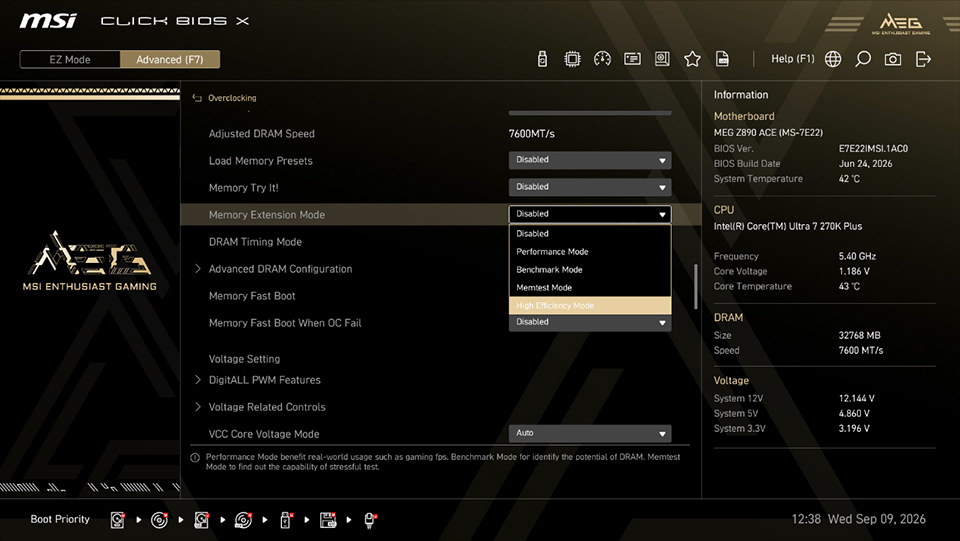
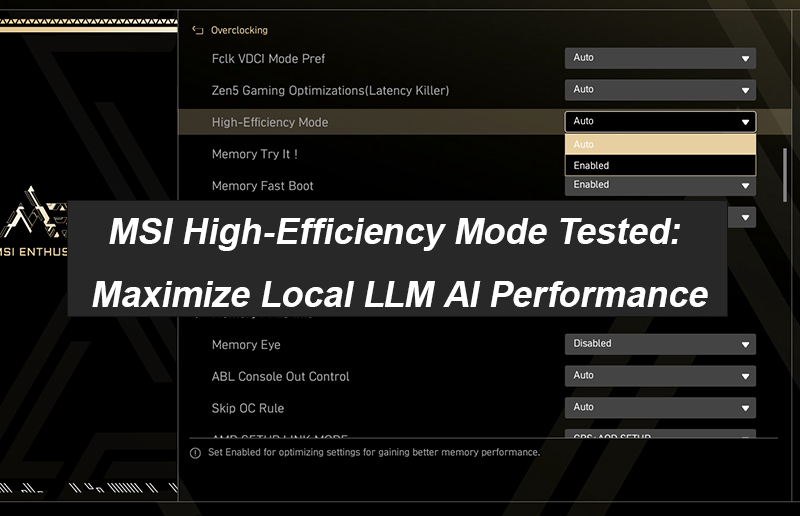
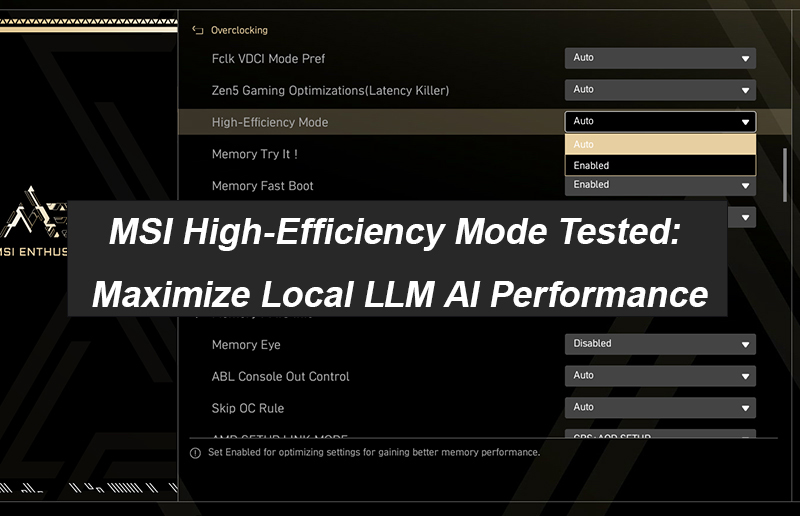
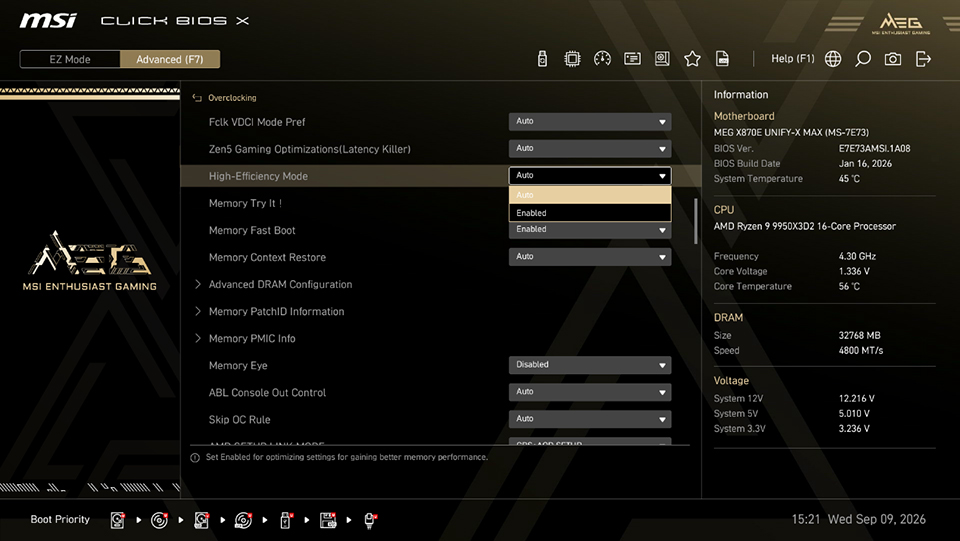
- Switch to Advanced Mode (F7) and navigate to the OC menu.
- Verify that EXPO or A-XMP is enabled.
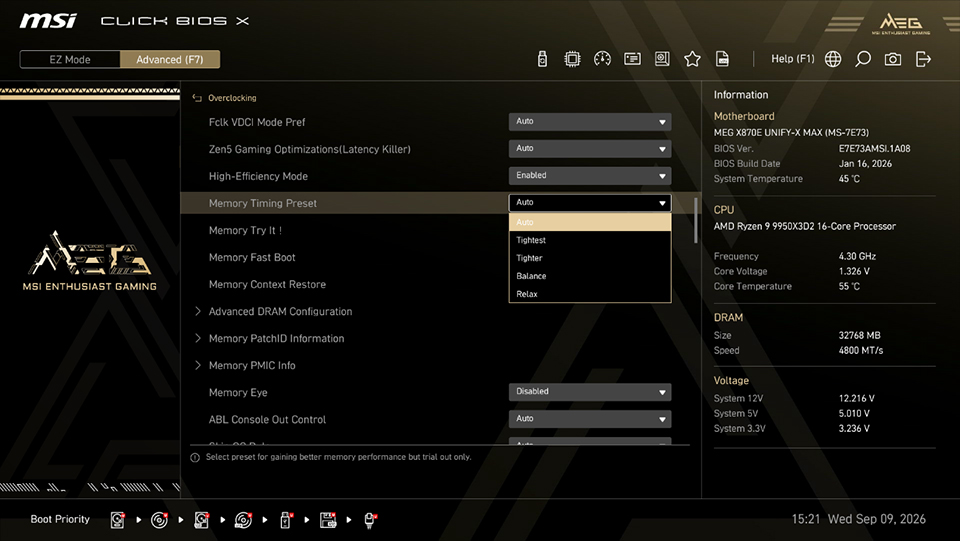
- Locate High-Efficiency Mode and set its status to Enabled.
- The Memory Timing Preset option will appear below, allowing you to select presets: Relax, Balance, Tighter, or Tightest. The benchmark data in this article was tested using the Tighter mode.
On Intel Platforms:
- Press the Del key continuously during system startup to enter the BIOS interface.
- Switch to Advanced Mode (F7) and navigate to the OC menu.
- Verify that XMP is enabled.
- Locate Memory Extension Mode, and select High-Efficiency Mode.