
When connect to an external monitor using an HDMI/DP/Type C cable, abnormal display appears.
This article will show you how to troubleshoot when connect to an external monitor using an HDMI/DP/Type C cable, abnormal display like mentioned below appears: flashing screen, blurred screen, black screen or the refresh rate and resolution are below expectations.
- Issues with the graphics card driver
- BIOS update
- Cross-test determination
- External monitor refresh rate and resolution abnormalities
Issues with the graphics card driver
External monitor abnormalities may be caused by issues with the graphics card driver. Try to update or clean-install the graphics card driver.
For the Nvidia graphics card, refer to:
[How To] NVIDIA graphics driver Clean Install/Update
For the AMD graphics card, refer to:
[How To] Clean Install/Upgrade AMD Graphics Driver and Radeon Software
For the Intel graphics card, refer to:
[How To] Intel graphics driver Clean Install/Update
Note: It is recommended that you install the graphics driver corresponding to the model provided on the MSI website. Newer versions may have unexpected issue as they have not been tested by MSI for compatibility and stability.
Update BIOS
Refer to How to update BIOS? and update the BIOS to the latest version. Check whether the display abnormalities have been excluded.
Cross-test determination
If conditions allow, perform a cross test and rule out the following issues:
1. Issues with the external monitor.
Try to connect to the external monitor the same way other devices are connected. Check whether there is the same display abnormality. If so, the issue could be the external monitor itself.
2. Issues with the laptop I/O port
If the laptop has more than one screen output interface, try to replace the interface and cable and output them to the same external monitor to check whether the display abnormality persists. If not, the issue could be caused by laptop interface damage.
3. Issues with adaptors and cables
If you have other cables sharing the same interface, try to use this alternative cable and connect it to the output screen of the same interface. Check whether the abnormality persists. If not, the issue could be caused by a defective cable.
If an adaptor is used to output the screen (such as HDMI to DVI), try to remove or replace the adaptor to see whether the issue has been excluded.
If the screen abnormality has been found to be caused by a defective laptop I/O interface after the above cross-test determination, send the unit to the nearest MSI service location for repair.
Abnormal refresh rate and resolution of the external monitor
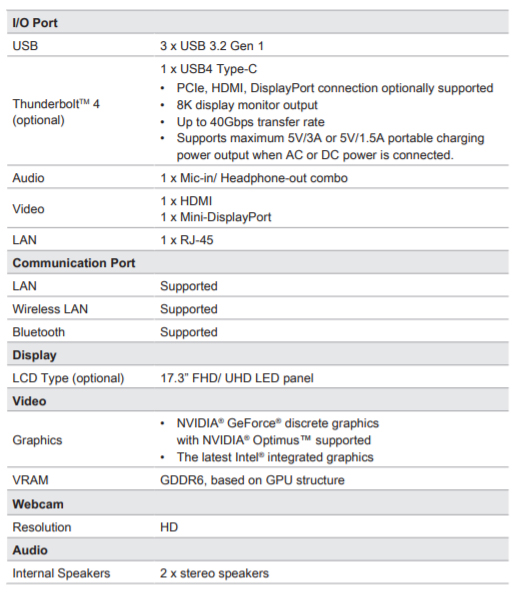
If the refresh rate and resolution are less than expected, visit the MSI website and check the output interface specifications of the model. Also verify whether the cable currently in use meets the requirements for use.
GP76 Leopard is used as the example here.
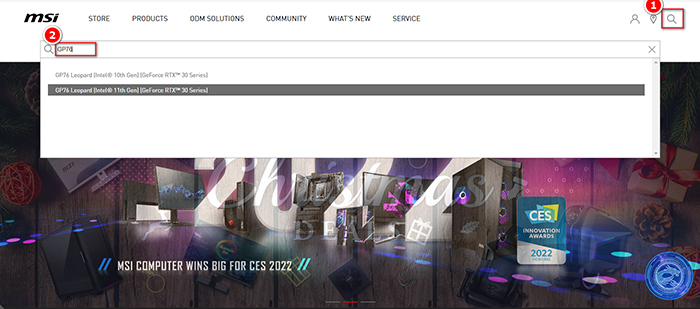
1. First, open the MSI website. Click “Search” and search the model name "GP76 Leopard".
2. Find the model to search and click "Specification".
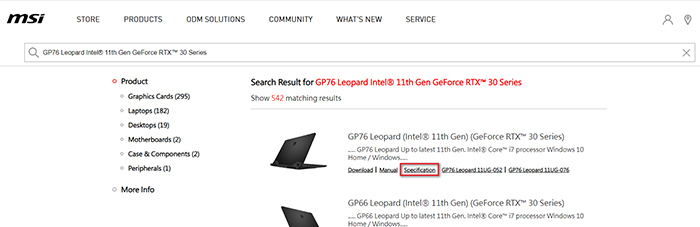
3. View the interface specifications of the model output on the product specification page. Verify whether the corresponding cable is supported.
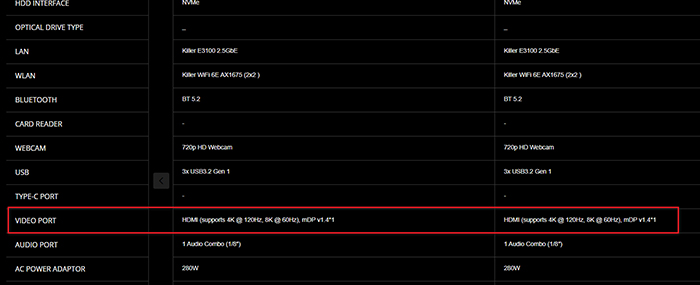
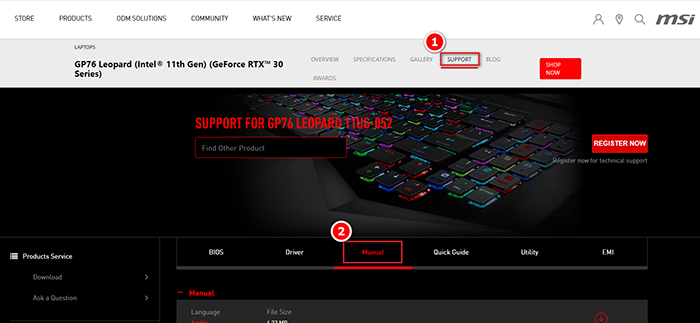
For more information, click "Technical Support", → "Manual". Download the product manual for the model to view more detailed descriptions of the model.