How to Use Curve Optimizer to Lower Ryzen 9 9950X3D Temperatures and Boost Performance
Motherboards
AMD Precision Boost 2 technology dynamically adjusts processor frequency based on factors like processor temperature, workload, firmware, and software settings. In general, lower temperatures and lighter workloads result in higher frequencies and better performance.
Appropriately reducing voltage not only helps lower temperatures but also increases clock speeds and overall performance.
Curve Optimizer allows users to tweak the processor’s voltage/frequency curve to reduce voltage. It supports adjustments for all cores, individual CCDs (Per CCD), or individual cores (Per Core).
Lowering Ryzen 9 9950X3D Temperatures and Boosting Performance with Curve Optimizer
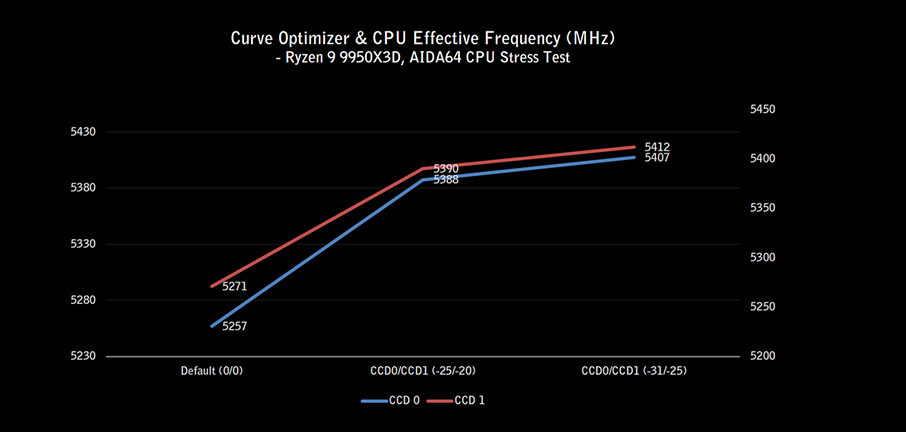
Take the Ryzen 9 9950X3D as an example. The CCD 0 (first CCD) with AMD 3D V-Cache has a slightly lower effective frequency than CCD 1 (second CCD).
Using Curve Optimizer’s Per CCD mode, different parameters can be set for CCD 0 and CCD 1 to reduce voltage and temperature, and improve overall performance.
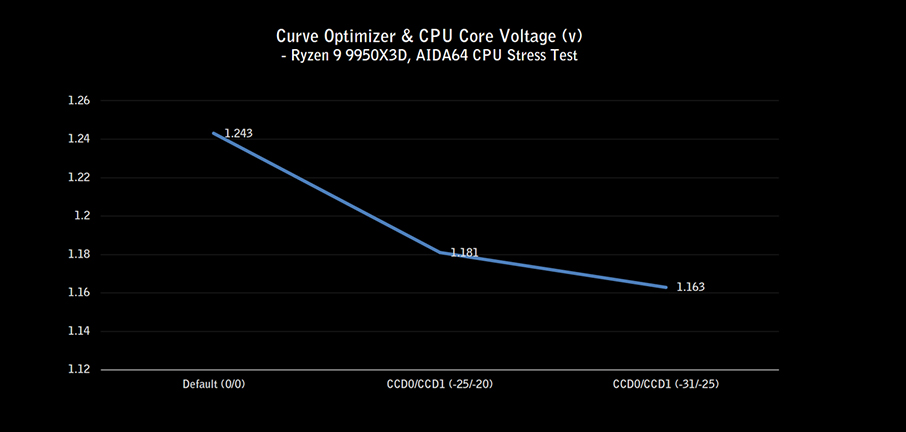
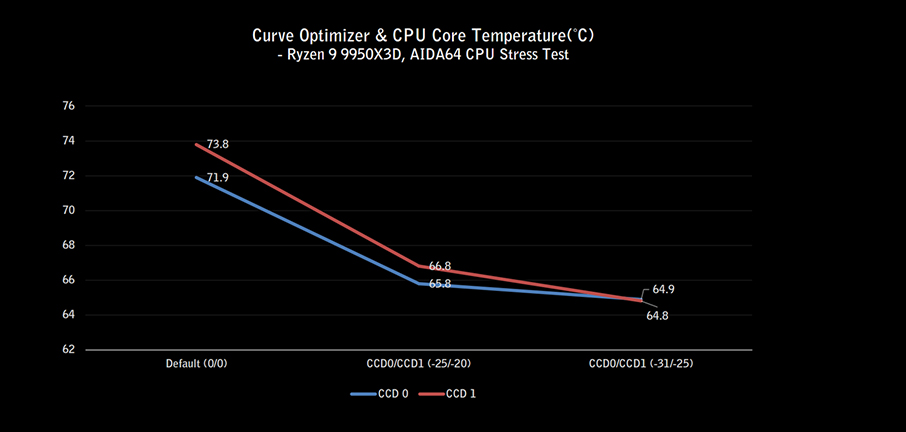
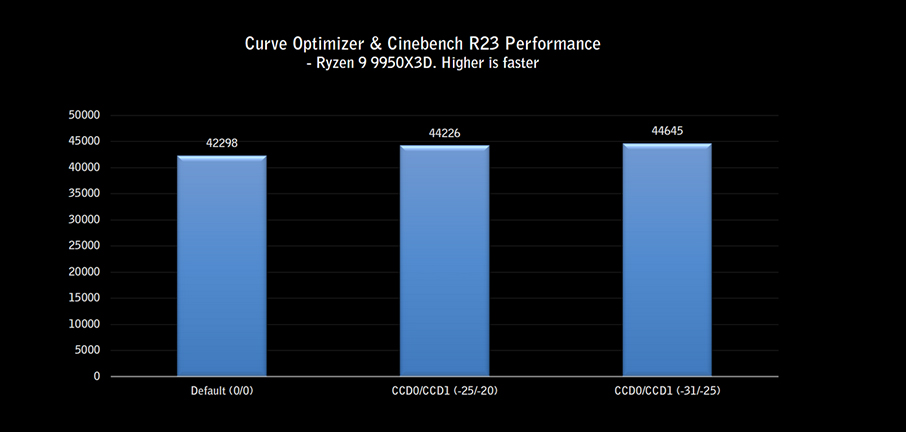
Below are the test results for different Curve Optimizer settings, including temperature and effective frequency in AIDA64 CPU stress tests, as well as Cinebench R23 performance:
- A positive Curve Optimizer value increases voltage; a negative value reduces voltage.
- For example, using -25/-20 and -31/-25 (for CCD 0 / CCD 1 respectively), we observed a gradual temperature drop and an increase in effective frequency.
- With the -31/-25 setting, Cinebench R23 performance improves by around 6% compared to default settings.
How to Use Curve Optimizer to Reduce Voltage
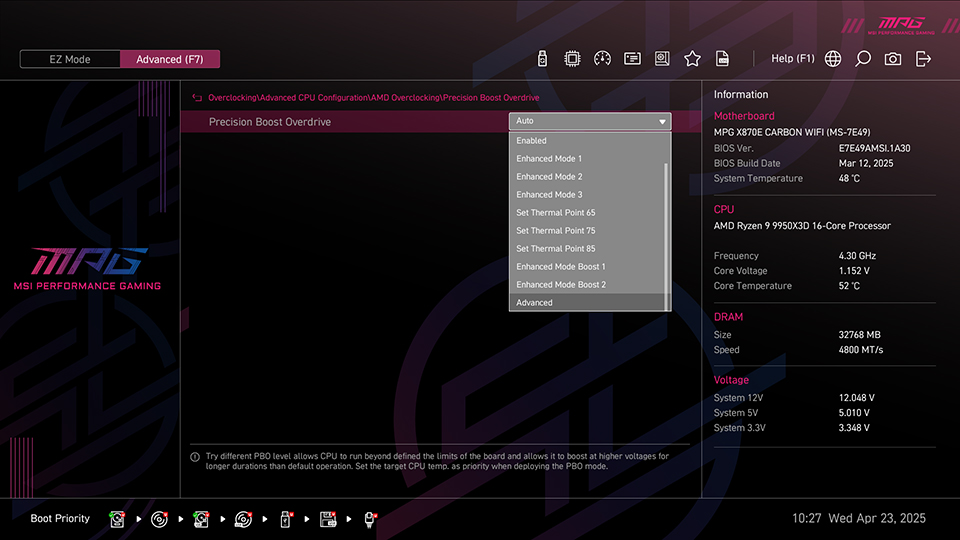
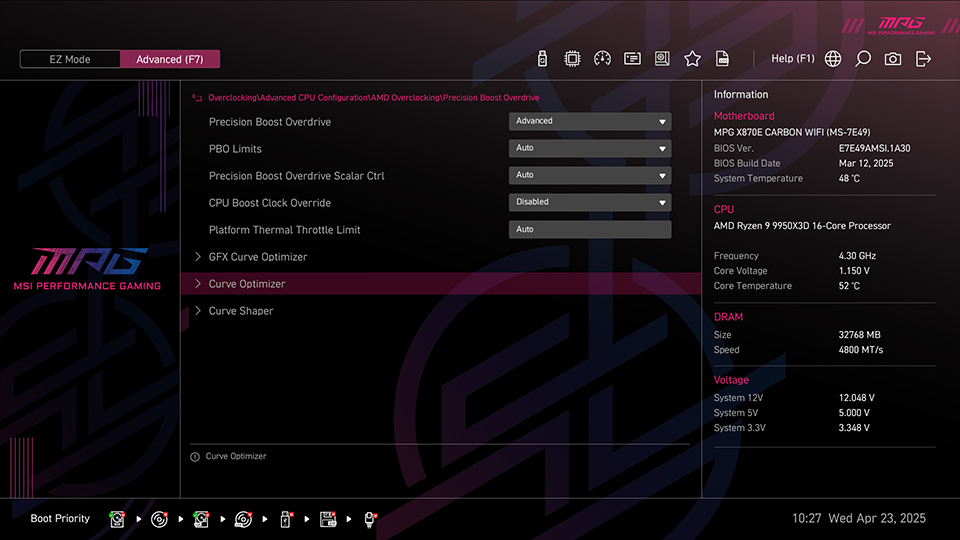
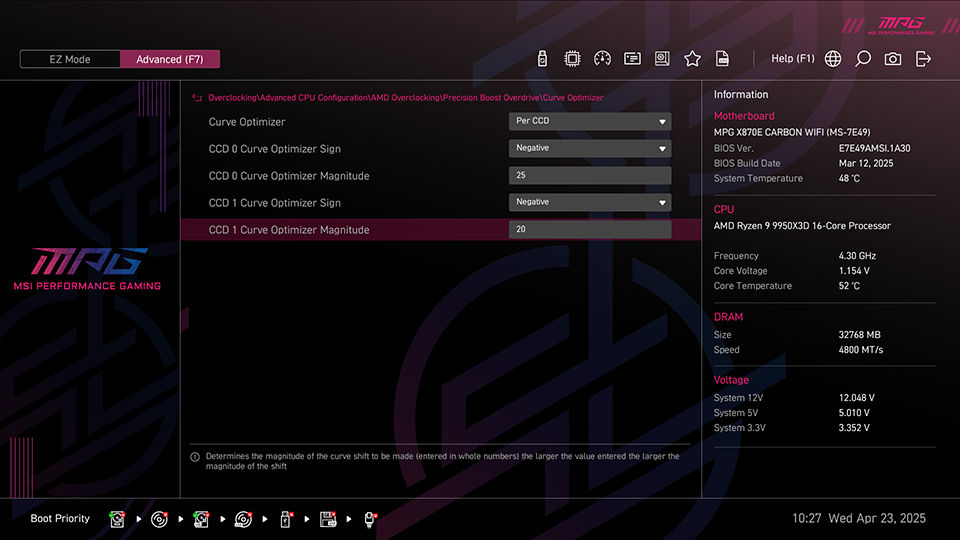
Here’s how to configure Per CCD mode in MSI Click BIOS X:
- Enter the BIOS, navigate to Overclocking\Advanced CPU Configuration\AMD Overclocking\Precision Boost Overdrive, and select Advanced.
- Go to the Curve Optimizer menu, choose Per CCD mode to adjust voltage for each CCD individually.
- Set CCD 0/CCD 1 Curve Optimizer Sign to Negative (negative value).
- Enter a value in CCD 0/CCD 1 Curve Optimizer Magnitude, adjusting incrementally based on system stability.
Notes:
- Curve Optimizer involves processor voltage adjustments and may lead to system instability.
- Stability varies depending on individual processor; gradual tuning and stability testing are recommended.
- Performance results may differ based on system settings and hardware configuration.
Test System Configuration
- Processor: AMD Ryzen 9 9950X3D
- Motherboard: MSI MPG X870E CARBON WIFI
- Memory: DDR5-4800 16GB x2
- SSD: Kingston SNV2S/2000G
- CPU Cooler: MSI MAG CORELIQUID I360
- Power Supply: MSI MEG Ai1300P PCIE5
- Operating System: Windows 11 24H2 (Power Mode: Balanced)
MSI X870E/X870/B850/B840 Gaming Motherboards:
https://www.msi.com/Landing/amd-am5-x870e-x870-b850-b840-ryzen-9000-x3d-best-ai-gaming-motherboard
https://www.msi.com/Landing/amd-am5-x870e-x870-b850-b840-ryzen-9000-x3d-best-ai-gaming-motherboard