MSI AI Engine Tutorial.
Desktops
2024 is the AI PC era. MSI prepares the AI-ready hardware and software for users to adapt the AI services and functions coming. We first announce the MSI AI Gaming Desktop lineup and show you the AI capabilities of our products. And then we guide you on how to run the generative AI, Stable Diffusion on MSI AI Gaming Desktop. Today we are going to show you how to use our exclusive AI application, MSI AI Engine. To enhance user experience in various user scenarios by automatically optimizing desktop PC settings.
1. Install MSI AI Engine
There are two ways to install MSI AI Engine, manually install or auto-update by Microsoft Stores then install MSI AI Engine in feature sets in MSI Center. If Microsoft Stores doesn’t update your MSI Center, please use the link below to directly update your MSI Center.
MSI Center: Link
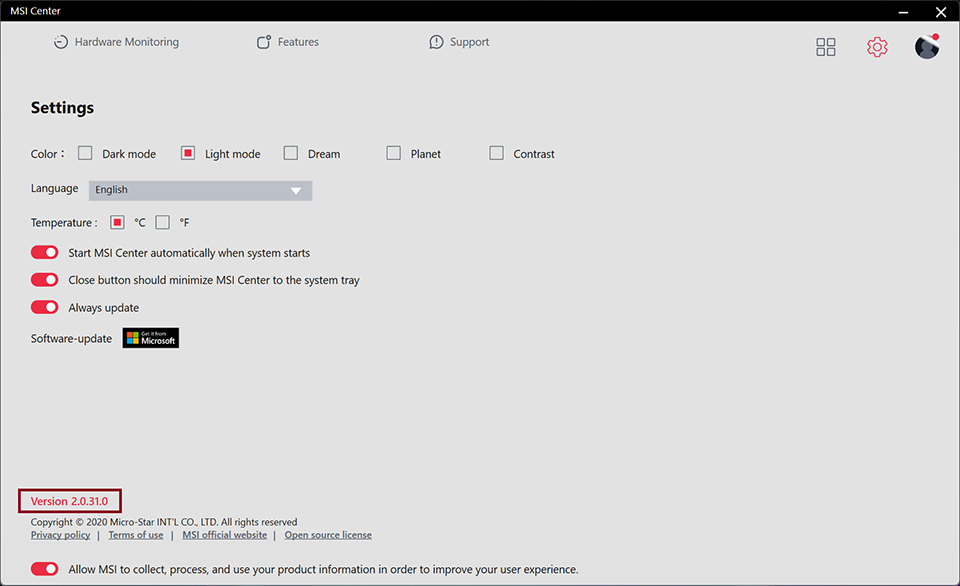
After updating MSI Center, the version should be 2.0.31.0.
Once finish updating MSI Center, click Feature Sets you will find the MSI AI Engine function available to install.

Click the Feature Sets icon in the right top corner, it will show you all MSI-exclusive functions. Then start to install MSI AI Engine.
2. Activate AI Engine
You just need a simple click to activate MSI AI Engine. The AI Engine will automatically adjust and apply the settings on your applications. MSI provides four types of adjustments for you. Such as optimizing system performance, RGB settings, audio profile, and display profile to fit in your usage. Moreover, depending on your scenarios you can decide how to perform on the applications. For example, apps link to RGB profiles or boost up performance.

AI Engine: On/Off is the main switch for the AI Engine operation. You can click on or off to control the function of the AI Engine. E.g. Light, Audio, Visual, and Performance can let you apply which application to perform.
Noted: The four types of options are related to MSI software in Feature sets. If you don’t install it, the function icon won’t show up. E.g. Light link to Mystic Light, Audio link to AI Noise Cancellation Pro, Visual link to True Color, and Performance link to User Scenario. Remember to install the application when you want to apply the functions.
So far MSI offers four scenarios, Gaming, Work, Meeting, and Entertainment. When users switch the application windows it will automatically apply the profile we set and also pop up the notice profile to be applied.

The notice icon pops up and tells you which function does AI Engine does when you switch the windows.
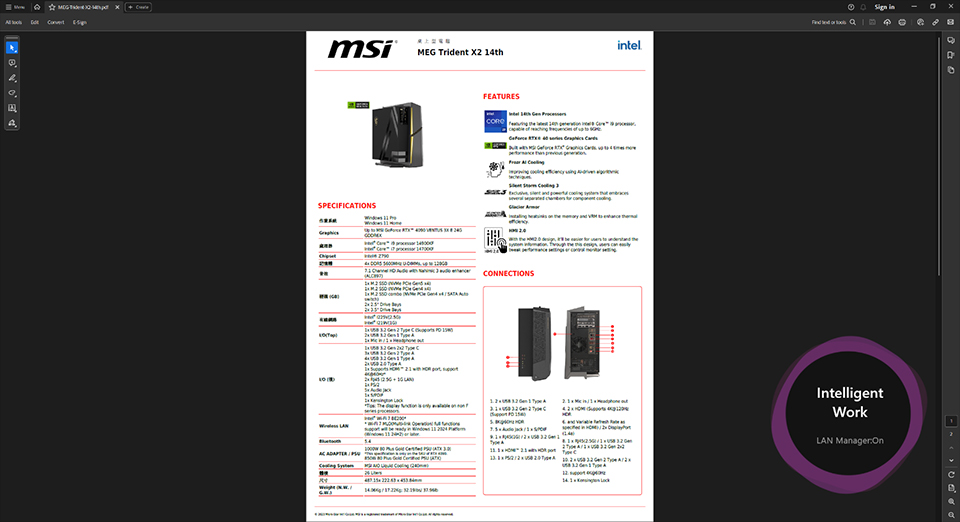
When you switch to PDF reader, it changes to work mode and changes the profile you set.
3. Define your profile
You may think what if the application I used doesn’t support the profile? How can I make MSI AI Engine support the application I use? Don't worry about it, MSI also provides customized applications to fulfill your demand. You can define your application list to the scenarios too. There is a gear icon next to the AI Engine. Click it will pop up the AI Engine configuration. We can add the application to the support list.

The Gear icon next to AI Engine can call the configuration page out like the picture we showed you.
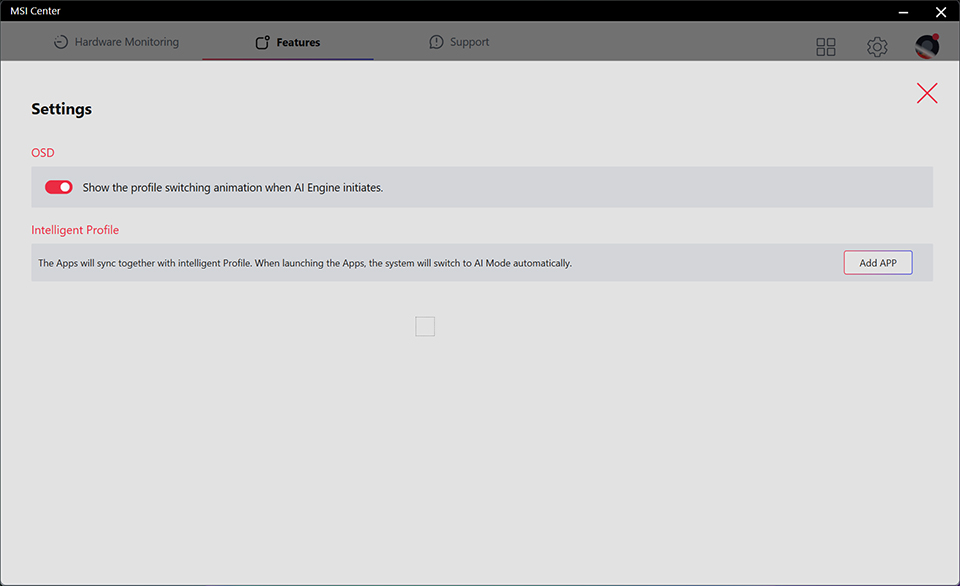
In the OSD notice, you can switch on/off depending on your need. If you don’t want to be disturbed by the notice icon. Just switch it off then it won’t pop up again when the AI Engine operation.
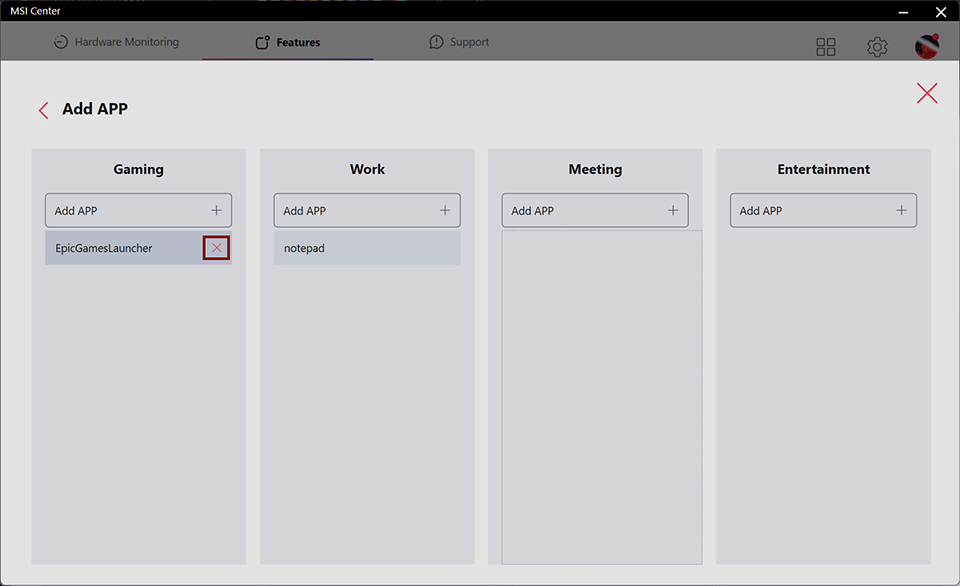
In the intelligent Profile, click “Add APP”. Then we can assign the applications to the scenario items.
If the application we don’t want to apply in the scenario, we also can remove it. Just click the “X” icon to remove from the scenario.
If the application we don’t want to apply in the scenario, we also can remove it. Just click the “X” icon to remove from the scenario.
Finally, if you want to review previous articles about MSI AI Gaming Desktop or How to run Stable Diffusion on MSI Gaming Desktop. You can review the link below for more information. Currently, MSI AI Engine supports all Intel 14th AI Gaming Desktop products.
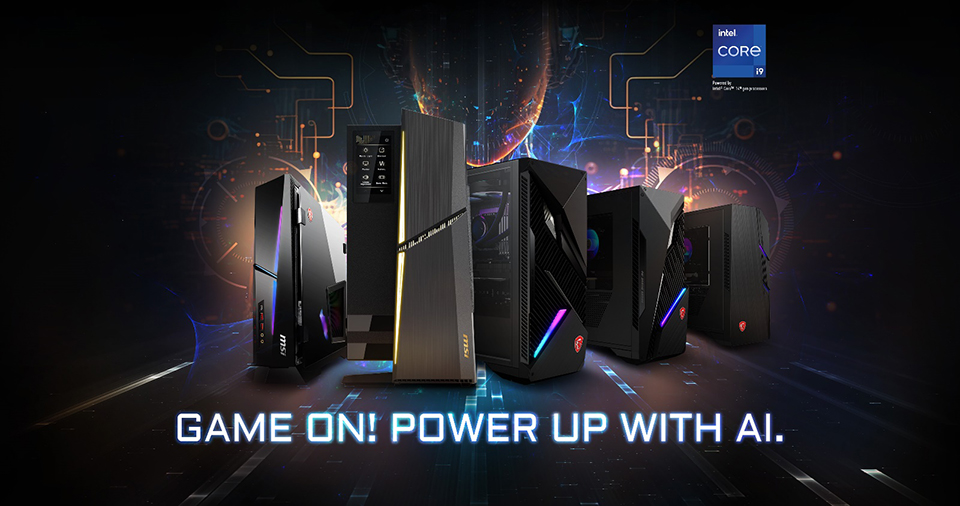
MSI AI Engine Support list
MEG Trident X2 14th: https://www.msi.com/Desktop/MEG-Trident-X2-14th
MPG Trident AS 14th: https://www.msi.com/Desktop/MPG-Trident-AS-14th
MPG Infinite X2 14th: https://www.msi.com/Desktop/MPG-Infinite-X2-14th
MAG Infinite S3 14th: https://www.msi.com/Desktop/MAG-Infinite-S3-14th
MAG Codex 6 14th: https://www.msi.com/Desktop/MAG-Codex-6-14th
MPG Trident AS 14th: https://www.msi.com/Desktop/MPG-Trident-AS-14th
MPG Infinite X2 14th: https://www.msi.com/Desktop/MPG-Infinite-X2-14th
MAG Infinite S3 14th: https://www.msi.com/Desktop/MAG-Infinite-S3-14th
MAG Codex 6 14th: https://www.msi.com/Desktop/MAG-Codex-6-14th