[Game Master] How to solve laptop gaming FPS drop (FPS Drop / Lag / Stuttering) issues
Answer
If you encounter screen stuttering, FPS drops, or system crashes while playing games or running 3D applications, please refer to the following steps for optimization and troubleshooting.
This article applies when the following issues occur:
- Low performance, FPS drop, stutter
- Timeout Detection and Recovery (TDR), Blue Screen of Death (BSoD)
- Game/System freeze, crash
- Flicker, black screen, garbage screen, or other graphics artifacts
- Connection problem, like ping spikes
This article applies to all MSI laptop products.
Troubleshooting methods:
1. Basic Environment Check
a. Verify Hardware Configuration:
If you have upgraded the memory or SSD yourself, please revert to the factory configuration to rule out compatibility issues.
b. Remove External Devices:
Unplug non-essential USB devices (such as webcams or external hard drives) to avoid driver conflicts.
c. Check System Requirements:
Ensure your laptop specifications meet the "Recommended Requirements" suggested by the game developer, rather than just the "Minimum".
2. System and Firmware Updates
a. Update BIOS and EC:
Download the latest versions from the MSI official website to fix known stability issues.
Reference: BIOS, EC update, and EC reset.
b. Execute Windows Update:
Ensure the system patches are updated to the latest version to optimize system performance.
c. Clean Install Graphics Drivers:
Clean install graphics drivers to the latest version on the MSI website. If the problem is not resolved, it is recommended to download and install the latest generic drivers from the NVIDIA, Intel, or AMD official websites to obtain the latest fixes and new feature support.
Reference:
i. Intel Graphics Driver Clean Install
ii. NVIDIA Graphics Driver Clean Install
iii. AMD Graphics Driver Clean Install
d. Reinstall or Update Games:
FPS drops or low performance may be related to game files or update patches not being installed correctly. It is recommended to try removing and reinstalling using the latest game installation files.
3. Performance Settings
a. Windows:
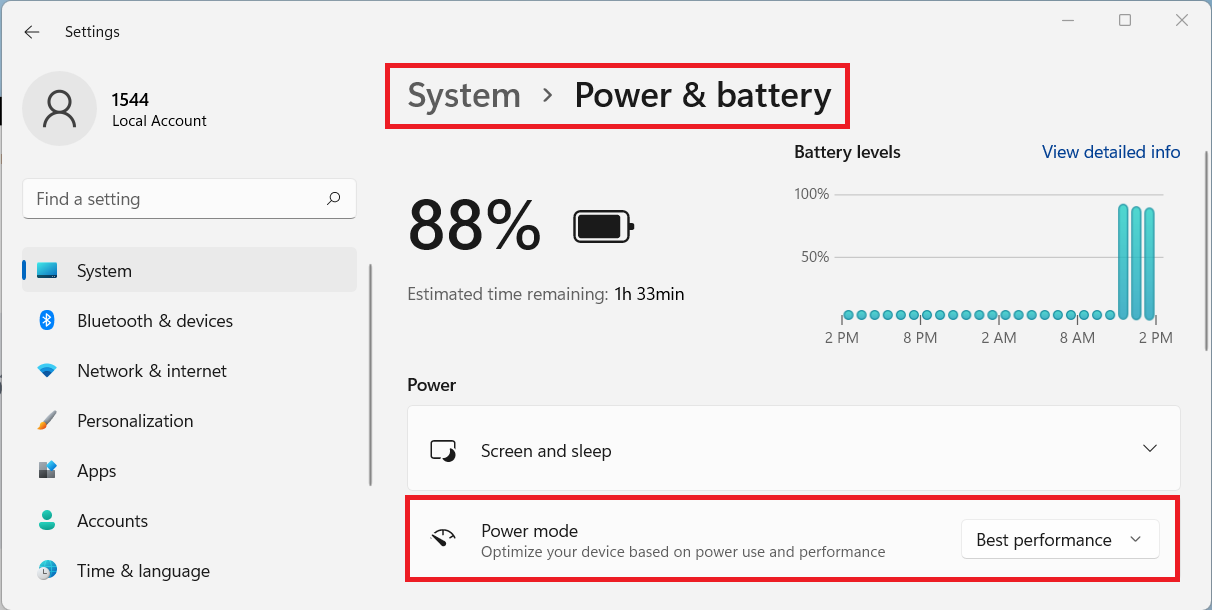
Enable Best Performance Mode: Go to Settings > System > Power & battery > switch Power mode to Best performance.
b. Disable Core Isolation:
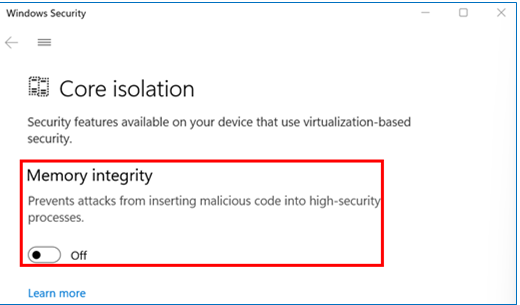
Search for Core Isolation and turn off the Memory Integrity feature, then restart. (For more information, please refer to [How To] Run Virtual Machines with Intel Virtualized VT-x/EPT)
c. Connect Power Adapter:
Always plug in the original power adapter while gaming to ensure the CPU and GPU can operate at high frequencies.
d. MSI Center:
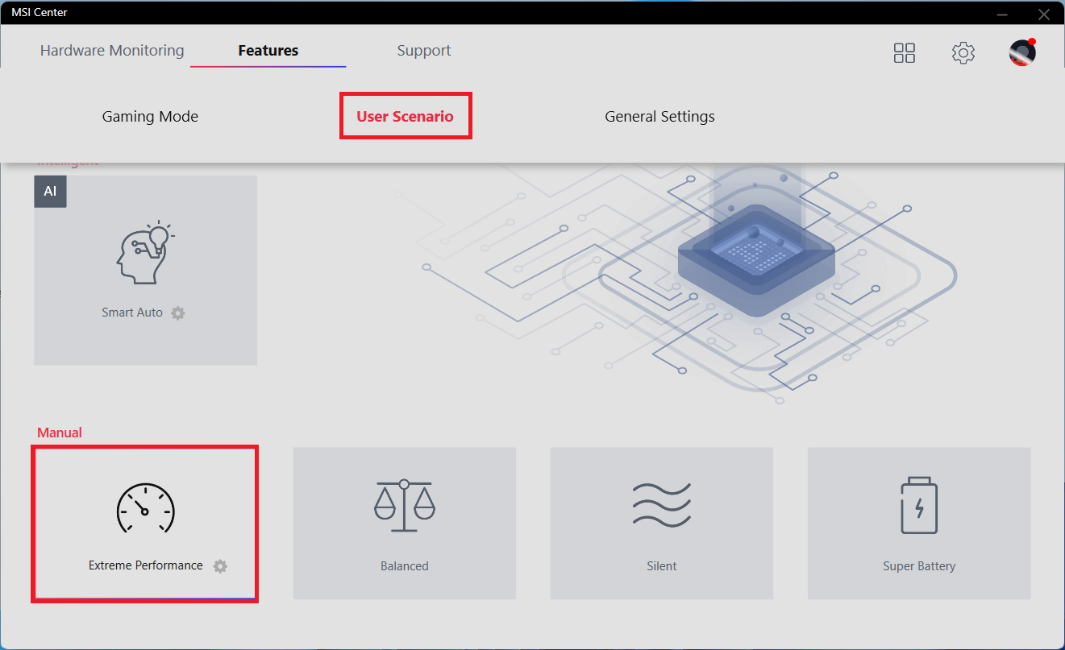
Set User Scenario to "Extreme Performance/High Performance".
4. Graphics Card Optimization Settings (NVIDIA)
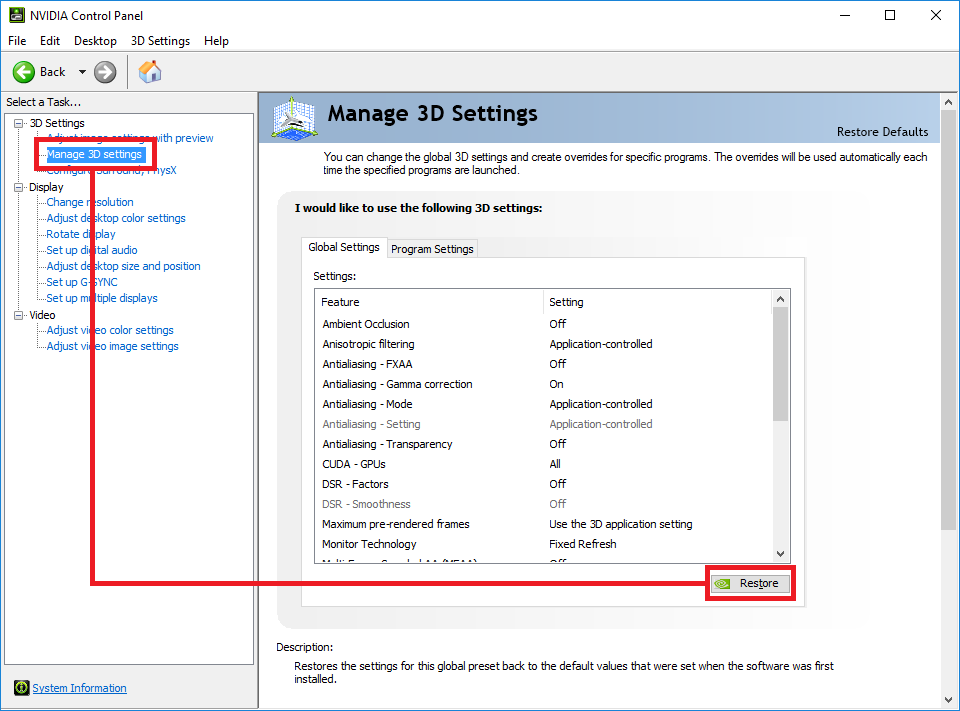
a. Restore NVIDIA Graphics Settings:
Revert graphics card settings to avoid performance instability caused by conflicting settings within games or software.
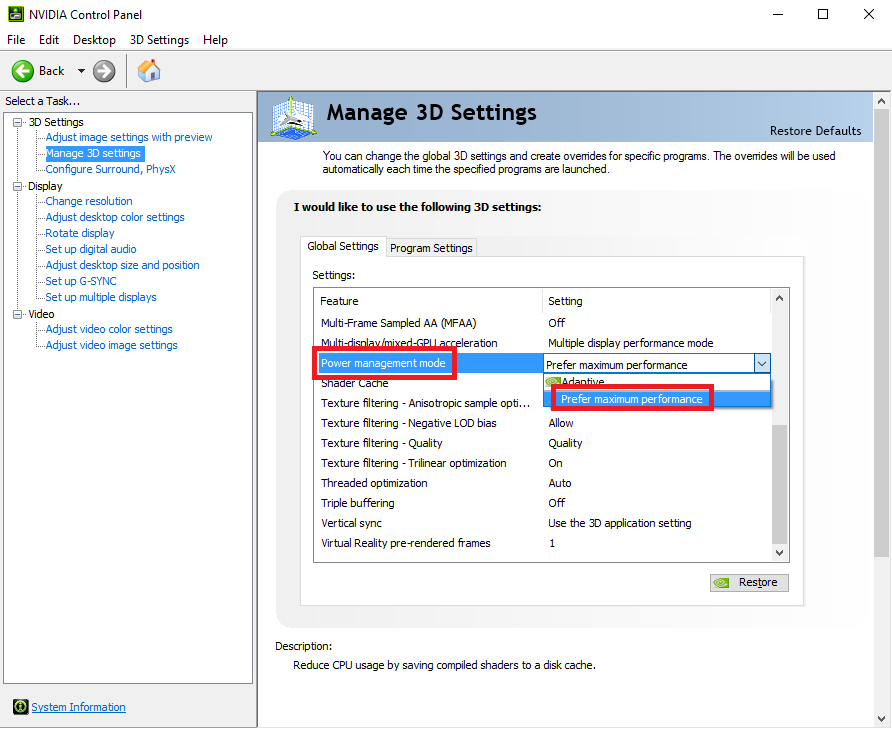
b. Prefer Maximum Performance:
Set Power management mode to Prefer maximum performance to achieve maximum performance.
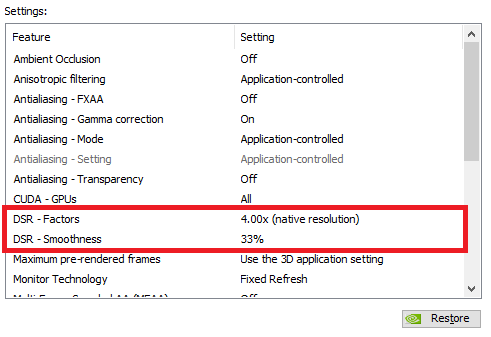
c. Disable NVIDIA DSR / DLDSR.
Check the graphics settings and ensure the resolution is set to the display panel's native resolution. If DSR or DLDSR is enabled, please disable it in the NVIDIA settings and restore the resolution to the native value.
*Note: Depending on the driver version and NVIDIA App updates, DSR-related settings may appear as DLDSR or may be in different sections of the NVIDIA Control Panel or NVIDIA App. If you cannot find this option, please skip this step.
d. Set Discrete Graphics Card:
Switch to dGPU mode in MSI Center (For more information, please refer to [How To] Graphics Driver Installation Guide for Multiple Graphics Platform, or assign the game program to use the High performance discrete graphics card (dGPU) in Windows settings, .
e. Disable V-Sync Setting:
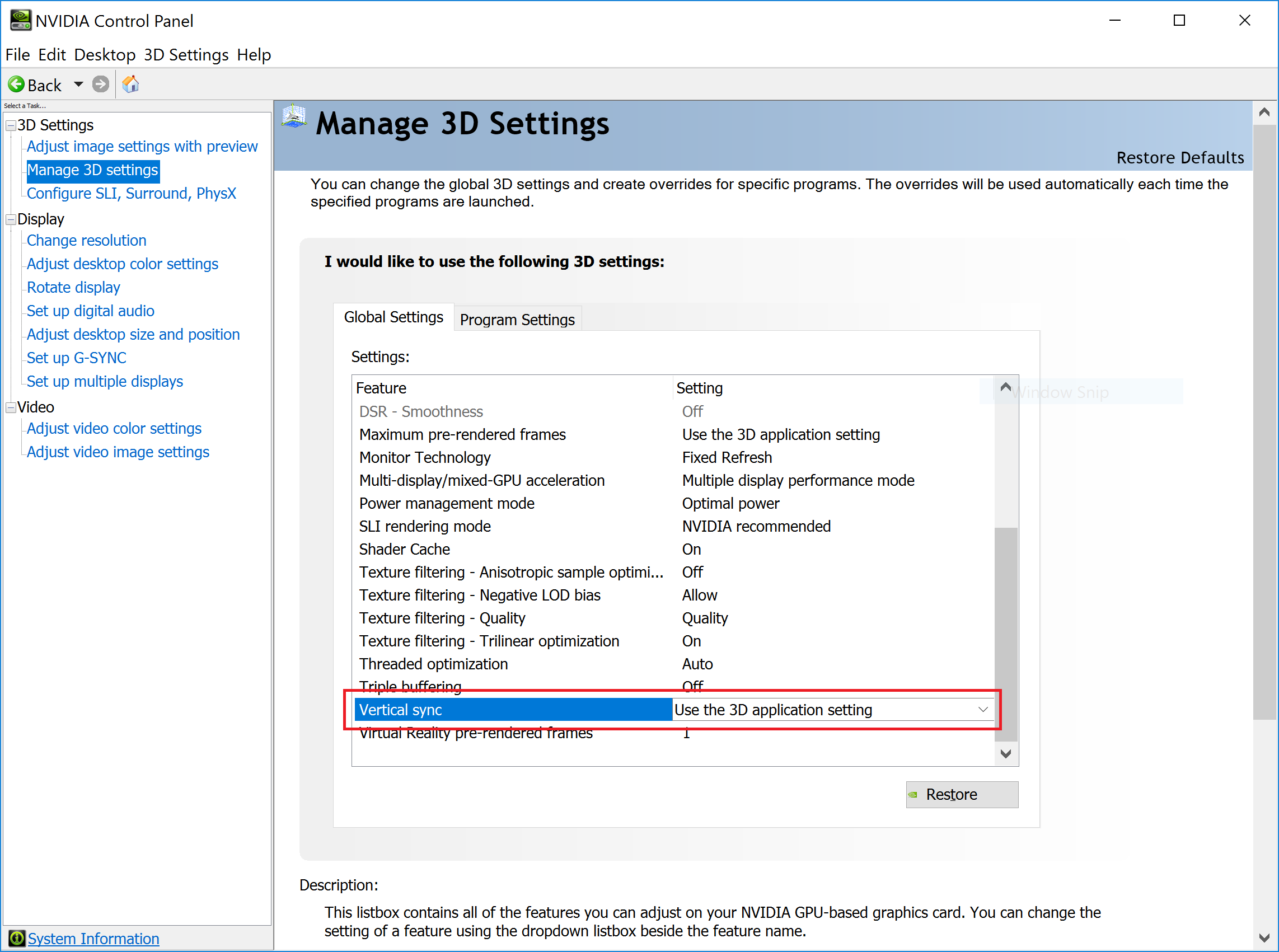
f. Adjust NVIDIA G-SYNC Settings:
Certain games may have compatibility issues with NVIDIA G-SYNC, causing game stuttering, black screen flickering, etc. If the laptop supports G-SYNC and has these issues, try turning off G-SYNC in the NVIDIA Control Panel.
Reference:
i. How to enable/disable NVIDIA G-SYNC
ii. Identifying if a laptop supports NVIDIA G-SYNC
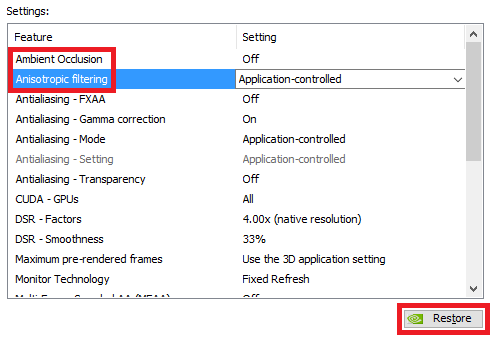
g. Other Display Settings: Ambient Occlusion, Anisotropic Filtering, and Anti-Aliasing may have negative effects on FPS and display stability; it is recommended to restore them to default settings.
5. Disable Background Recording and Overlay Features
a. Disable Xbox Game Bar: Run a game > Press Win key + G > "Settings" > "Capturing" > uncheck “Record in the background while I’m playing a game”.
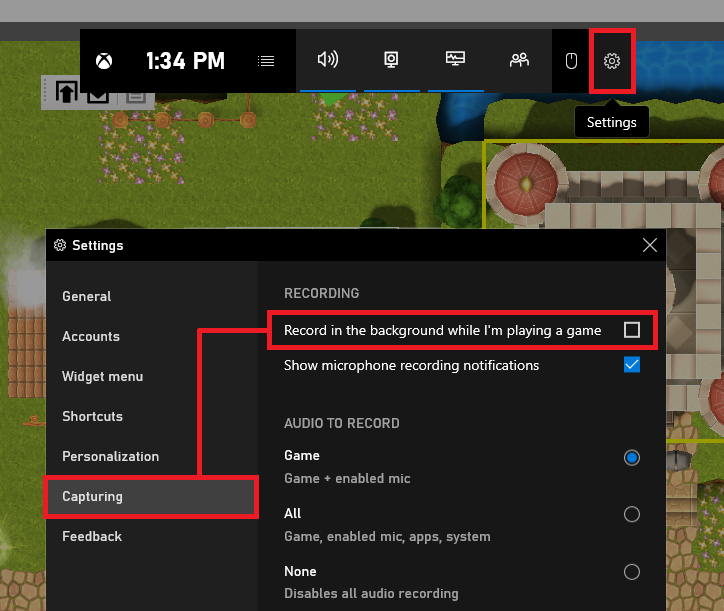
b. Disable Application Overlays: Close non-essential overlay window interfaces in Steam, Discord, or other programs.
6. Confirm Network Connection: Network connection issues affect the connection between the system and game servers, which may cause LAG, ping spikes, or screen latency issues.
a. Confirm the current game server status.
b. Switch to a wired network.
FAQ
Q: Will disabling V-Sync increase FPS?
A: V-SYNC improves image stability by setting the frame rate (FPS) to match the screen's refresh rate. When enabled, the FPS is usually limited to the monitor’s refresh rate, which may result in a feeling of low performance. If V-SYNC is turned off, FPS will not be limited, but you may encounter screen tearing. Please adjust this option according to your needs.
Q: Why can turning off Memory Integrity improve performance?
A: Although the feature improves security, it consumes system resources. Turning it off can optimize game and benchmark performance.
Q: How to get the best game connection quality?
A: Prioritize using a wired network for connection to avoid latency (Ping spikes) caused by wireless signal interference.
Q: Why do laptops experience FPS drops during gaming?
A: Common causes include:
1. Outdated or abnormal graphics drivers
2. Games not using the discrete graphics card (dGPU)
3. Background processes consuming resources
4. Power modes limiting performance
5. Improper game or display settings.
Q: Why does my FPS drop when an Overlay is turned on?
A: It mainly comes down to two reasons:
1. Extra workload for the GPU: Your graphics card is already working hard to render the game. When an overlay is active, the GPU has to spend extra power to draw the interface on top of the game.
2. Resource competition: An overlay is a background program that uses your CPU and memory to process data (like chat messages or system stats). This takes away resources that would otherwise be used to run your game smoothly.