

[Notebook] Blue Screen and Screen Freeze During Gaming
There are many reasons for a computer to experience a blue screen crash, including software or hardware issues. This article will provide troubleshooting directions and possible solutions for dealing with blue screen crashes and screen freezes.
- Verify the Game's Recommended Hardware Configuration
- Confirm Power Connection and Settings
- Reinstall Graphics Card Drivers
- EC Reset
- Update BIOS and Run Windows Update
- Use Event Viewer for Targeted Troubleshooting
- System Restore
Verify the Game's Recommended Hardware Configuration
Visit the relevant game website and check the recommended hardware configuration. If the recommended configuration is significantly higher than that of your notebook, crashes are likely to occur. It is recommended to use a notebook with higher specifications for gaming.
Confirm Power Connection and Settings
1. Check the battery icon in the bottom right corner to ensure that your notebook is connected to power throughout the gaming session.

2. If the "not connected to power" icon appears during gaming, check if the adapter is the one provided by the manufacturer and is properly connected.

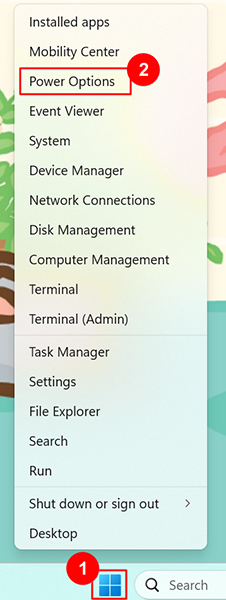
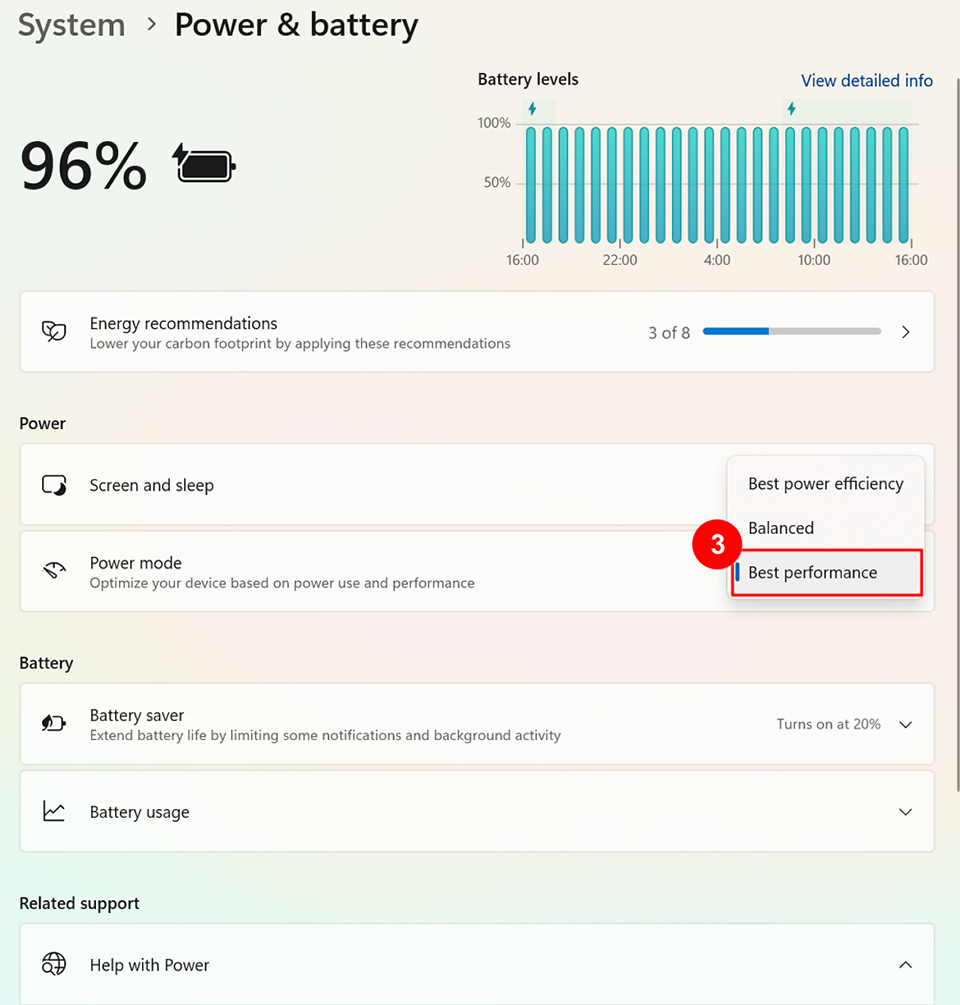
3. Right-click on the Windows icon, choose "Power Options" → "Power mode" → "Best performance."
Reinstall Graphics Card Drivers
Refer to the following articles to reinstall graphics card drivers:
For NVIDIA graphics cards:
[How To] NVIDIA graphics driver Clean Install/Update
For AMD graphics cards:
[How To] Clean Install/Upgrade AMD Graphics Driver and Radeon Software
For Intel graphics cards:
[How To] Intel graphics driver Clean Install/Update
EC Reset
Please refer to [Notebook] How to Reset Embedded Controller (EC reset) to reset the EC of the device and then confirm whether the problem is resolved.
Update BIOS and Run Windows Update
Updating BIOS and Windows packages often helps resolve known issues and optimize system performance. Please ensure that your notebook is running the latest versions regularly.
Please refer to:
[Notebook] How to update BIOS?
Notebook] How to Update the Windows Operating System?
If the BIOS and Windows packages are up to date but the issue persists, please continue troubleshooting.
Use Event Viewer for Targeted Troubleshooting
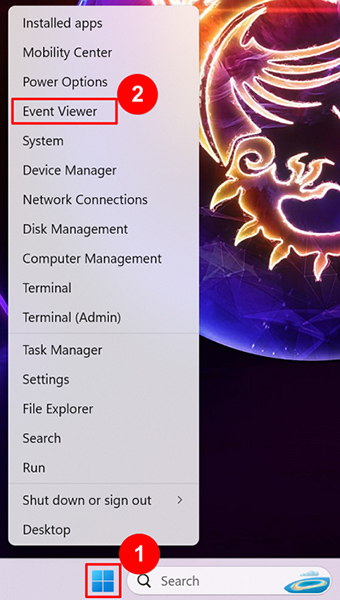
1. Note the time of the crash, right-click on "Start," and open "Event Viewer."
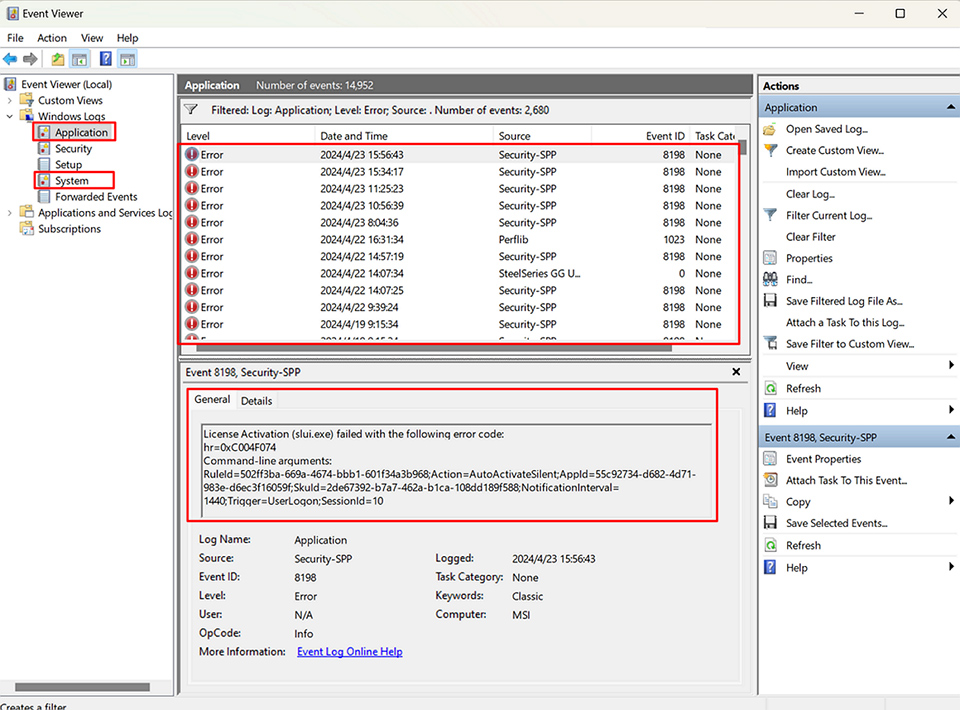
2. Click on the "Application" and "System" categories on the left to check if Event Viewer recorded any relevant applications, drivers, or other causes of the crash at that time. If issues are identified, attempt targeted troubleshooting by addressing potential causes through deletion, updating, or reinstallation.
System Restore
If the problem persists, please refer to [Notebook] How to restore the default factory system through F3 Recovery? to restore the system to its factory settings.
If you still can't resolve the issue after following these steps, please contact MSI customer service for further assistance.
Reference Information and Related Articles
[How To] NVIDIA graphics driver Clean Install/Update
[How To] Clean Install/Upgrade AMD Graphics Driver and Radeon Software
[How To] Intel graphics driver Clean Install/Update
[Notebook] How to Reset Embedded Controller (EC reset)
[Notebook] How to update BIOS?
[Notebook] How to Update the Windows Operating System?
[Notebook] How to restore the default factory system through F3 Recovery?